How to Virtually Stage a Whole Listing in One Go (Screenshots)
A real 13-photo listing staged in one sitting: one upload, one house style, one click for every room, a portal-ready export with the disclosure built in.
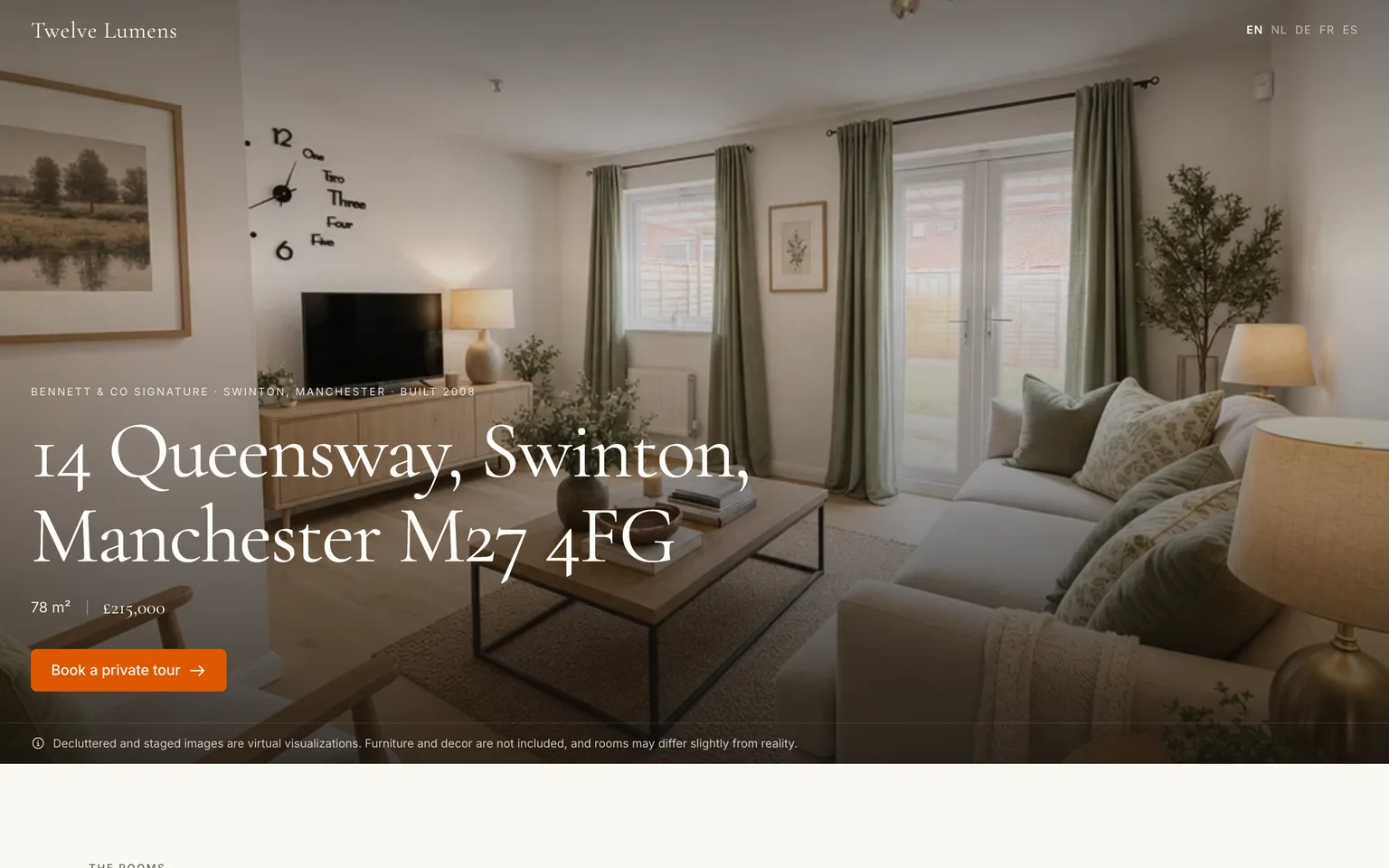
Virtual staging stops being worth the effort the moment you have to do it photo by photo: pick a room, pick a style, wait, download, repeat twenty times, then explain to the seller why the kitchen looks different from the living room. This tutorial shows the workflow that avoids all of that. We took a real vacant three-bed in Swinton, Greater Manchester, 13 photos straight from the portal, and staged the whole listing in one sitting: one upload, one house style, one click for every room, one ZIP with the disclosure already in the image. Screenshots of every step below.
If you are new to the technology itself, how AI virtual staging works covers the basics. This article is about doing it at listing scale.
What you need
- The listing photos, as shot. JPEG, PNG, WebP or HEIC from the photographer's camera or your phone, up to 20 MB each.
- Five minutes of attention at the start and five at the end. The renders run on their own in between.
- A free account: the first five images are free, which covers a test on one room before you commit a whole listing.
Step 1: Create the listing
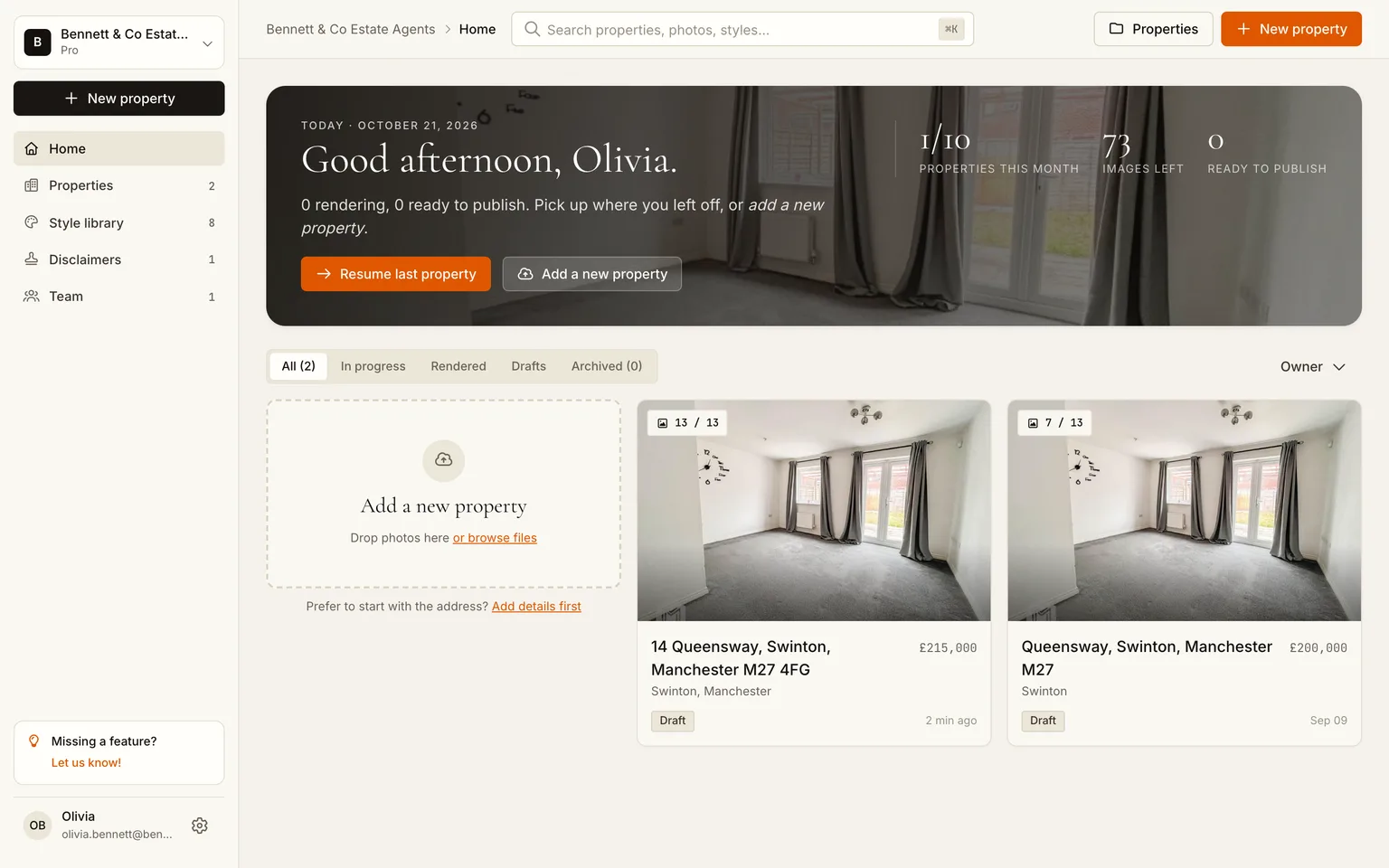
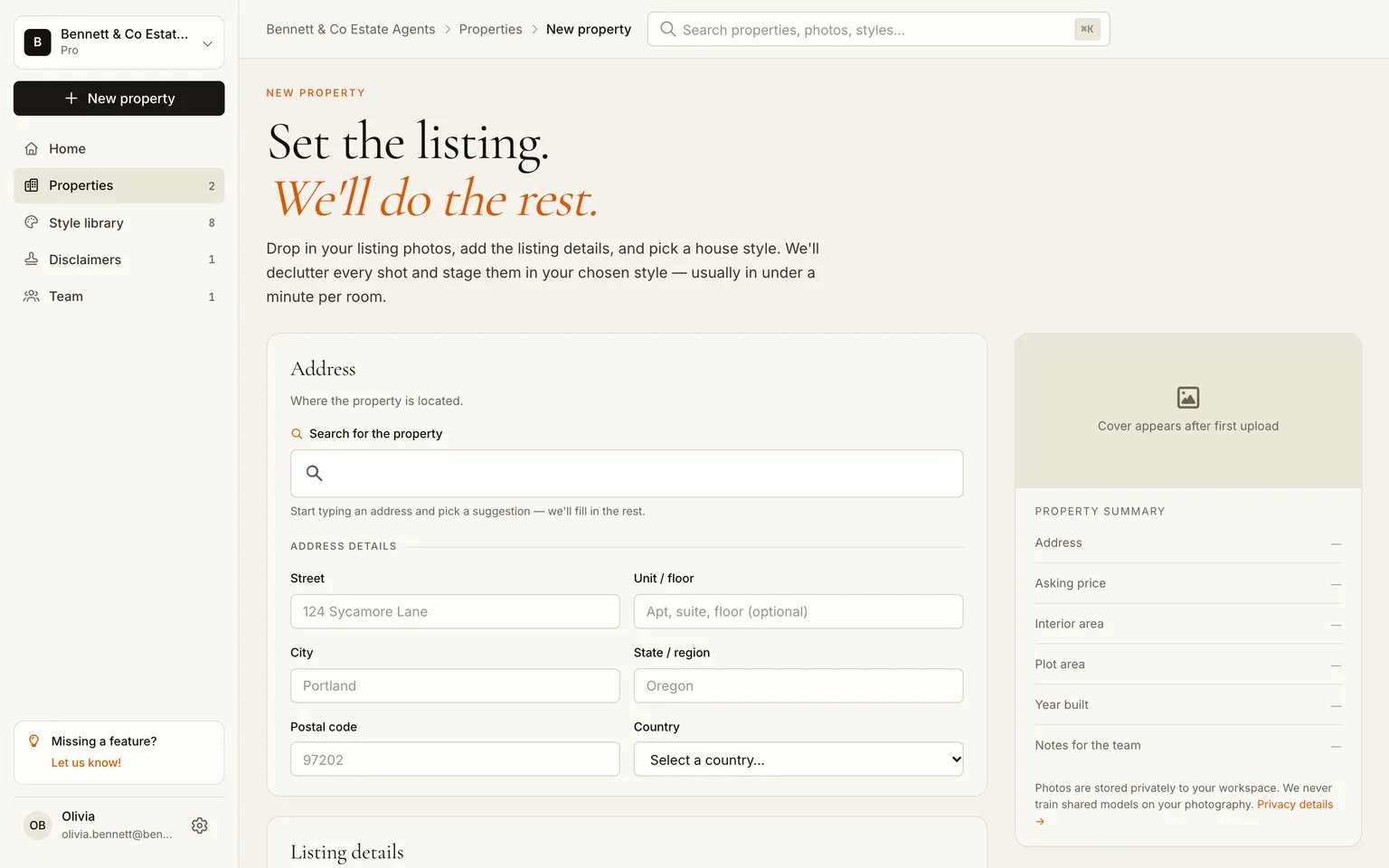
From your workspace home, click New property and fill in the address and the asking price. Everything else is optional and can be filled in later.
Step 2: Upload every photo at once
On the new listing's page click Add photos and select the whole shoot. The files upload one after the other and the app sorts each photo into its room as it lands: living room, kitchen, bedrooms, hallway. Thirteen photos took under a minute to upload and about a minute to analyse.
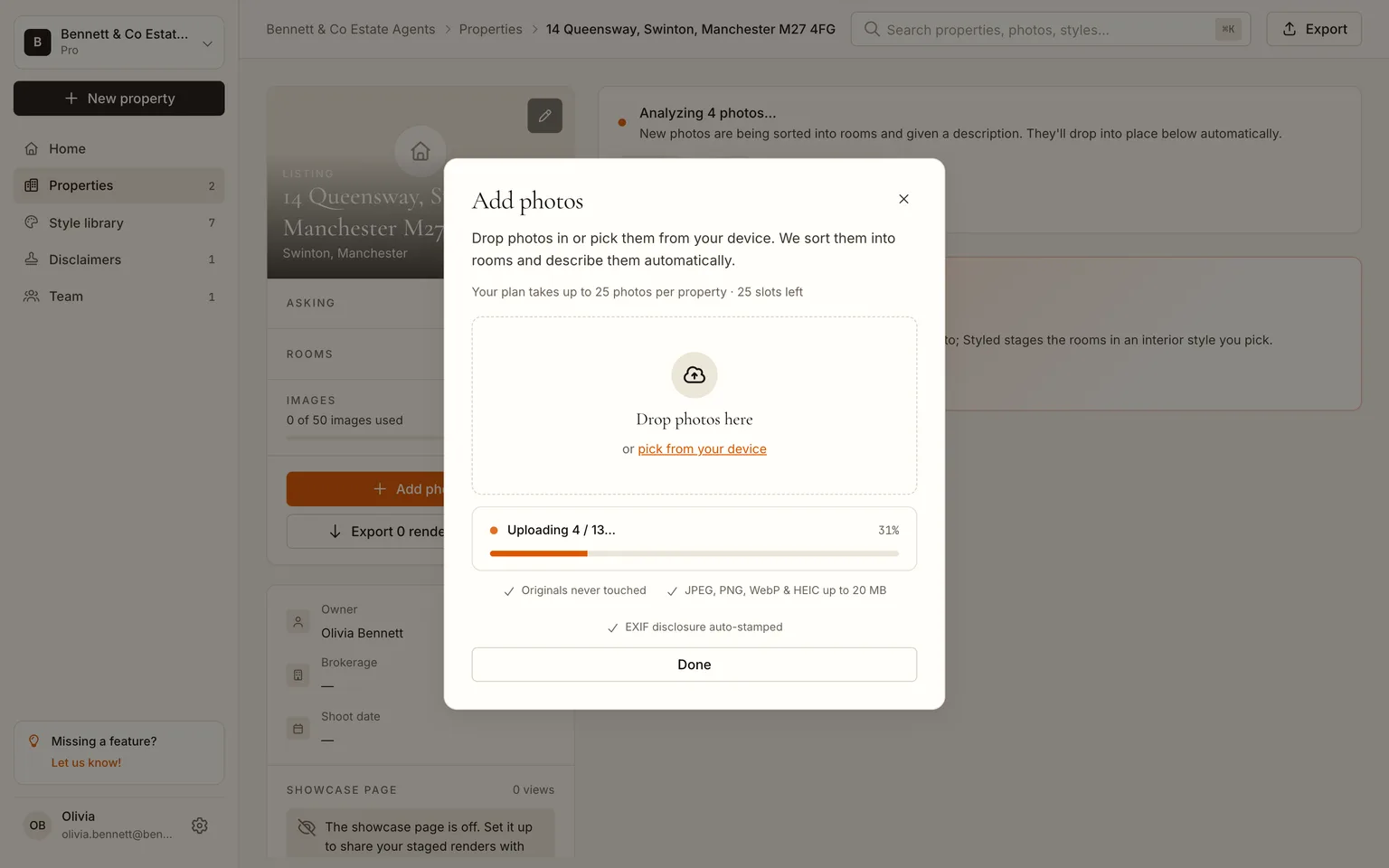
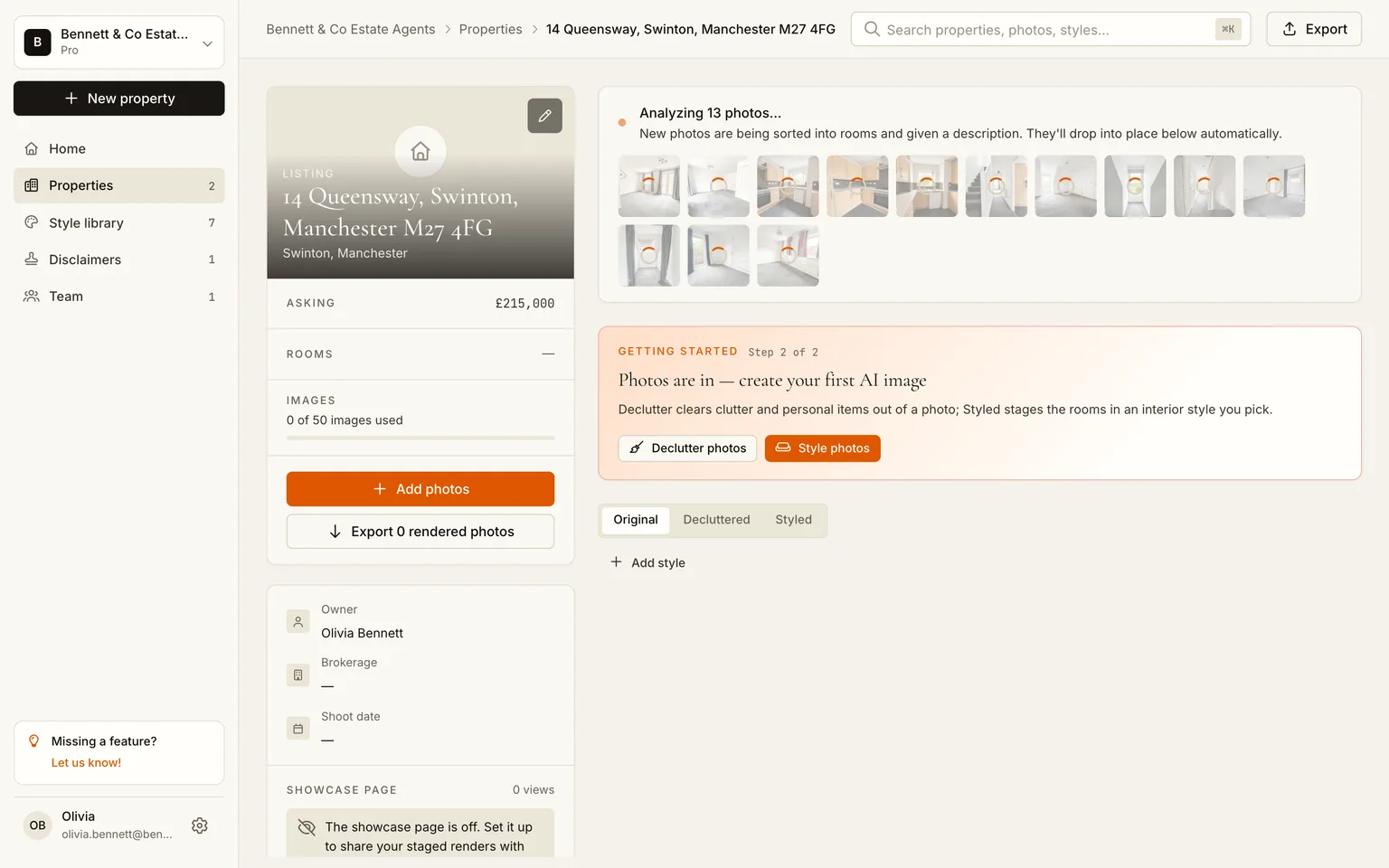
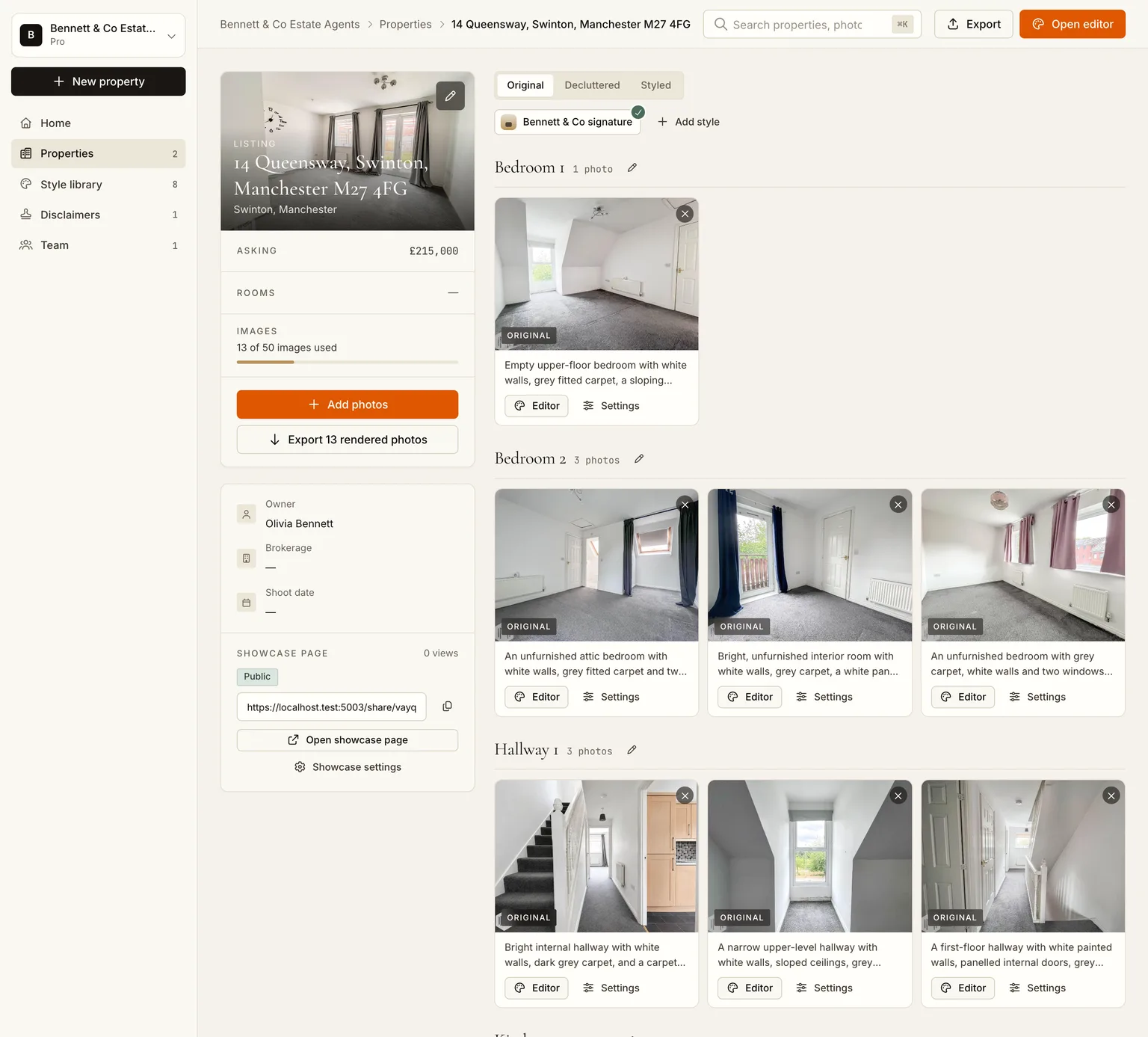
Two notes for the photographer in you. Keep the photos landscape and uncropped: 3:2 or 4:3 straight out of the camera is what the portals want and what the exporter crops from. And upload the lived-in rooms too; the decluttering step in the editor handles them, you don't need to pre-select.
Step 3: Set your house style once
This is the step that makes bulk staging work. One style for the whole listing keeps the kitchen, the living room and the bedrooms looking like the same house, and one saved style for your agency keeps every listing looking like your brand.
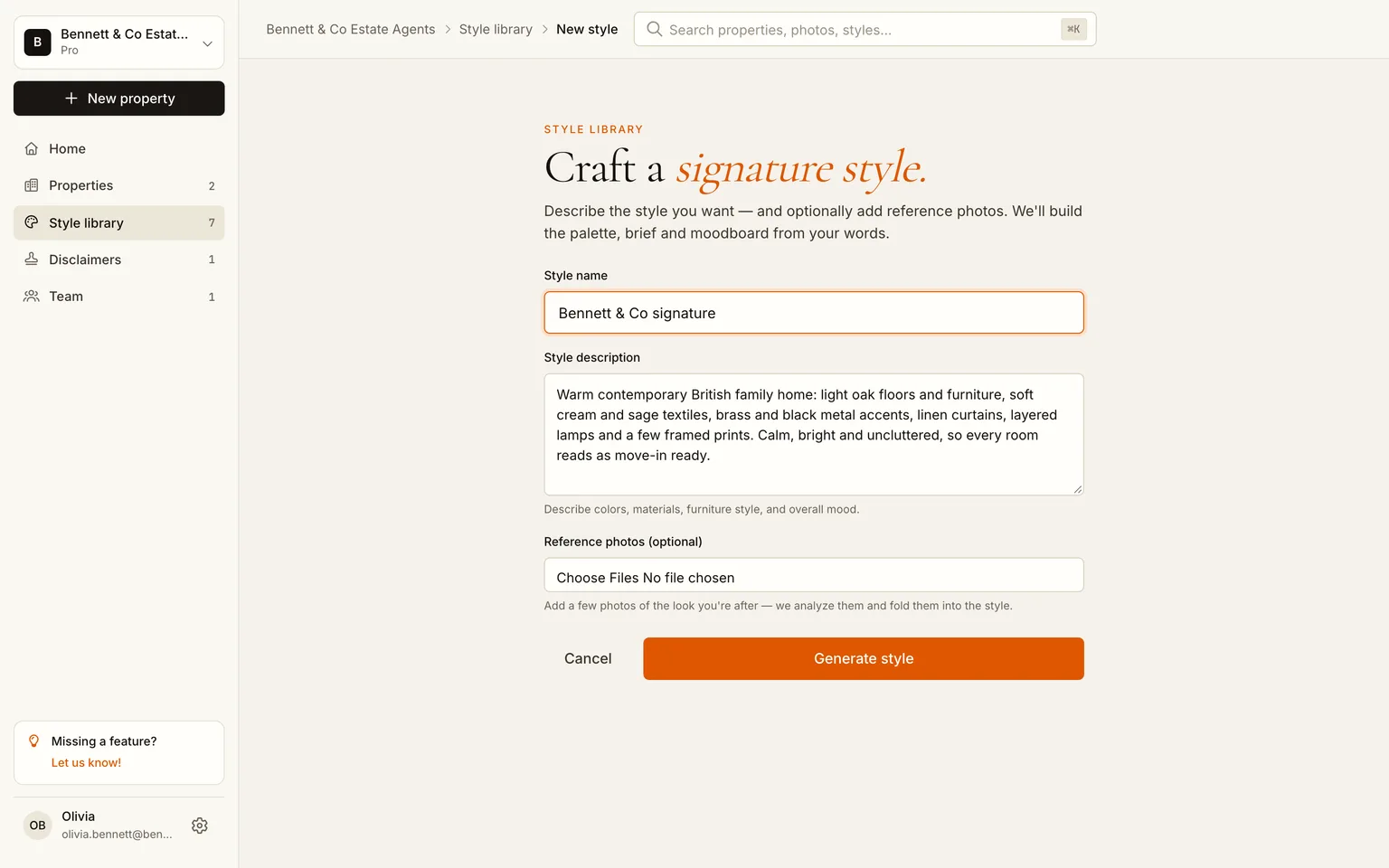
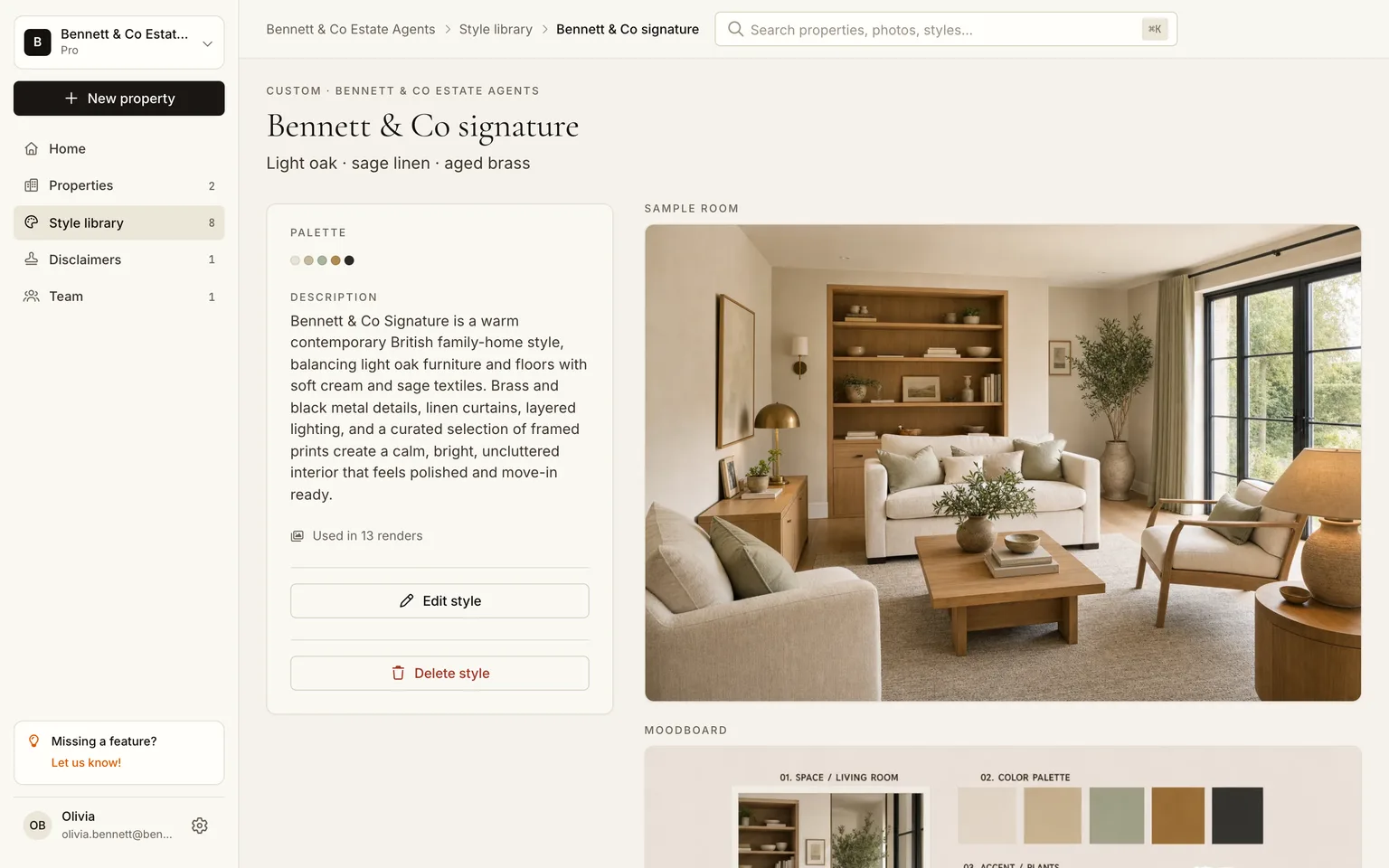
You can pick a preset from the library (Modern, Scandinavian, Luxury, Mid-century, Coastal, Industrial) and stop reading here. We went one step further and built a custom style: open Style library, click Build a custom style, give it a name and describe it in a few sentences. Reference photos are optional. The app writes a render brief from the description, builds a mood board and renders a sample living room, which takes two or three minutes.
Step 4: Stage every room with one click
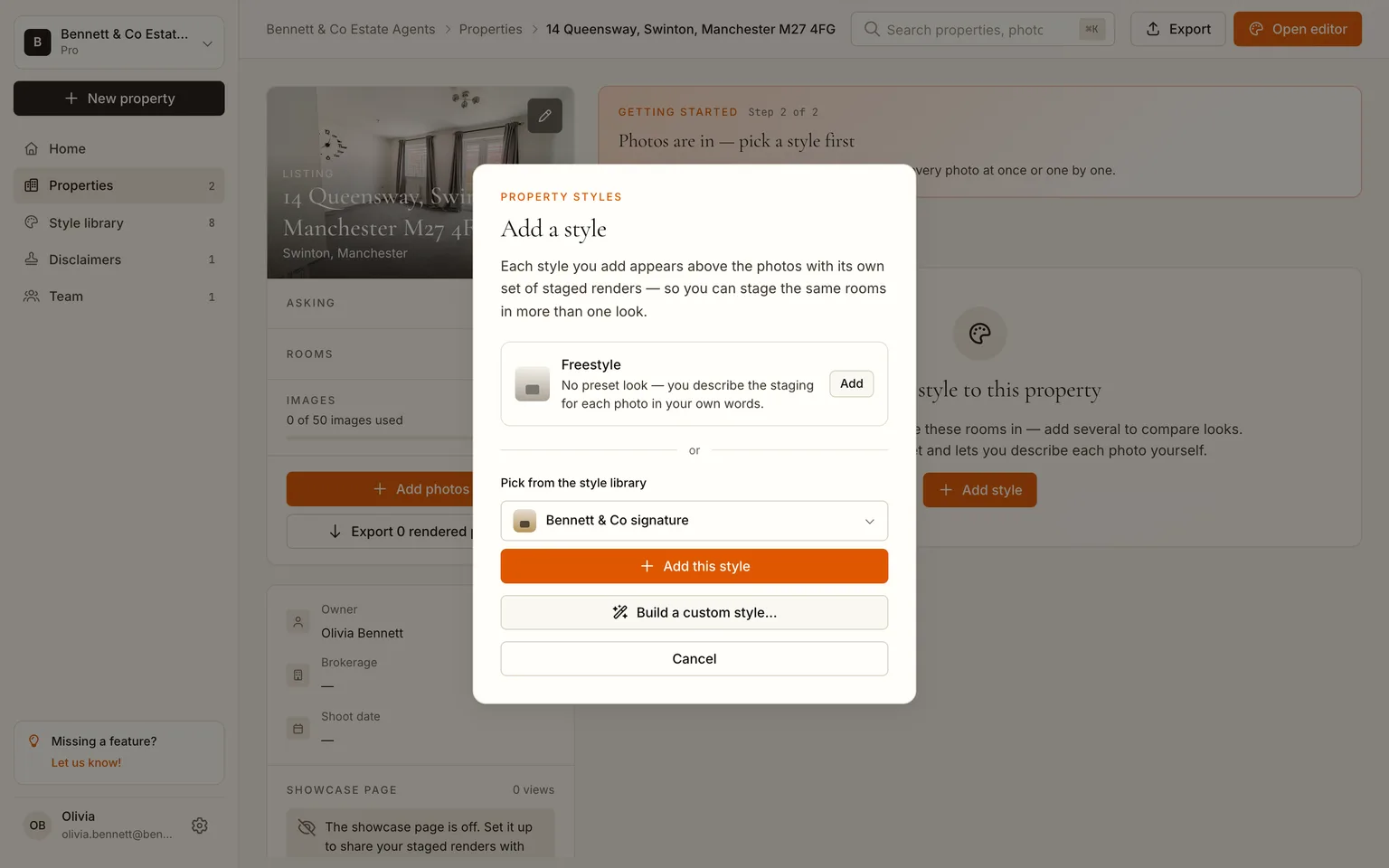
Back on the listing, open the Styled tab, click Add style and pick your house style. The tab now shows one card per photo with a single button in the top right: Quick generate · 13 photos. The line under the tabs tells you what the batch costs from your plan's image budget before you click it.
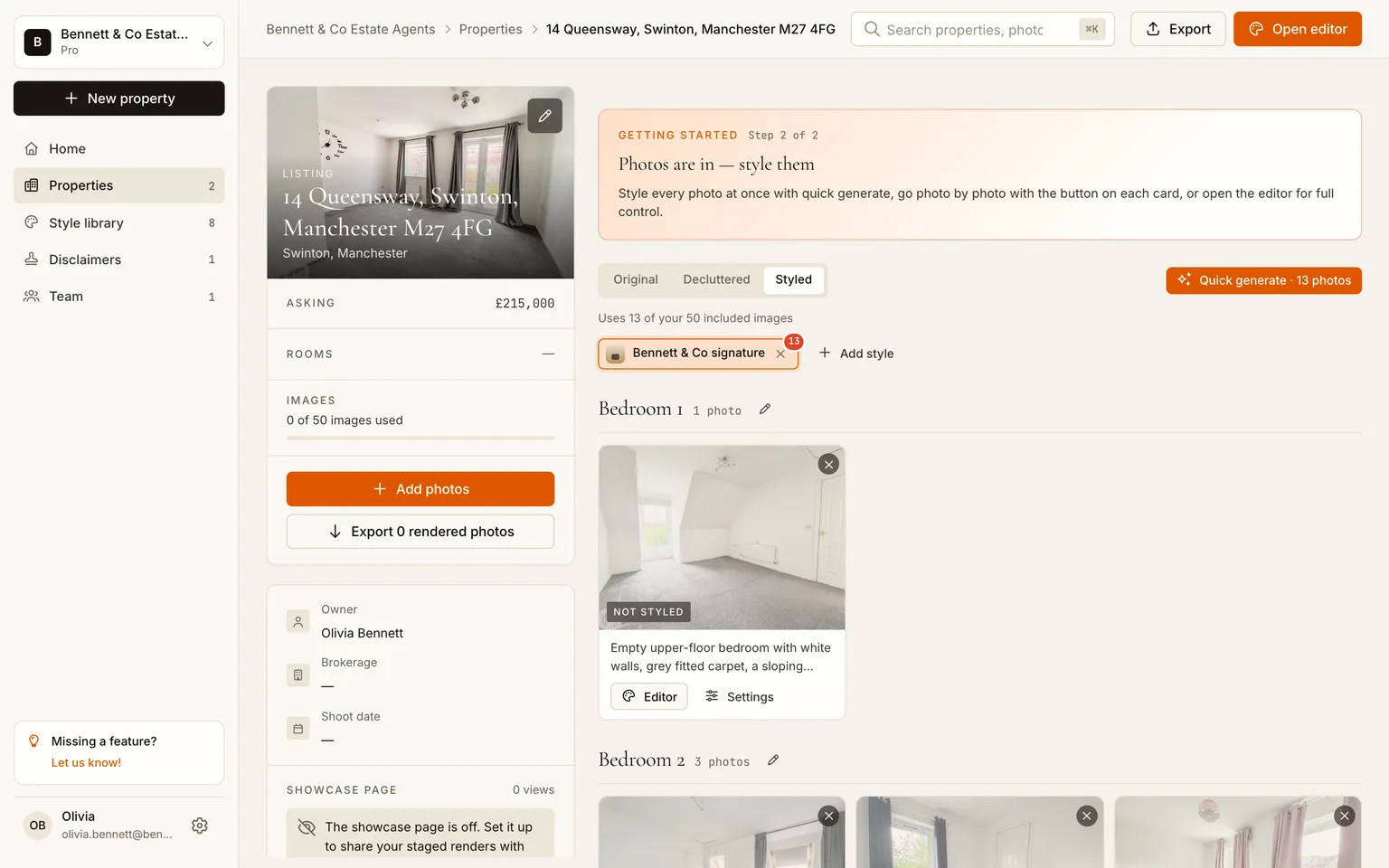
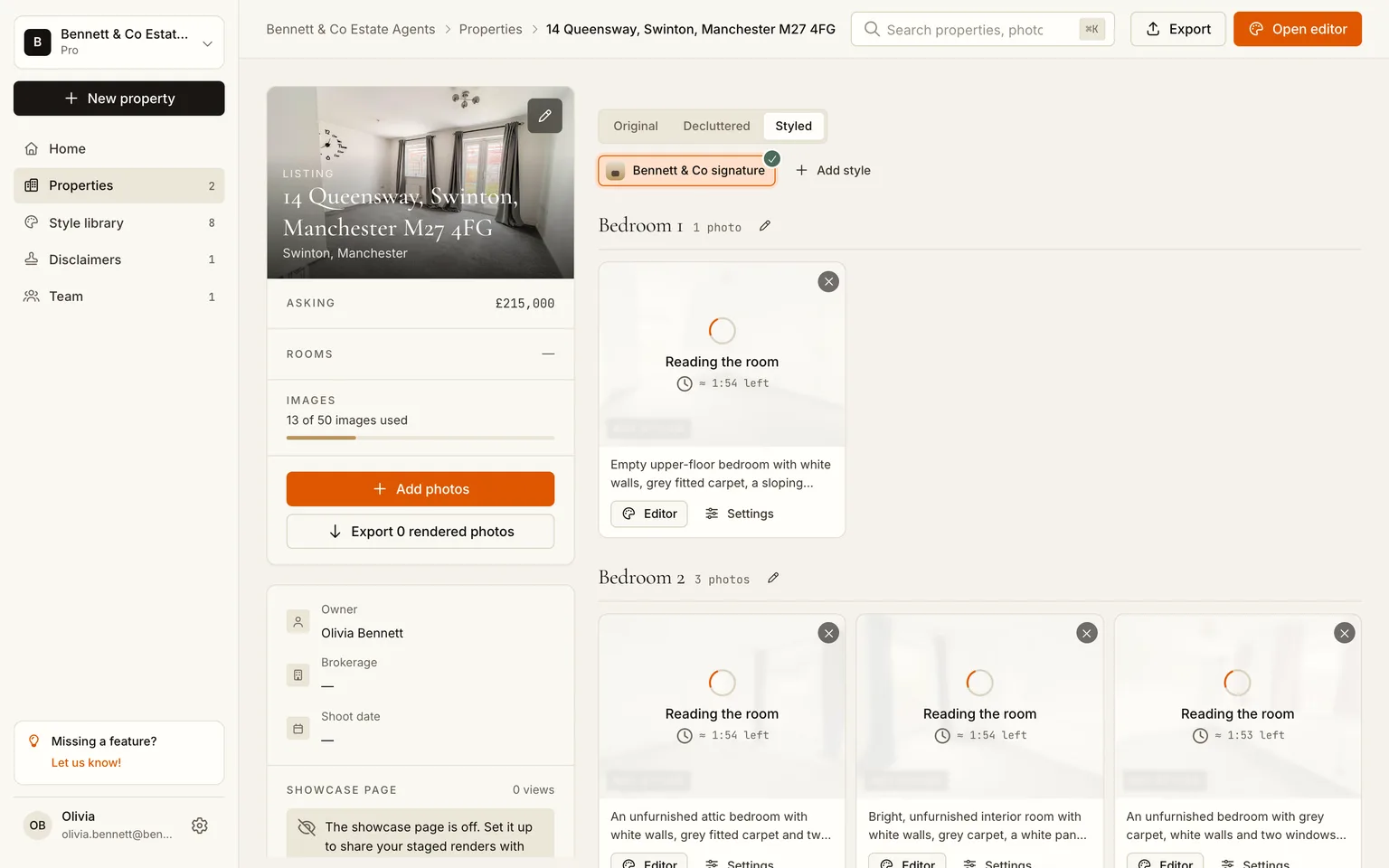
Click it. Every photo flips to a spinner and the renders run in parallel. Cards fill in as they finish, no refresh needed.
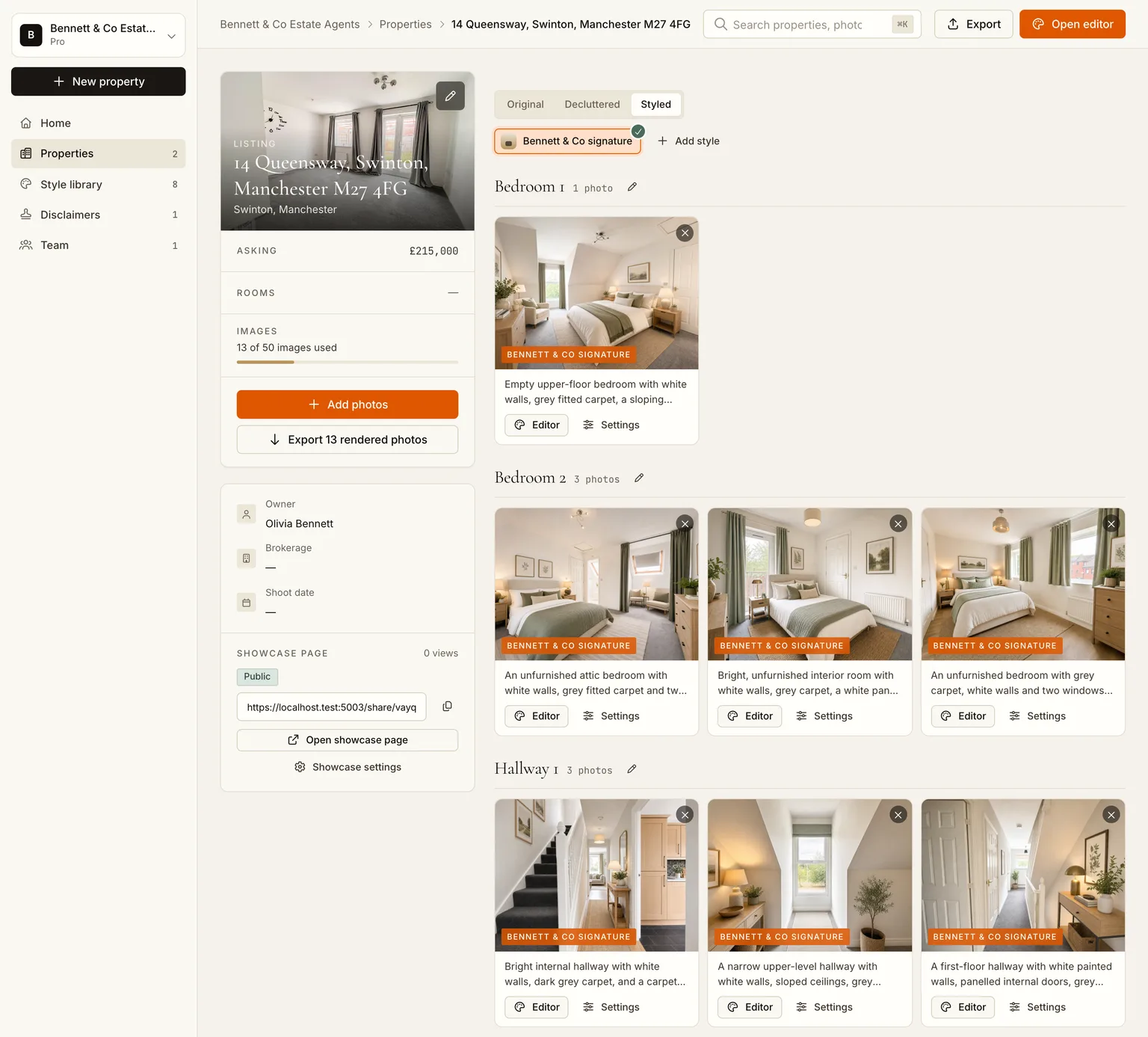
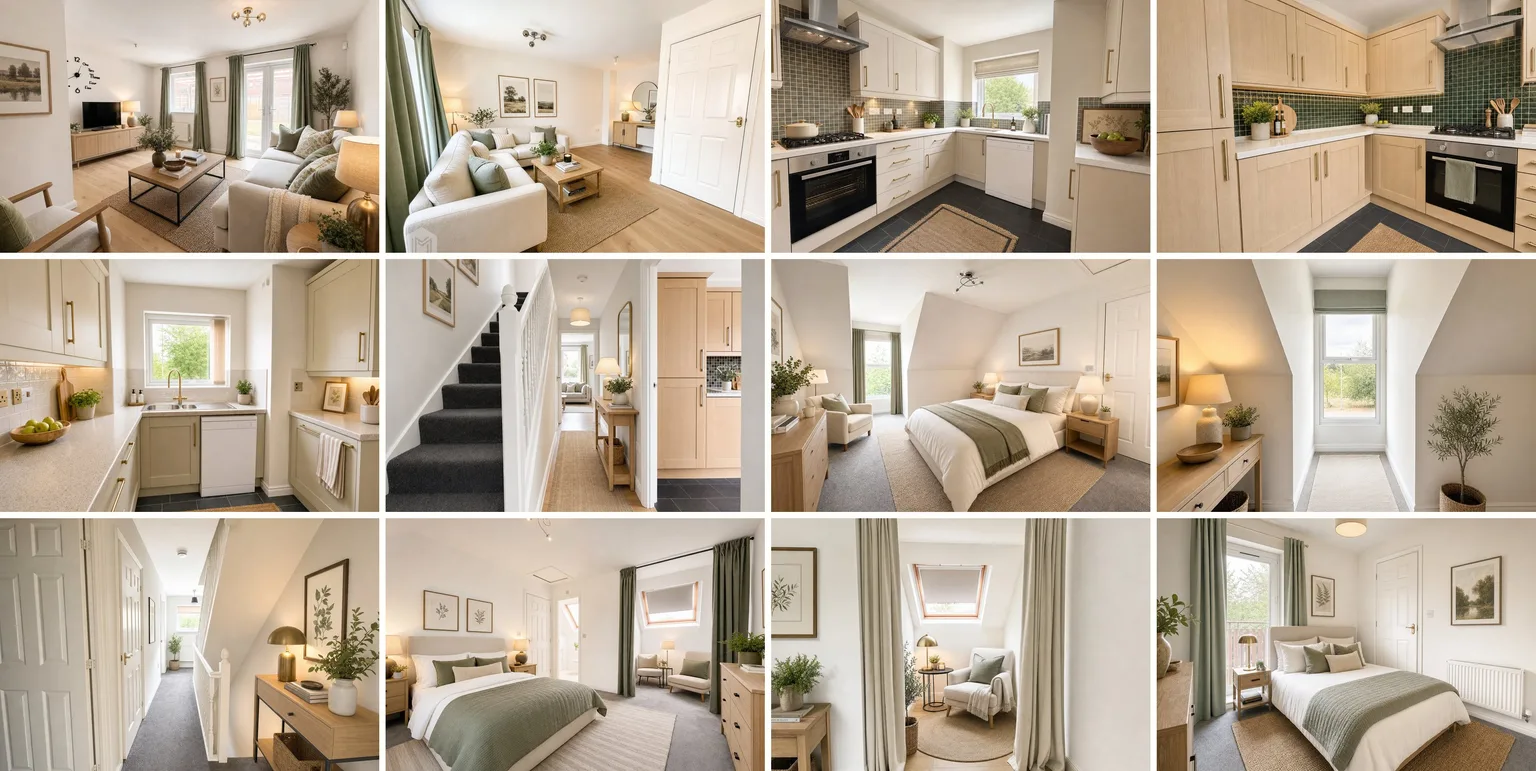
Step 5: Check the results and fix the odd one
Open any card to land in the editor. The bottom strip shows every version of that photo; the right panel renders again with a note ("a smaller dining table", "no rug") or in another style for just this room. For an occupied home you would start here with Declutter, which empties the room before staging; vacant listings skip it.
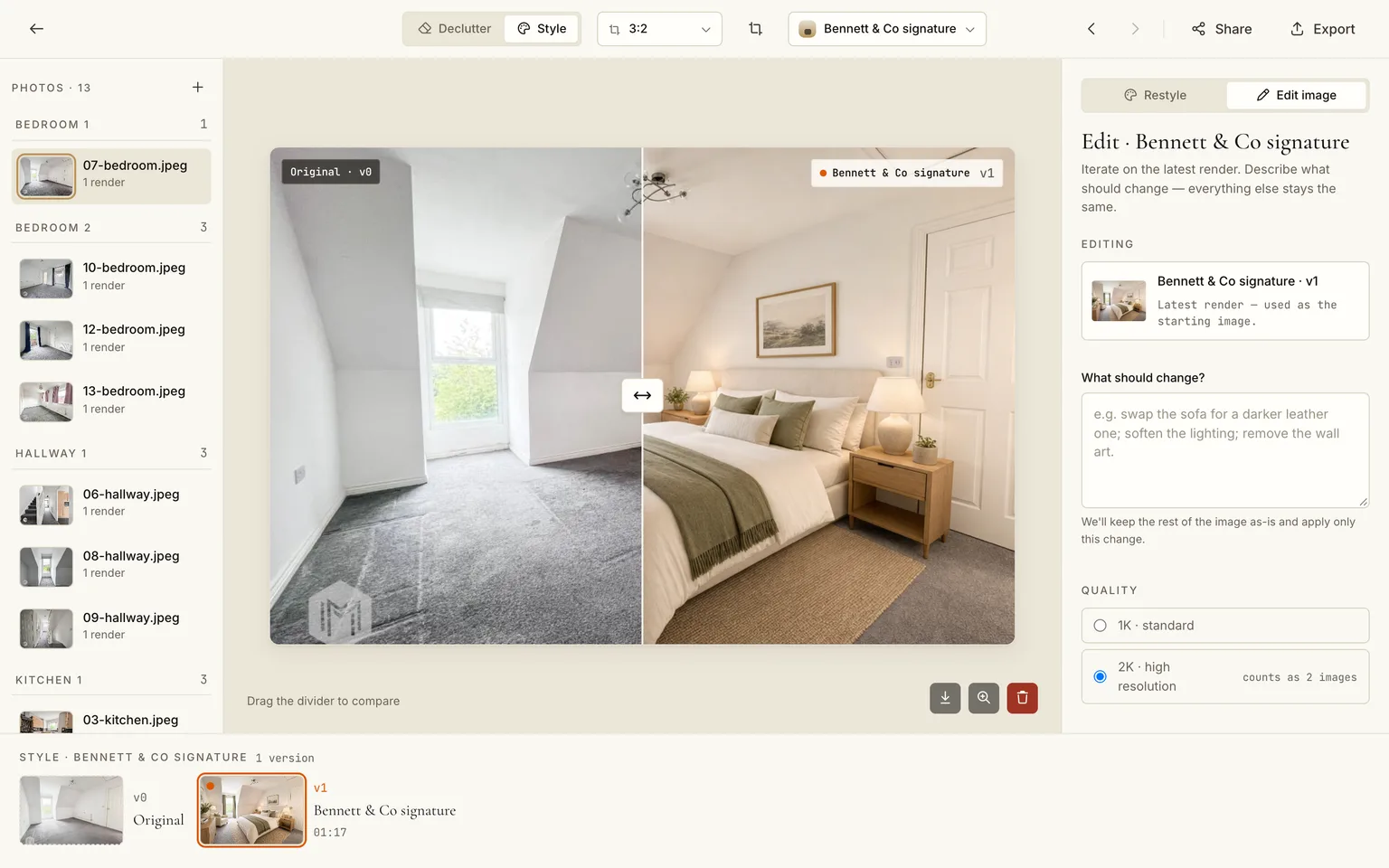
Two habits that keep you on the right side of the portals' rules: never let a render add or remove a window, a door or a wall (the model is told not to, but look), and keep at least one unedited photo per room in the set. Our disclosure rules guide has the per-portal specifics.
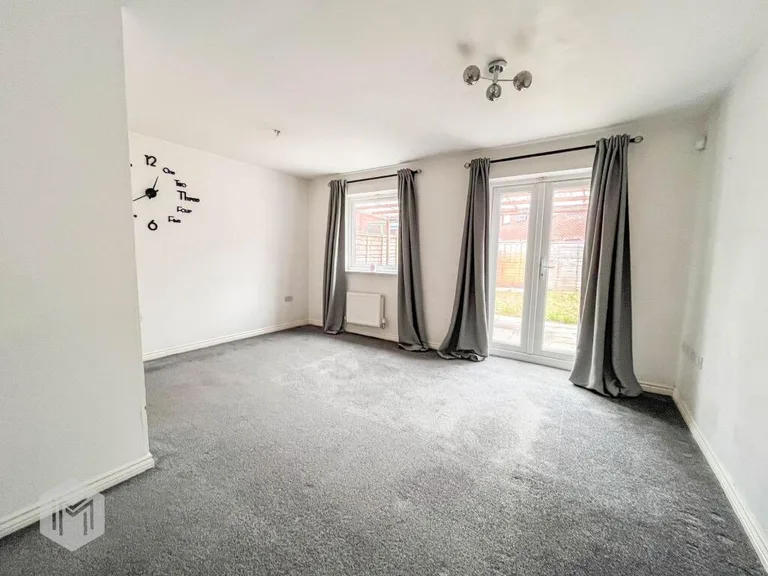
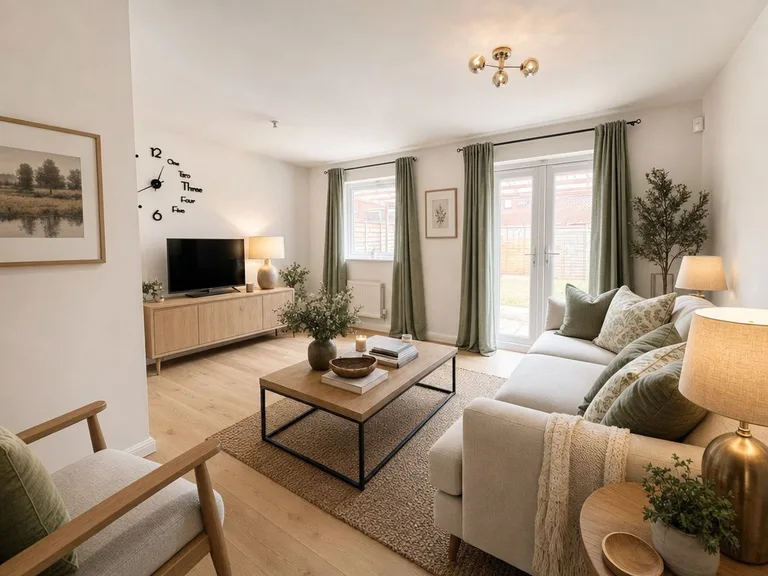 BeforeAfter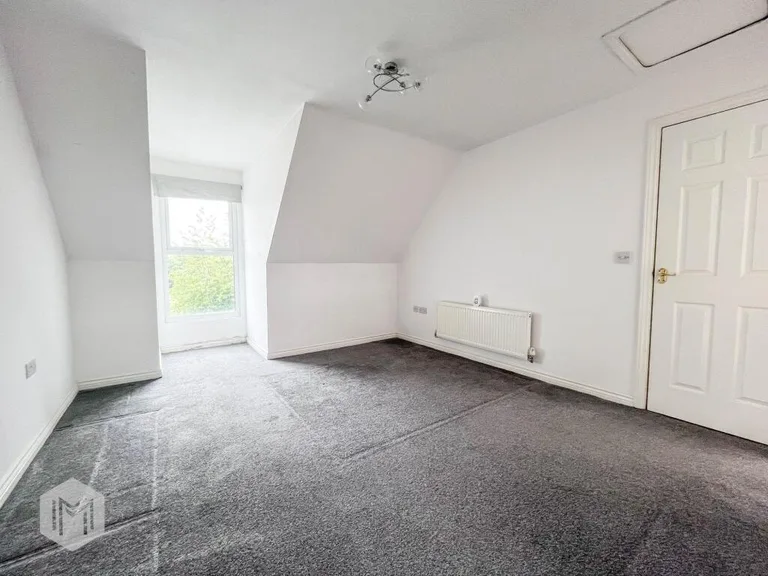
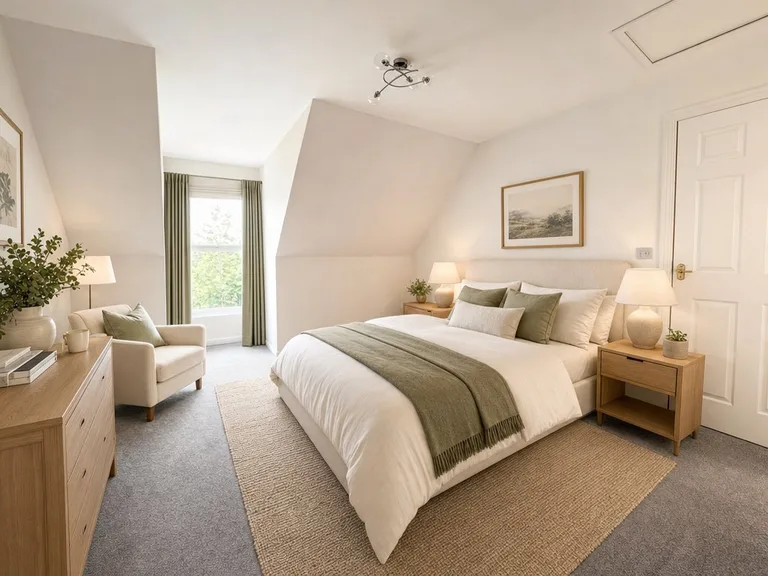 BeforeAfter
Step 6: Export portal-ready
Click Export. Tick Originals and Staged, keep JPG, and switch the disclosure bar on: the text ("digitally styled for inspiration") is rendered into the image itself, which is what Rightmove, Funda and most MLSs require, with AI-disclosure metadata written into the file as well. Pro and Business plans can replace the text with their own wording and logo.
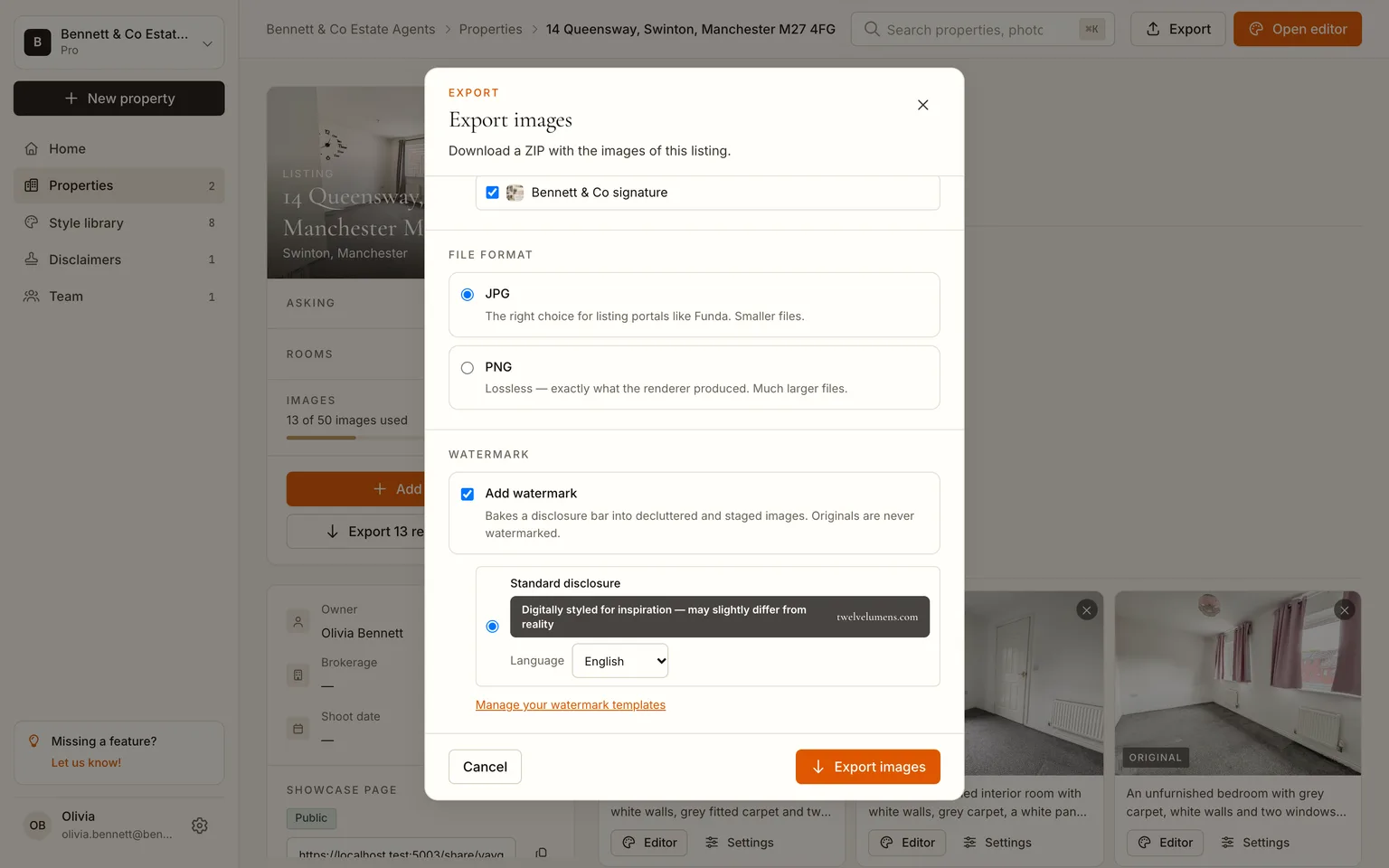
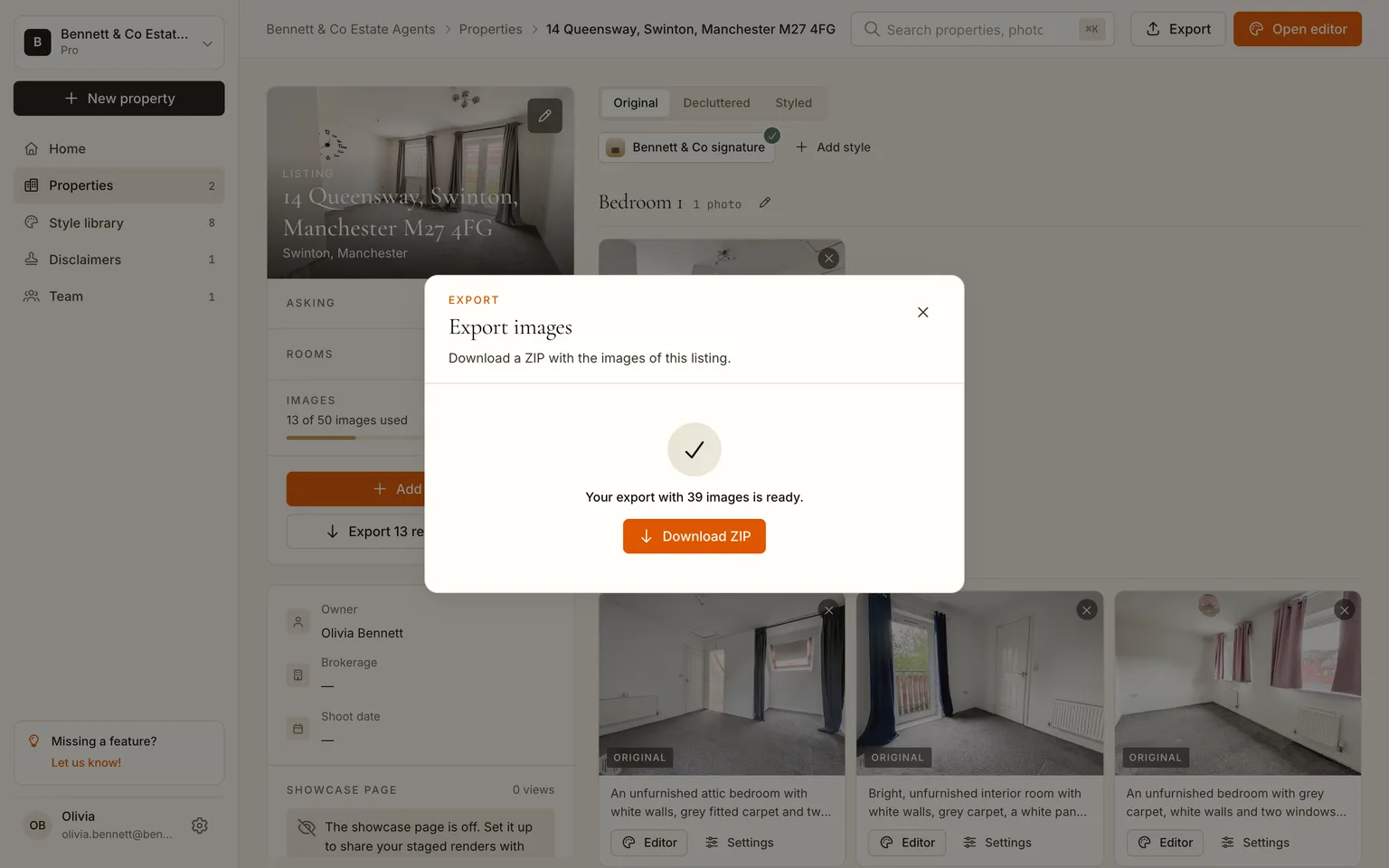
The ZIP carries each image as a full frame plus the 3:2 crop the portals ask for; on Pro and Business the renders come at 2K. Upload the staged set to the portal with the originals, in the order you would normally use, and the disclosure is already taken care of. The portal guides for Rightmove and Funda list the exact pixel and labelling requirements.
Step 7: Share a showcase page (optional)
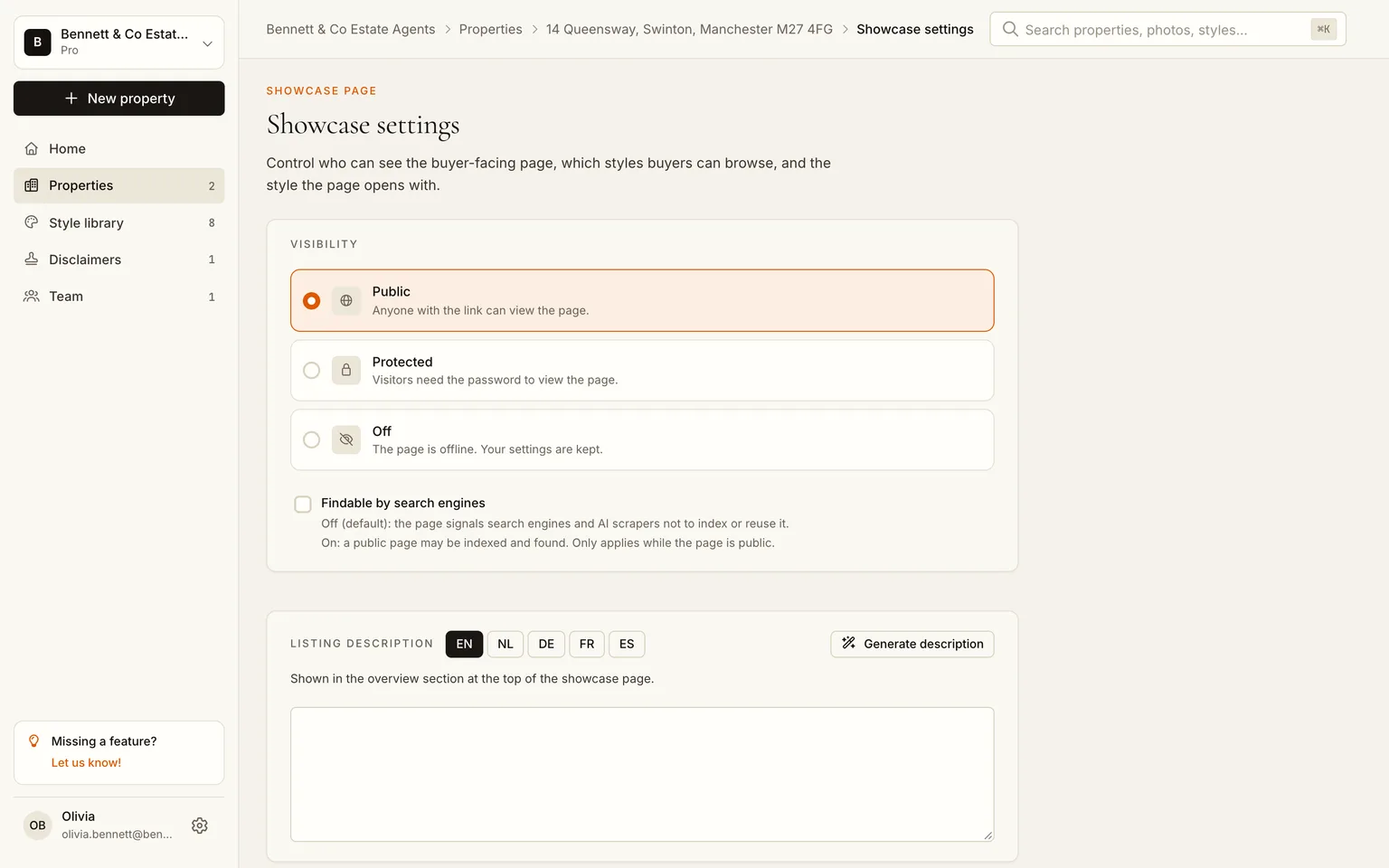
Every listing can have a public page where buyers flip each room between original and staged, in any style you enabled. Set it to public in the showcase settings and paste the link into the listing description, the brochure or your Instagram bio.
Time and cost for this listing
| This walkthrough | |
|---|---|
| Photos | 13 |
| Hands-on time | about 10 minutes (create, upload, pick style, export) |
| Waiting time | about 10 minutes (a minute of analysis, two and a half for the custom style, six and a half for 13 parallel renders) |
| Images used | 13 of the 50 per listing on Pro |
| Cost at Pro (€129 for 10 listings a month) | under €13 per listing, however many photos you stage within the 50 |
| Same job at a per-image staging service | €195 to €520 at the €15 to €40 per photo those services charge, delivered in one to two days |
The per-image comparison is from our virtual staging pricing breakdown. The point is less the money than the queue: a listing that is shot in the morning can be live, staged and disclosed, in the afternoon.
Stage your next listing, first 5 images free
Frequently asked questions
Can I stage twenty photos at once?
Yes. The button renders every photo in the listing that does not have a render in that style yet, in parallel. Plans cap photos per property (25 on Pro, 40 on Business) and images per property (50), not clicks.
Do I have to use the same style for every room?
No, but you should. One style per listing is what keeps the set coherent. You can still re-render a single room in another style from the editor, and buyers can browse several styles on the showcase page if you enable them.
What about lived-in listings?
Run Declutter first. It removes the occupant's furniture and clutter from every photo in one click, and the staged render builds on the empty room. The result is a tidy, furnished version of the real house, with the walls and floors it actually has.
Is the disclosure enough for the portals?
The exported images carry a visible disclosure bar rendered into the pixels plus AI-disclosure metadata in the file, which is what Funda, Rightmove and most MLSs ask for. Portal rules also forbid structural changes, so never publish a render that moves a wall or window, and keep an original of each room online. Details per portal are in our disclosure guide.
Can my colleagues use the same house style?
Yes. Styles belong to the workspace, so every team member stages with the same brief, and the showcase pages carry the agency's branding.
By Martin Balk, founder of Twelve Lumens · Updated October 21, 2026
See your own listing staged
Upload a few photos and get decluttered, staged versions back in minutes. The first five images are free, no credit card, and your originals are always kept.
Stage 5 images freeMore from the blog
Virtual Staging as a Photographer's Add-On: Workflow and Pricing
How real estate photographers add virtual staging to a shoot: same-day workflow, what to charge per photo, how to hand the set to the agent, the rules.
Remove Furniture from Listing Photos with AI (Virtual Decluttering)
Empty a lived-in room on the photo in one click: upload, declutter every photo at once, keep what should stay, then stage or publish the clean version.
How to Turn a 3D Render into a Photorealistic Image with AI (3 Steps)
Make a clay render, a SketchUp viewport or an old CGI photorealistic in minutes: upload it like a photo, pick a style, render. Same camera, same geometry.
How to Style Your Home with AI in 5 Steps (With Screenshots)
Step by step, with screenshots: photograph your rooms, upload, declutter, try two or three styles and export. About 15 minutes, first 5 images free.
How Does AI Virtual Staging Work? From Upload to Listing-Ready Photo
How AI virtual staging works, step by step: upload, declutter, pick a style, render in minutes. What changes, what it costs and where it is allowed.
Virtual Staging Pricing in 2026: What It Costs Per Photo, Per Listing and Per Month
Virtual staging costs roughly €0.40 to €40 per image in 2026. What the three pricing models add up to per listing and per month, plus the hidden fees.
Home Staging Photographer: What They Do and How to Shoot a Home So It Stages Well
What a home staging photographer actually does, how to shoot every room so it stages well, physically or virtually, and when a phone is enough.
Virtual Staging Terms, Explained: A Plain-Language Glossary
Plain-language definitions of 13 virtual staging terms: renders, 2K, house styles, decluttering, disclosure and more, each one quotable on its own.
Virtual Staging Disclosure Rules in 2026: MLS, Zillow, Funda, Rightmove and More
Where virtually staged photos are allowed, what each market expects you to disclose, and a checklist that keeps your listing within every rule.
How Much Does Home Staging Cost in 2026? Physical vs. Virtual, With Real Numbers
What physical, outsourced virtual and AI home staging cost per listing in 2026, when each one is worth it, and the math for a typical 20-photo listing.