How to Turn a 3D Render into a Photorealistic Image with AI (3 Steps)
Make a clay render, a SketchUp viewport or an old CGI photorealistic in minutes: upload it like a photo, pick a style, render. Same camera, same geometry.
A finished 3D model and a convincing image of it are two different deliverables, and the second one usually waits for a render engine, a material library, a lighting setup and a few hours of render time. This tutorial takes the shortcut from the image side: we uploaded four inputs nobody would show a client, a white clay render of a kitchen, a flat-shaded living room viewport, a bedroom CGI from the early 2000s and a hand-drawn sketch, and got photorealistic versions of the same views back in a few minutes each. Every step is a screenshot, every result is shown next to its input.
The 3D render to photorealistic page explains what the feature is for; this is the hands-on version. The sketch variant has its own page: sketch to render.
What you need
- The view you already have, exported as an image: a viewport screenshot, a clay or ambient-occlusion pass, an old render. PNG or JPEG, any size up to 20 MB. Higher resolution in means more detail out.
- A free account; the first five images are free, with no card.
- A decision about the look: one of the preset styles, or a description of the materials you want, which matters more for render work than for photos.
Step 1: Upload the renders like photos
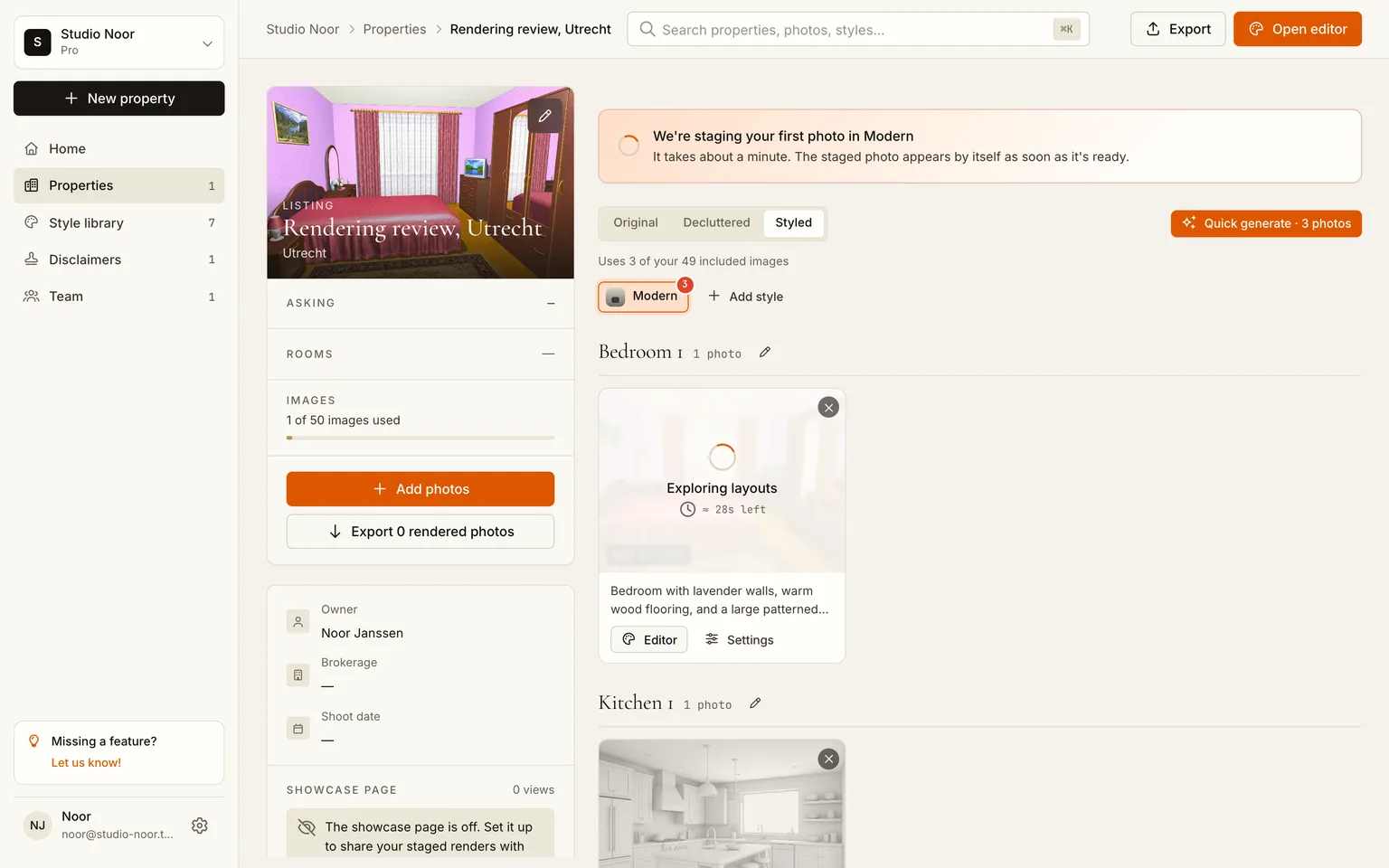
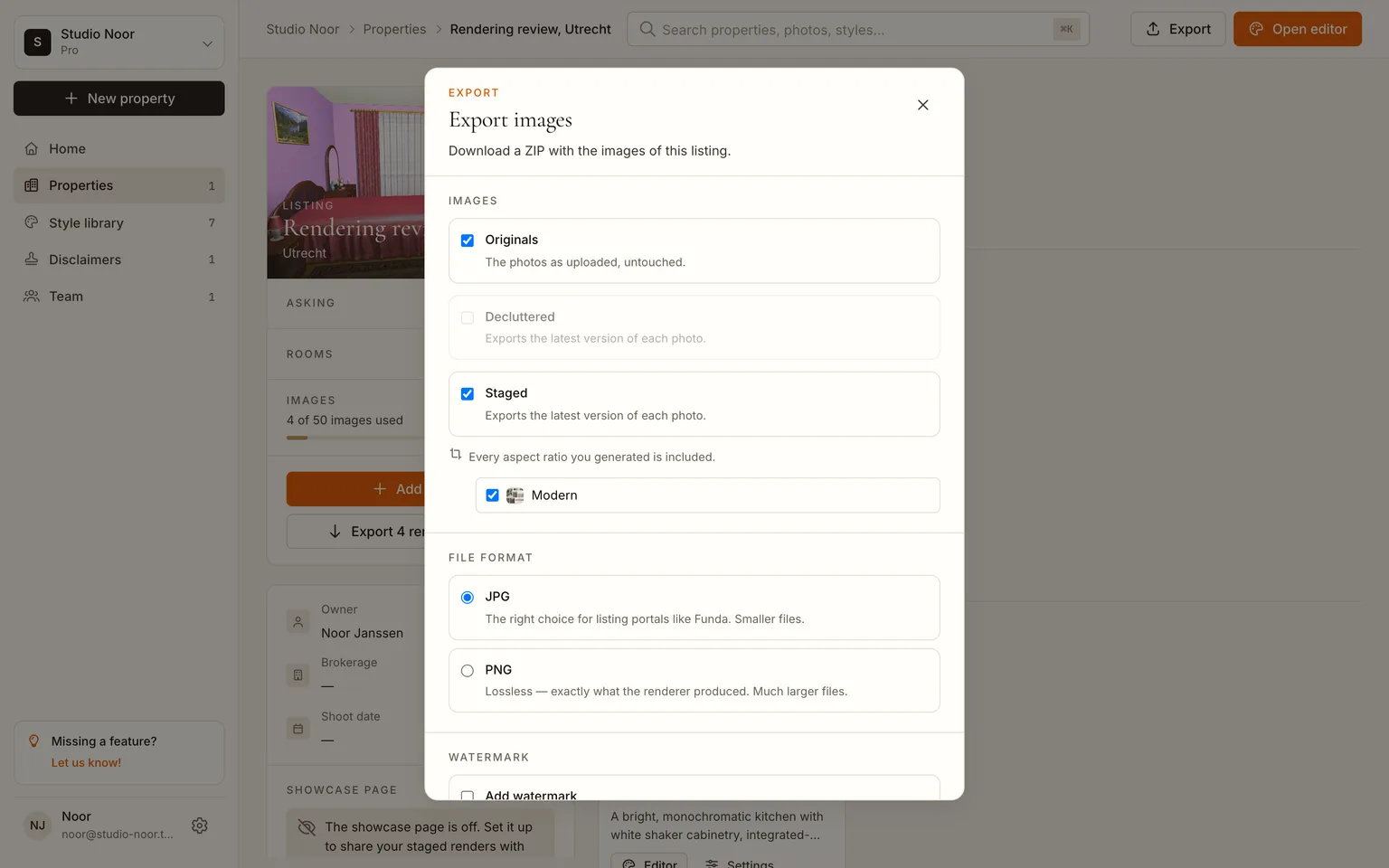
Create a project (the app calls it a property) and upload the inputs with Add photos. The app treats them like any image: it recognises the room, writes a short description and, on your first upload, immediately renders one of them in the Modern style so you see a result before you have clicked anything else.
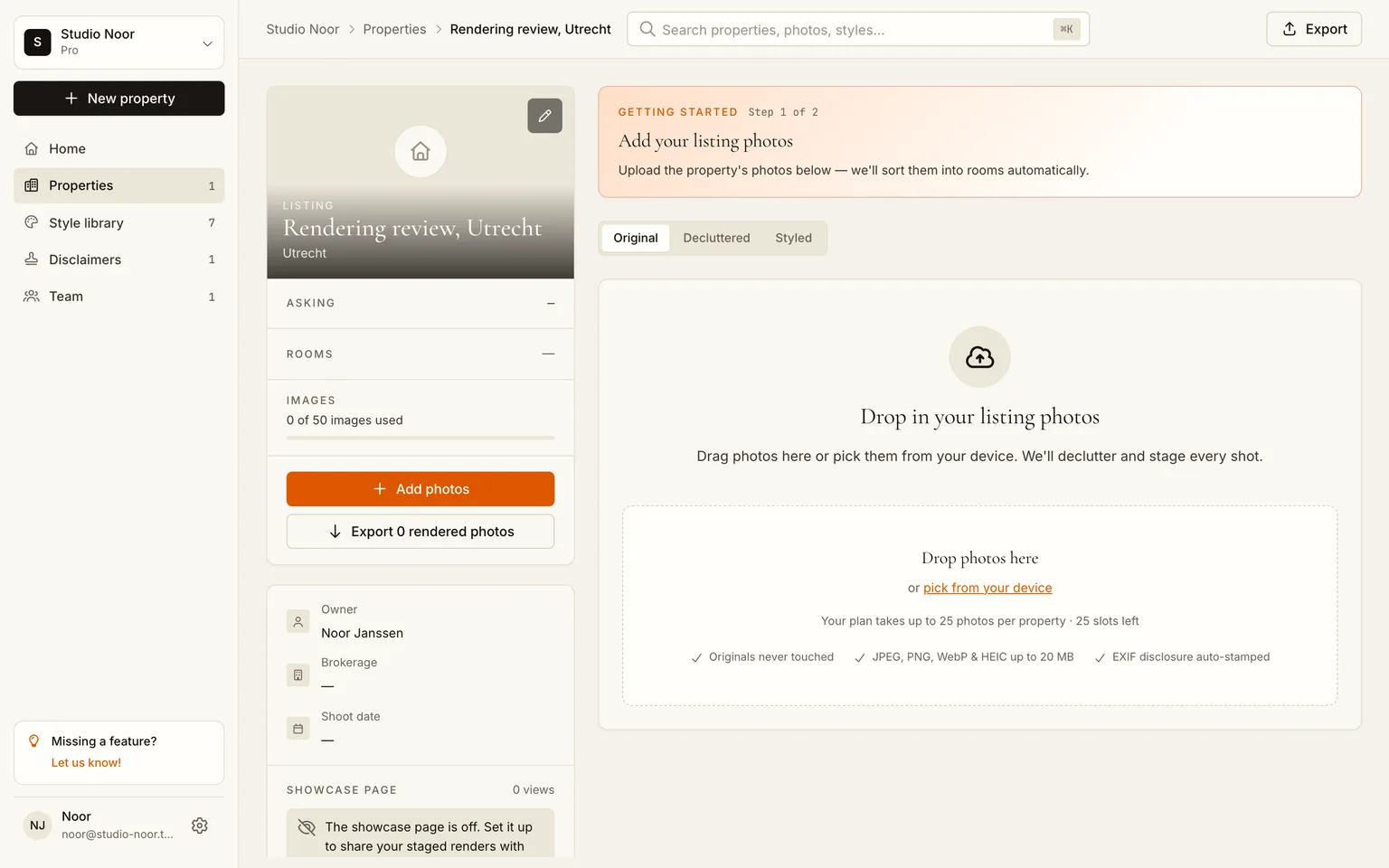
Step 2: Pick a style, or describe the materials
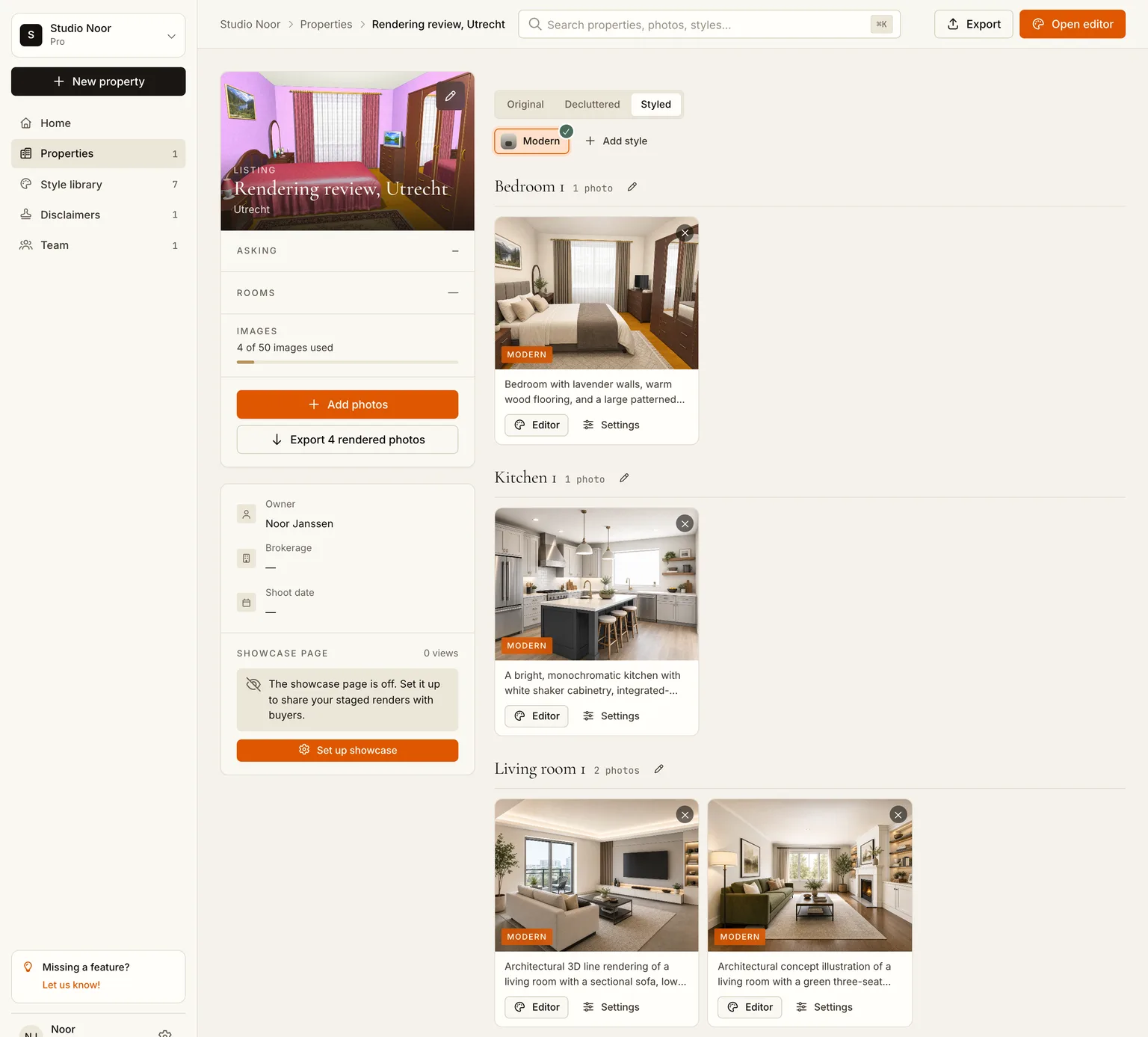
Open the Styled tab. For a quick client-ready image, a preset (Modern, Scandinavian, Luxury, Mid-century, Coastal, Industrial) gives a coherent, well-lit interior in the layout of your model. Click Quick generate and every input renders in that style at once.
When the materials are the point of the drawing, use Freestyle instead and write them down: "oak floor, white plaster walls, black steel window frames, grey quartz worktop, warm afternoon light from the left". Freestyle has no preset bias, so your description drives the render. The same is true for a saved custom style if you want one studio look across every project.
Step 3: Check the geometry, then export
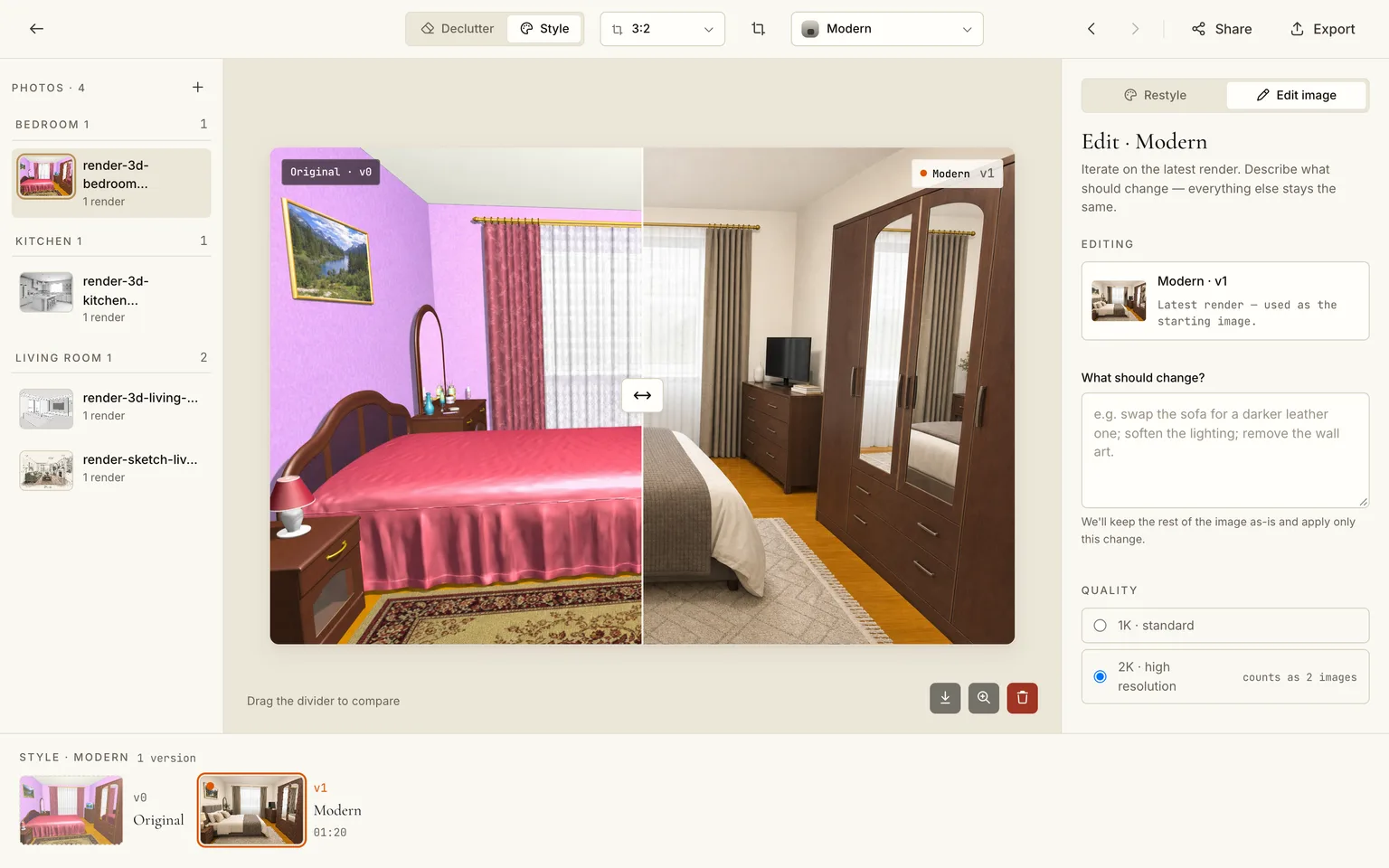
Open any result in the editor and drag the divider over the input. What you are checking: the camera has not moved, the walls, openings and ceiling line are where the model put them, and the furniture volumes sit on the same footprint. The style pass re-dresses materials, lighting and loose furniture; it keeps the architecture.
Export as PNG for lossless output or JPG for presentations and portals. Renders come at 1K on the free and Personal plans and at 2K on Pro and Business.
The results
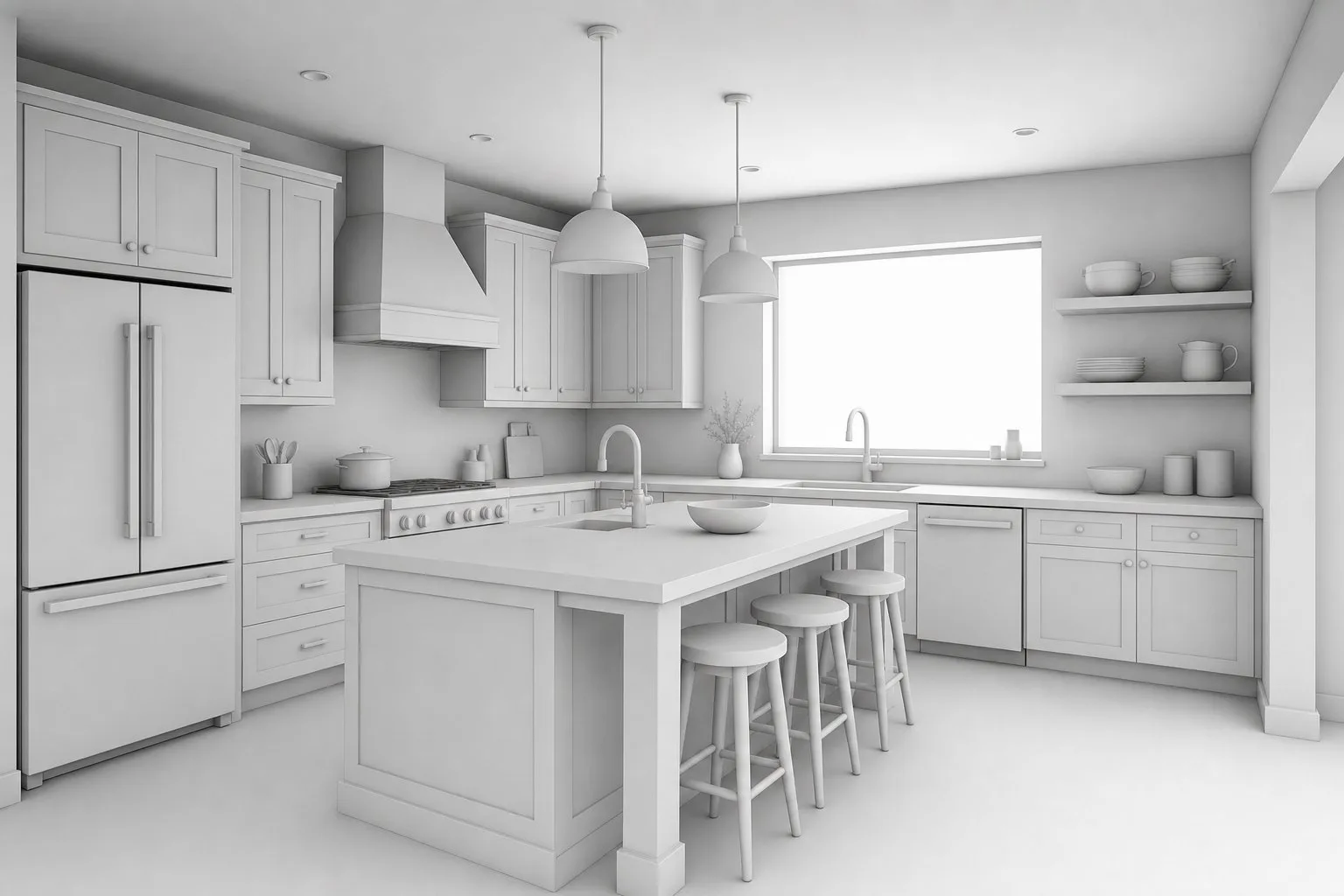
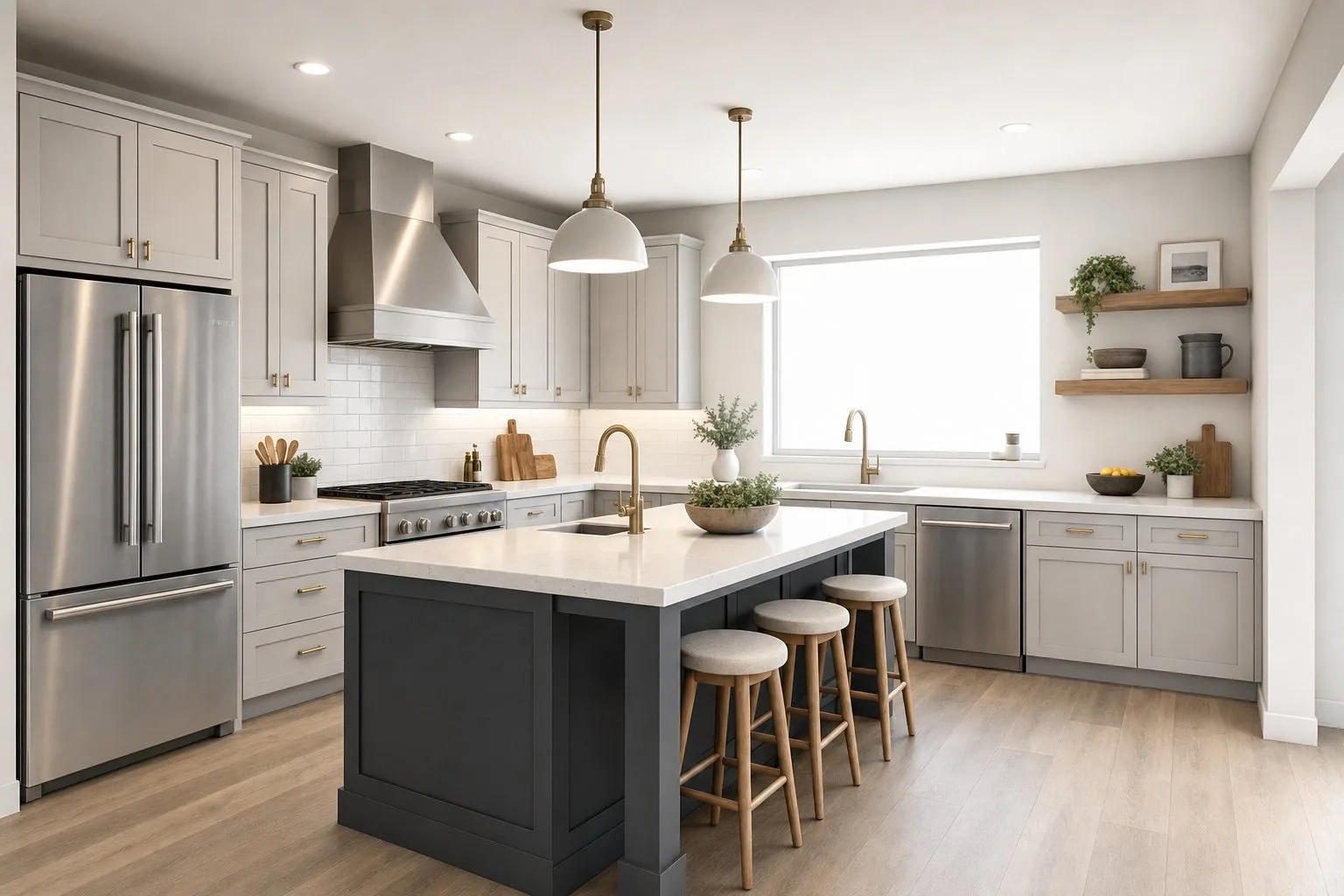 Clay renderPhotorealistic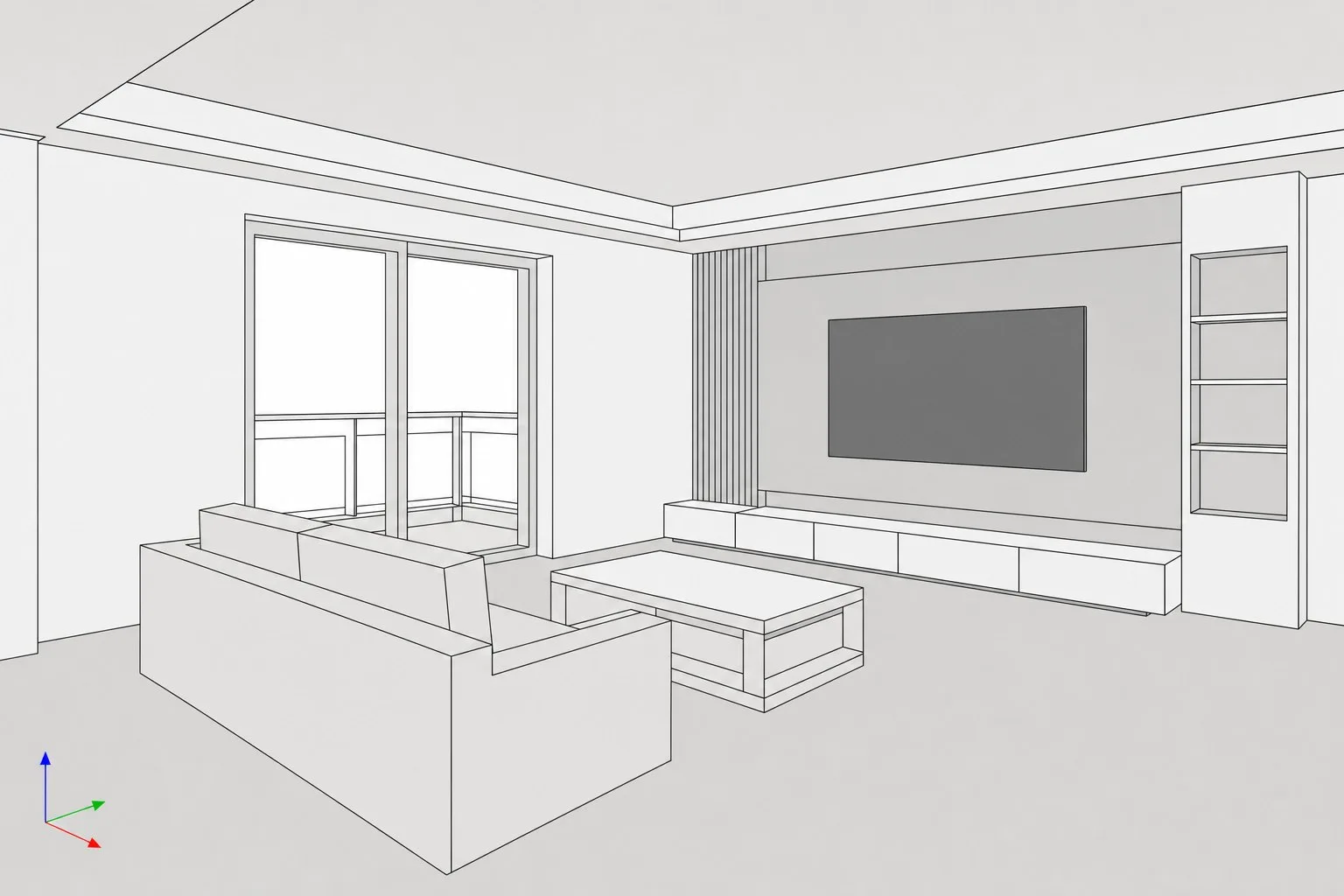
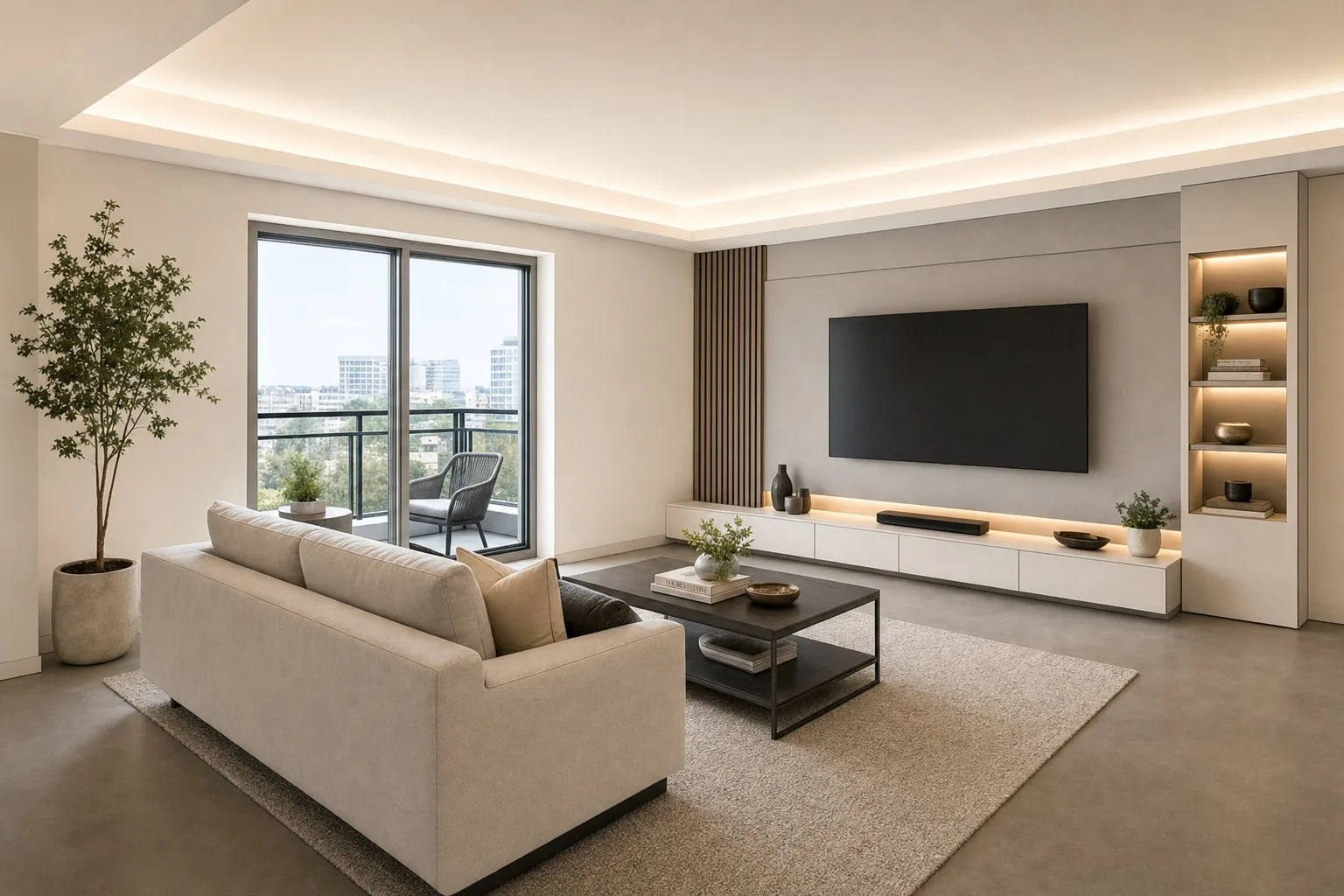 ViewportPhotorealistic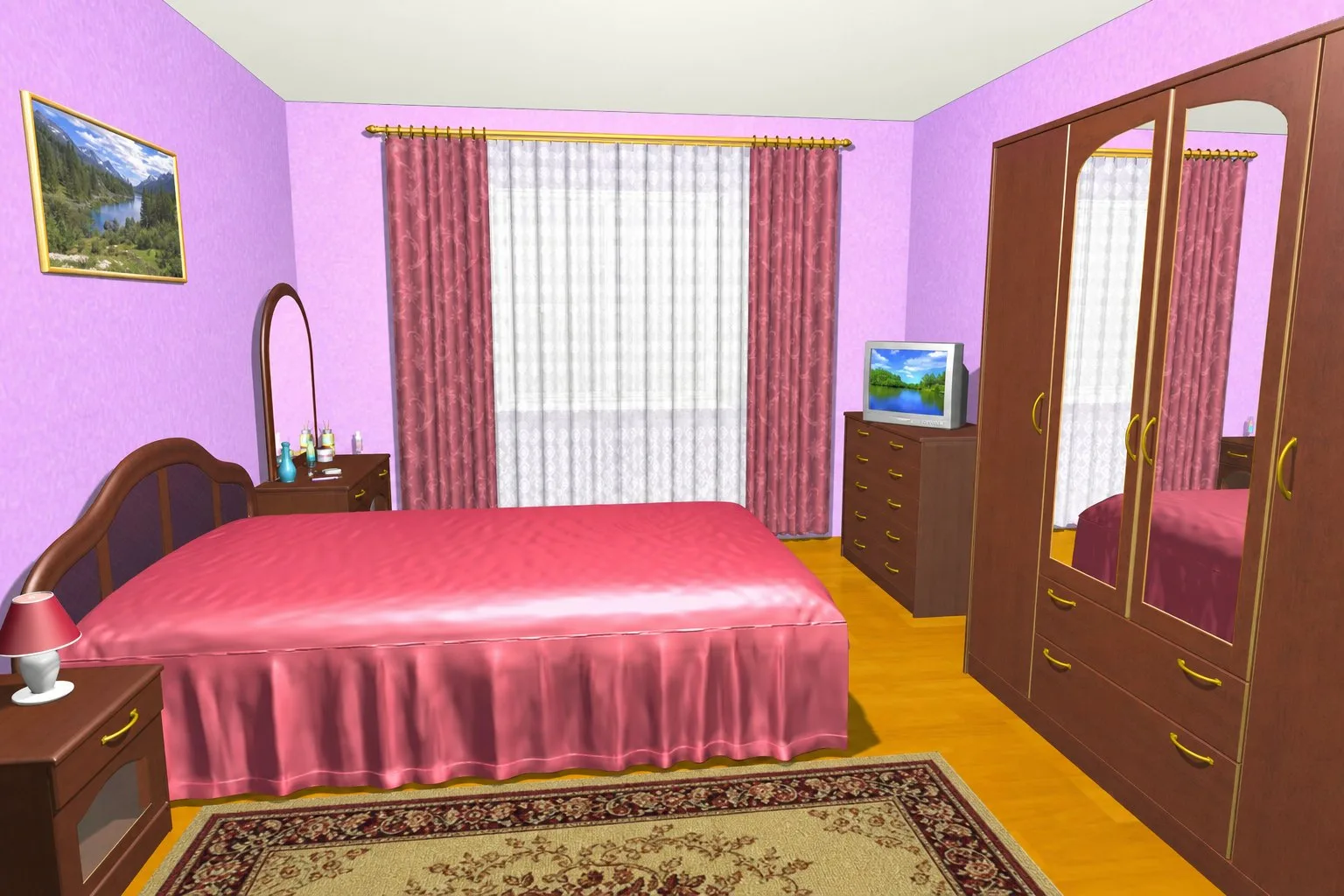
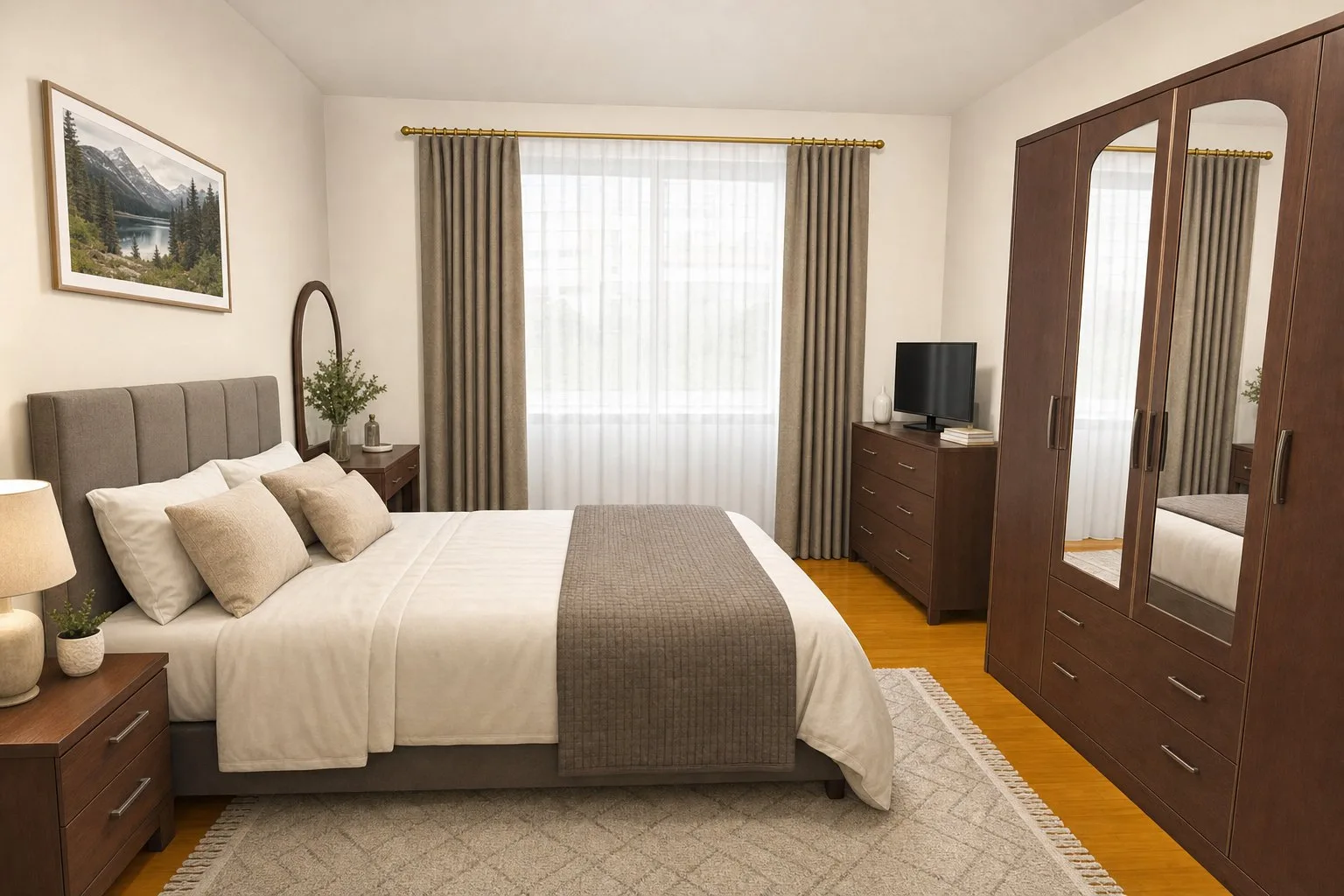 2000s CGIPhotorealistic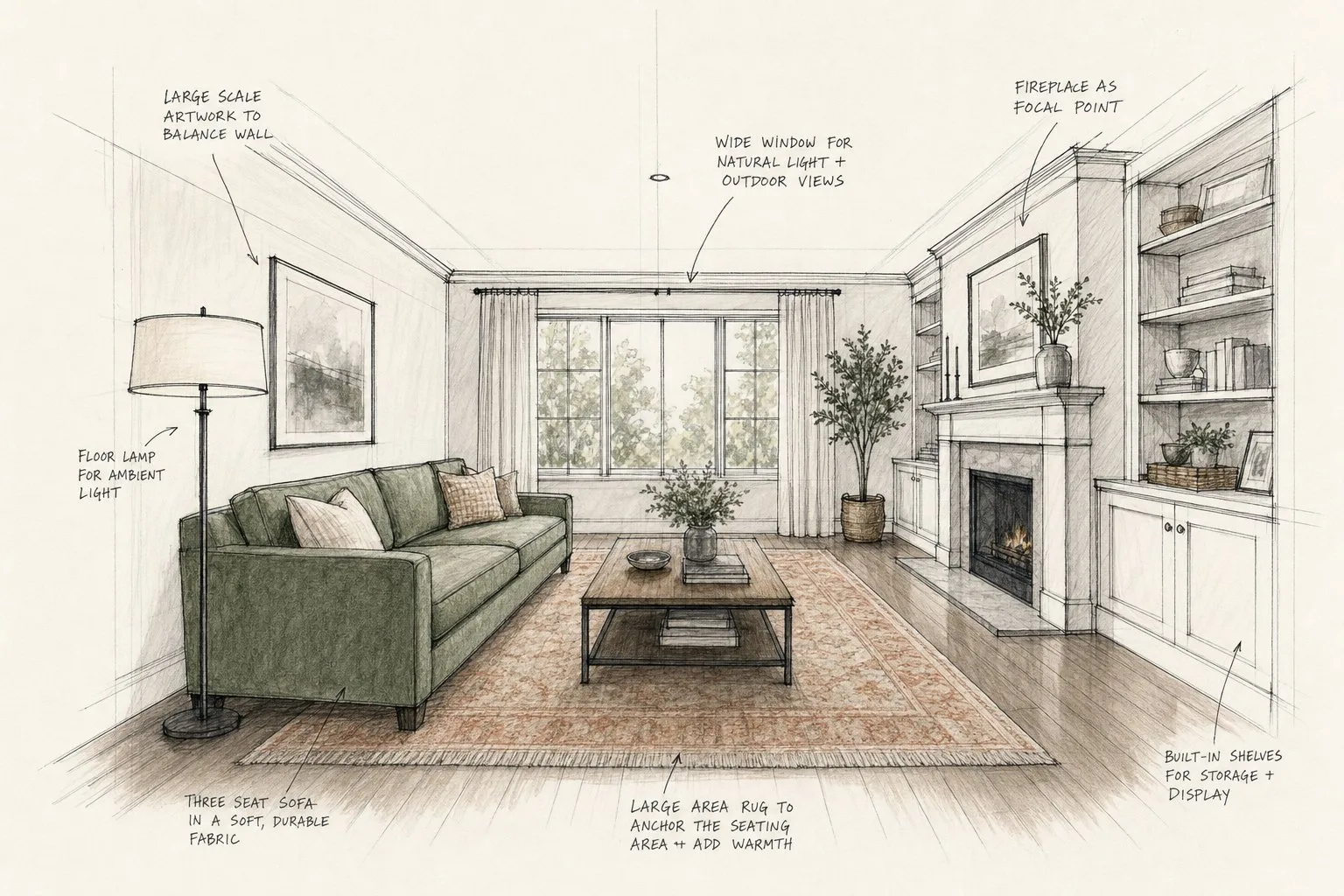
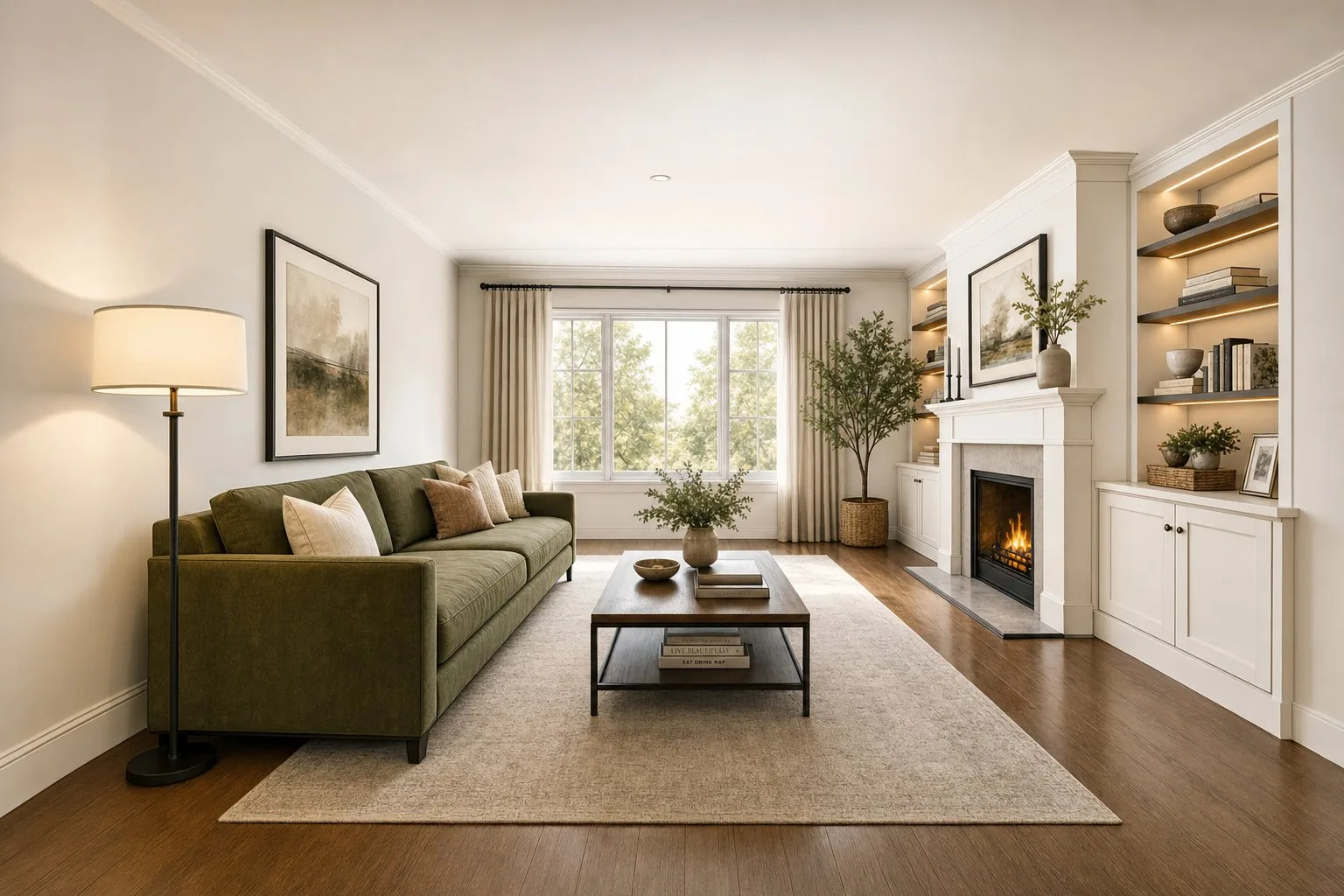 SketchPhotorealistic
Try it on your own render, 5 images free
What to expect, honestly
- Architecture is kept, furniture is interpreted. The walls, openings, ceiling and camera stay. Loose furniture keeps its position and volume but is re-dressed in the chosen style; if a specific sofa must stay a specific sofa, describe it in Freestyle or keep the 3D render for that shot.
- Materials follow the style unless you name them. A preset decides the floor and the finishes. Name them in Freestyle when the client has already chosen.
- Input quality sets the ceiling. A clean viewport at 1920 px gives a sharper result than a 640 px thumbnail of an old render.
- It is one view at a time. Each input is an image; there is no scene to walk through. For a six-view set, upload six views and render them in the same style for consistency.
- Re-render freely. Each result is a new version next to the previous ones; the input is never overwritten.
Who uses it this way
Interior designers for concept presentations before the detailed model exists; architects for massing and clay studies that need to land with a non-technical client; developers refreshing brochure CGI from an earlier phase; agents modernising the renders of a new-build listing without finding the original scene files. The interior designer page covers the studio workflow and plans.
Frequently asked questions
Does the AI keep the exact geometry of my model?
The camera, walls, openings and ceiling line stay where the input puts them; that is what the editor's divider lets you verify. Loose furniture keeps its position and size but is re-dressed in the chosen style.
Can I control the materials?
Yes, with Freestyle: describe floor, walls, frames, worktops and light in plain words. Presets choose materials for you and are faster when the look is open.
What resolution do I get?
1K on Free and Personal, 2K on Pro and Business, as PNG or JPG. Upload the largest clean input you have; the output is only as detailed as the input allows.
Does it work on exterior renders?
Yes, in the same way: upload the exterior view and render it in a style or with a Freestyle description. Expect landscaping and sky to be re-interpreted, and the building to stay.
How long does a render take?
One to two minutes per image, in parallel. Four inputs were done in about five minutes including analysis.
By Martin Balk, founder of Twelve Lumens · Updated October 22, 2026
See your own listing staged
Upload a few photos and get decluttered, staged versions back in minutes. The first five images are free, no credit card, and your originals are always kept.
Stage 5 images freeMore from the blog
Virtual Staging as a Photographer's Add-On: Workflow and Pricing
How real estate photographers add virtual staging to a shoot: same-day workflow, what to charge per photo, how to hand the set to the agent, the rules.
Remove Furniture from Listing Photos with AI (Virtual Decluttering)
Empty a lived-in room on the photo in one click: upload, declutter every photo at once, keep what should stay, then stage or publish the clean version.
How to Style Your Home with AI in 5 Steps (With Screenshots)
Step by step, with screenshots: photograph your rooms, upload, declutter, try two or three styles and export. About 15 minutes, first 5 images free.
How to Virtually Stage a Whole Listing in One Go (Screenshots)
A real 13-photo listing staged in one sitting: one upload, one house style, one click for every room, a portal-ready export with the disclosure built in.
How Does AI Virtual Staging Work? From Upload to Listing-Ready Photo
How AI virtual staging works, step by step: upload, declutter, pick a style, render in minutes. What changes, what it costs and where it is allowed.
Virtual Staging Pricing in 2026: What It Costs Per Photo, Per Listing and Per Month
Virtual staging costs roughly €0.40 to €40 per image in 2026. What the three pricing models add up to per listing and per month, plus the hidden fees.
Home Staging Photographer: What They Do and How to Shoot a Home So It Stages Well
What a home staging photographer actually does, how to shoot every room so it stages well, physically or virtually, and when a phone is enough.
Virtual Staging Terms, Explained: A Plain-Language Glossary
Plain-language definitions of 13 virtual staging terms: renders, 2K, house styles, decluttering, disclosure and more, each one quotable on its own.
Virtual Staging Disclosure Rules in 2026: MLS, Zillow, Funda, Rightmove and More
Where virtually staged photos are allowed, what each market expects you to disclose, and a checklist that keeps your listing within every rule.
How Much Does Home Staging Cost in 2026? Physical vs. Virtual, With Real Numbers
What physical, outsourced virtual and AI home staging cost per listing in 2026, when each one is worth it, and the math for a typical 20-photo listing.