How to Style Your Home with AI in 5 Steps (With Screenshots)
Step by step, with screenshots: photograph your rooms, upload, declutter, try two or three styles and export. About 15 minutes, first 5 images free.
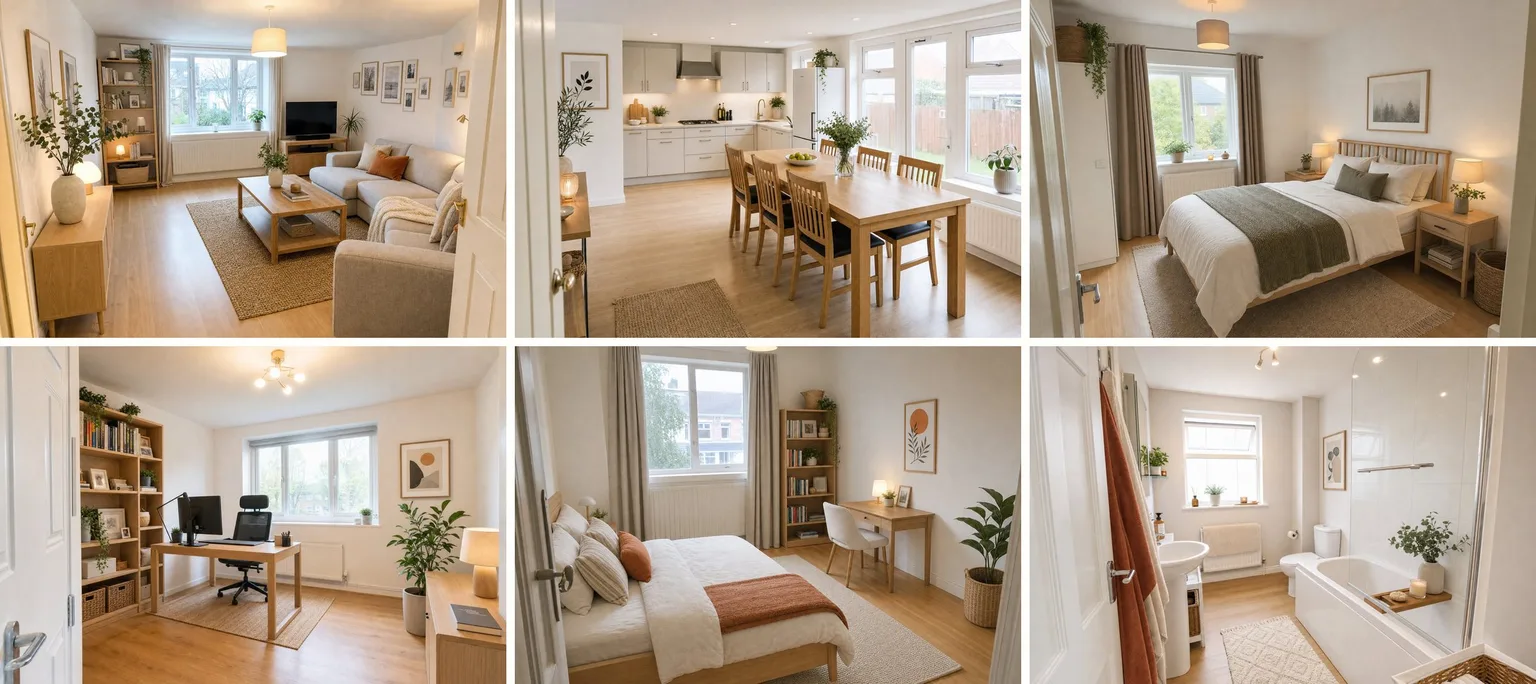
You can see your own living room in a new style tonight, from a phone photo, without buying a single cushion first. This tutorial walks through exactly how, with screenshots of every step: we started from six photos of a lived-in family home, uploaded them to Twelve Lumens, cleared the clutter, and tried the rooms in Modern, Scandinavian and Coastal before describing a look of our own. Start to finish took about fifteen minutes, most of it waiting for renders.
What you need: a phone, daylight and a free account. The first five images cost nothing and there is no credit card step. If you first want the background on how the technology works, read How does AI virtual staging work?; this article is the hands-on version. The home in the screenshots is a generated example, so nobody's real living room is on show here; every decluttered and styled image is an unedited render from the app.
Before you start: take photos the AI can work with
The result is only as good as the photo underneath it, because the room itself is never changed, only what is in it. Five rules that make the difference:
- Shoot in daylight, curtains open, lights on. Flat afternoon light beats a dark evening shot every time.
- Stand in the doorway or a corner and hold the phone at chest height, level with the floor. The AI needs to see floor, walls and ceiling to place furniture convincingly.
- Landscape, not portrait. One wide photo per room shows the whole space; portrait crops half of it away.
- Don't tidy for the camera. The decluttering step removes clutter for you, and it is interesting to see the difference.
- One photo per room is enough to try a style. Add a second angle later for the rooms you want to decide on.
JPEG, PNG, WebP and HEIC straight from an iPhone all work; the app converts and keeps your originals untouched.
Step 1: Create a free account and pick "My own home"
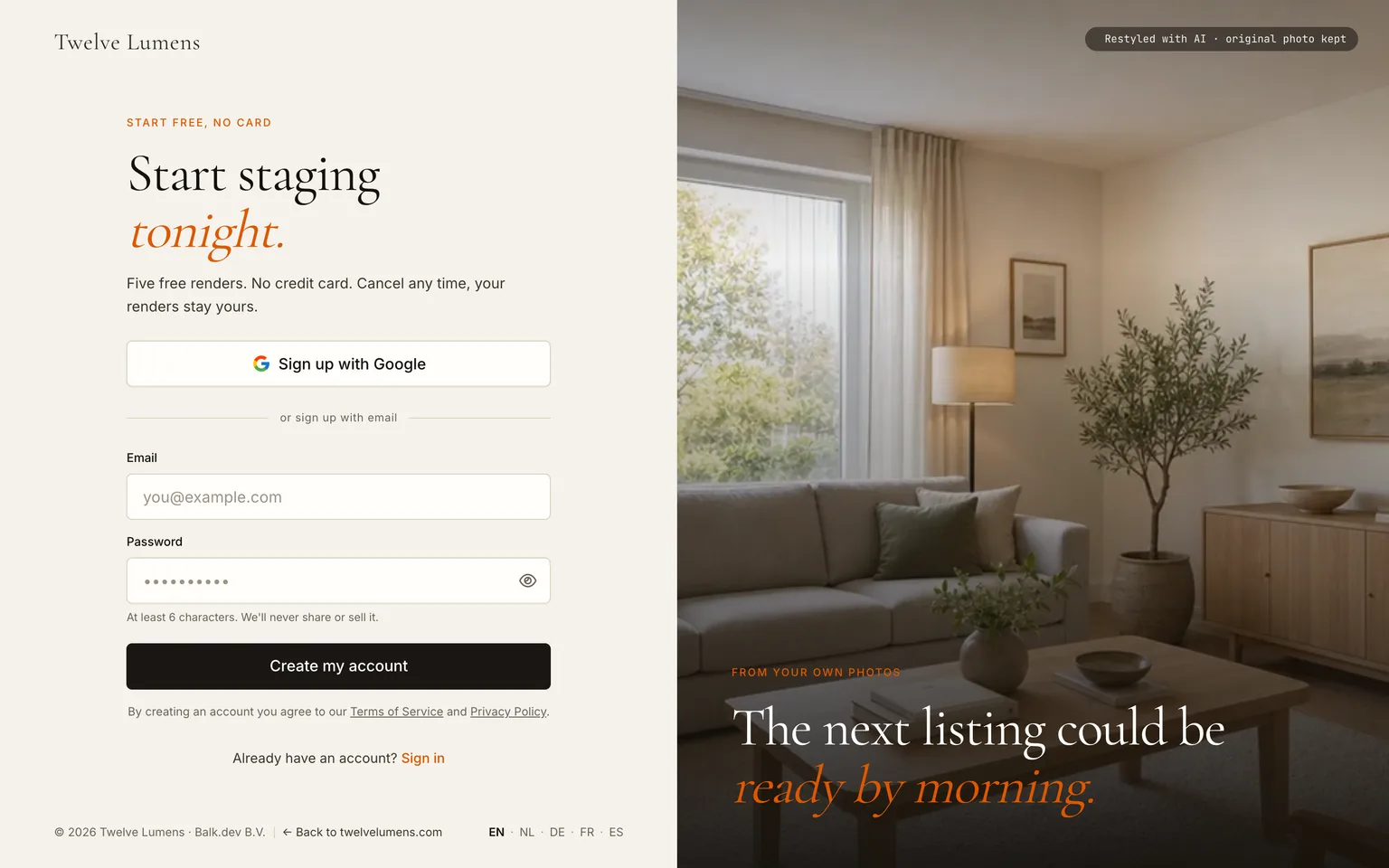
Go to the sign-up page and create an account with your email or Google. No card, no trial clock: the first five images simply stay free.
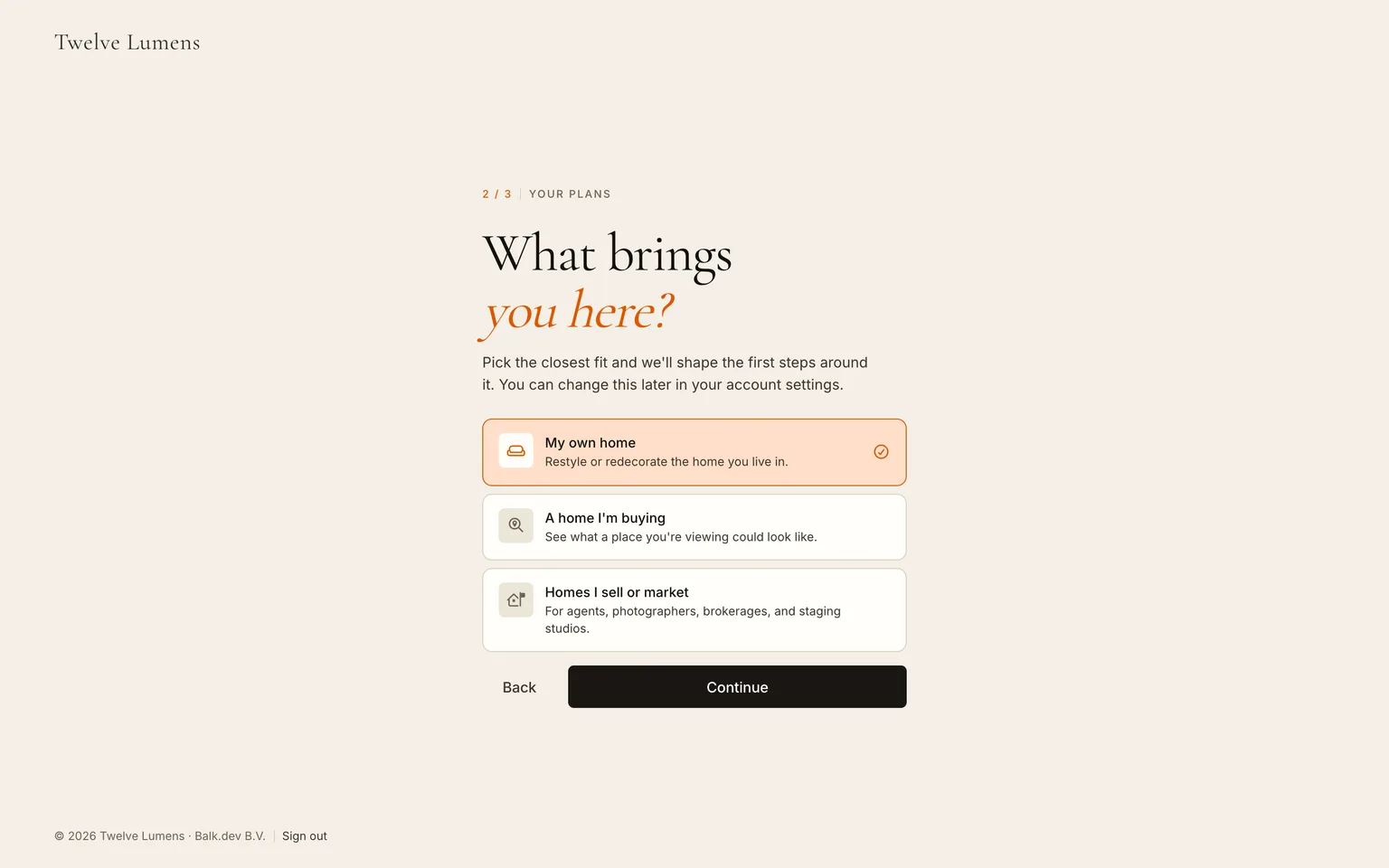
Two short questions follow. The second one matters: choose My own home. The app then sets up a personal workspace with one property called "My home", so you skip the address forms that agents fill in and land straight on the upload screen.
Step 2: Upload your photos
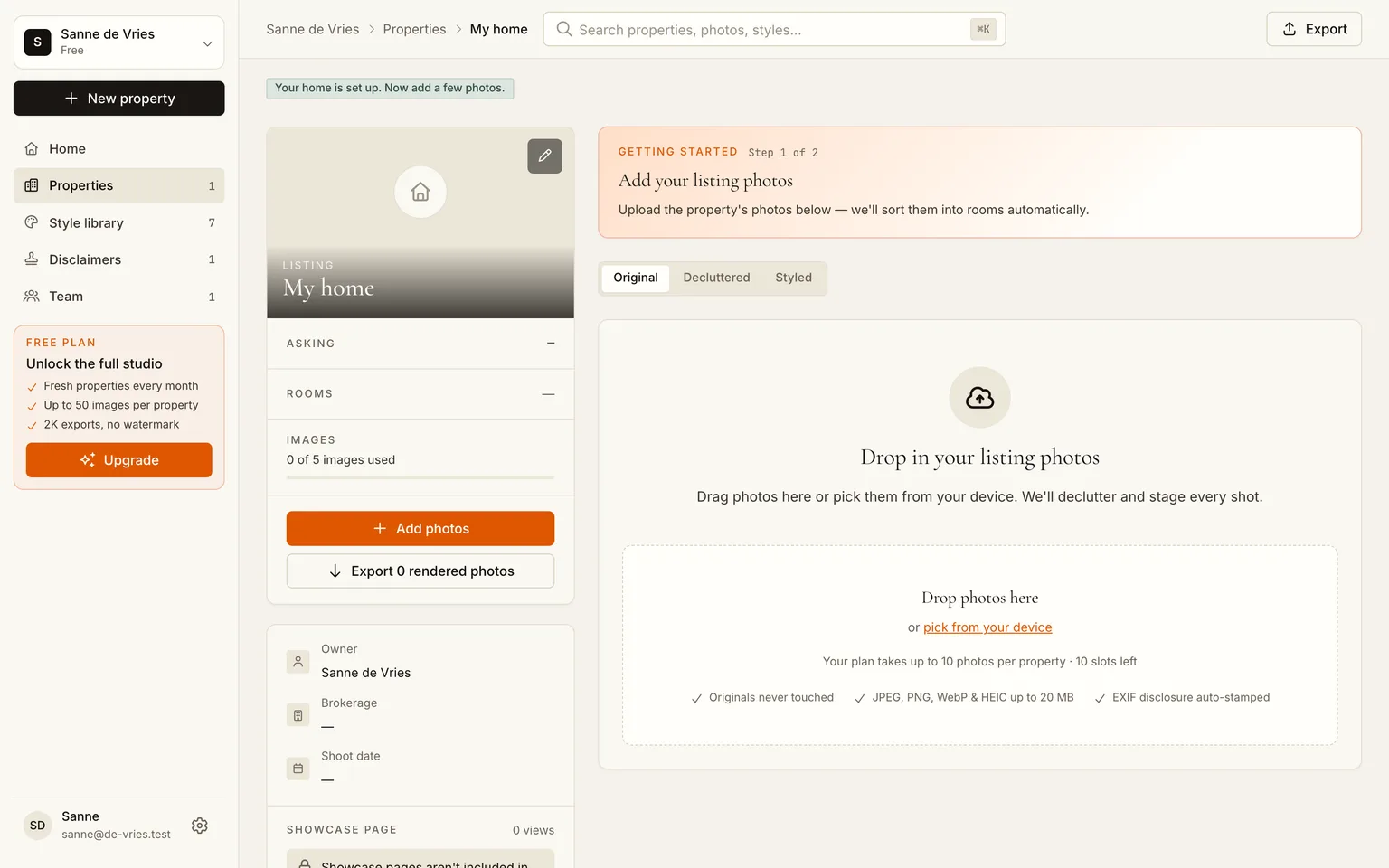
You land on an empty property page. The big dropzone in the middle and the Add photos button in the sidebar do the same thing: open the uploader.
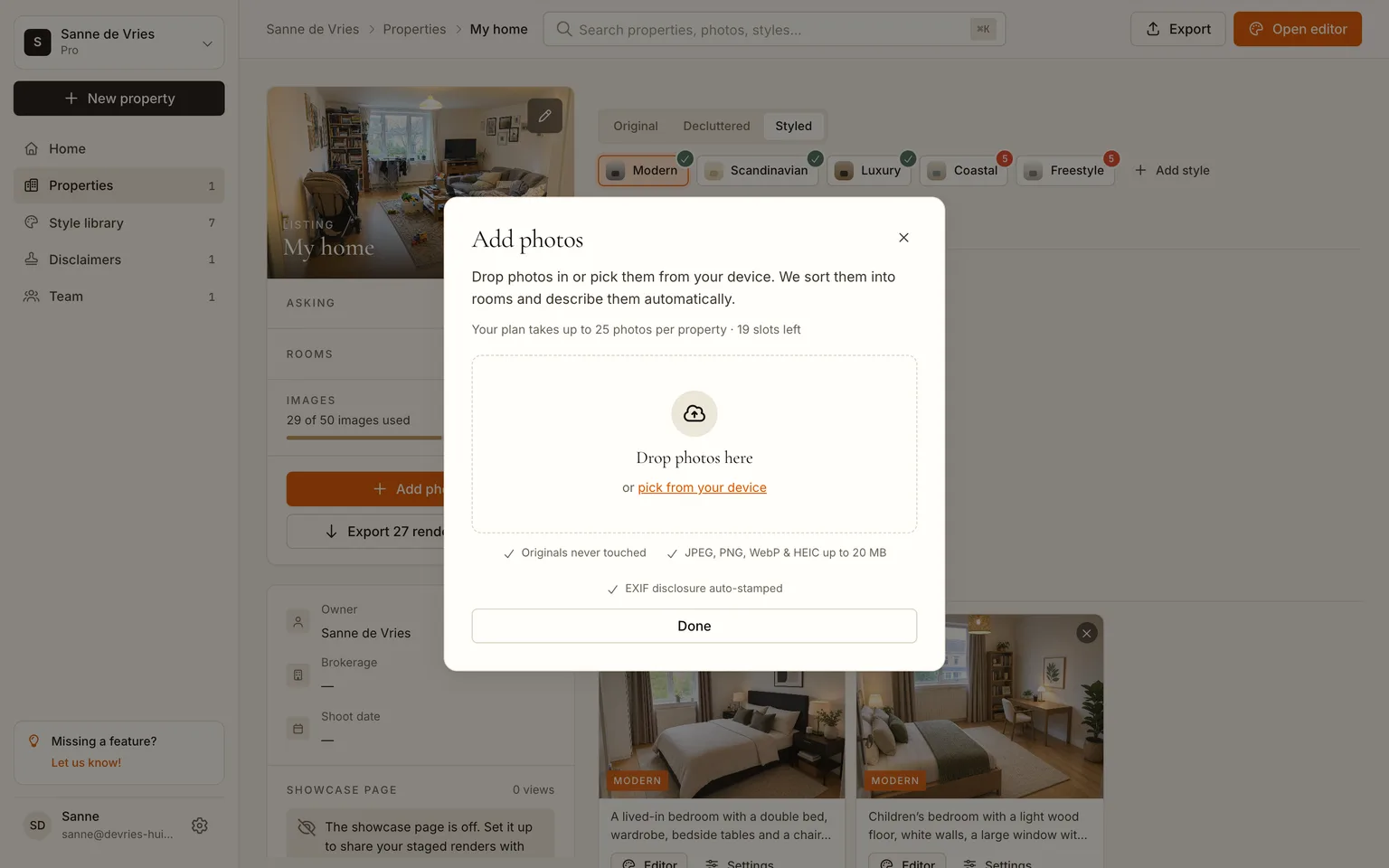
Pick all your room photos in one go. Each one uploads separately and appears in the page as it lands.
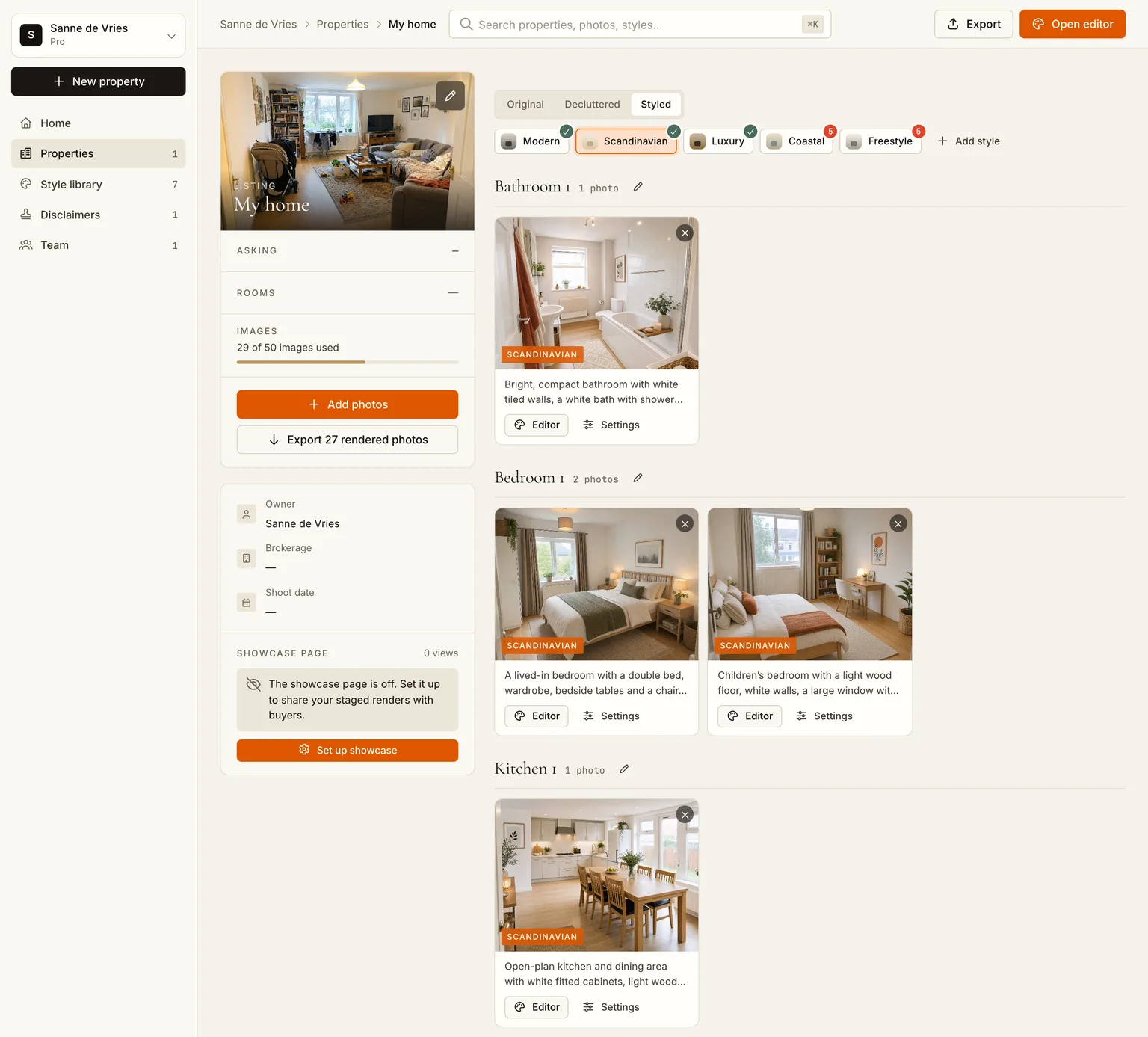
Right after upload the app looks at every photo, decides which room it is and writes a short description. That takes ten to thirty seconds per photo, and you can watch the photos move from a "processing" strip into their room groups. In our case the six photos sorted themselves into living room, kitchen, two bedrooms, office and bathroom without any input from us.
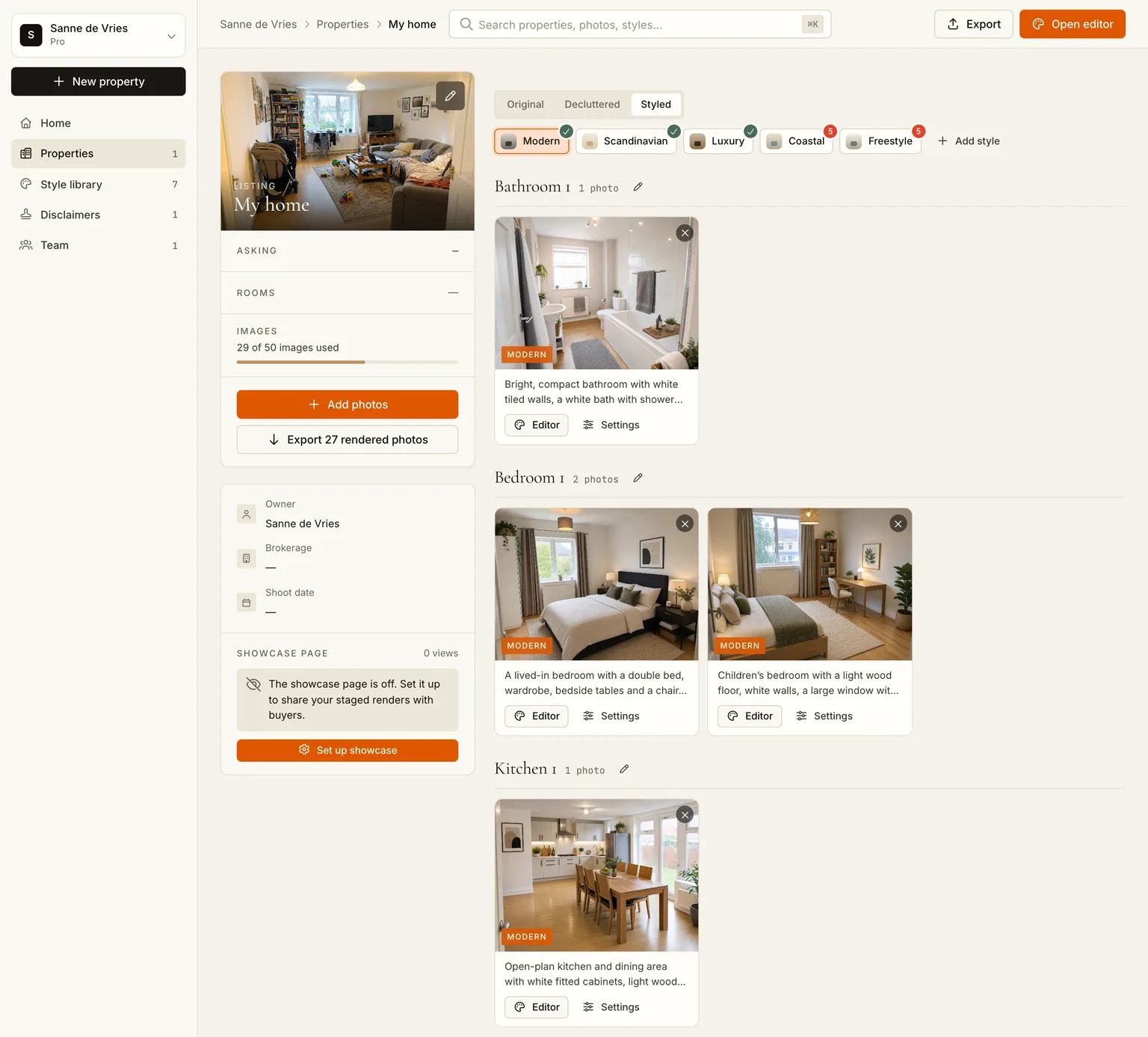
One more thing happens on your very first upload: the app renders one room in the Modern style on its own, so you see a result within a minute or two instead of staring at buttons. It appears under the Styled tab.
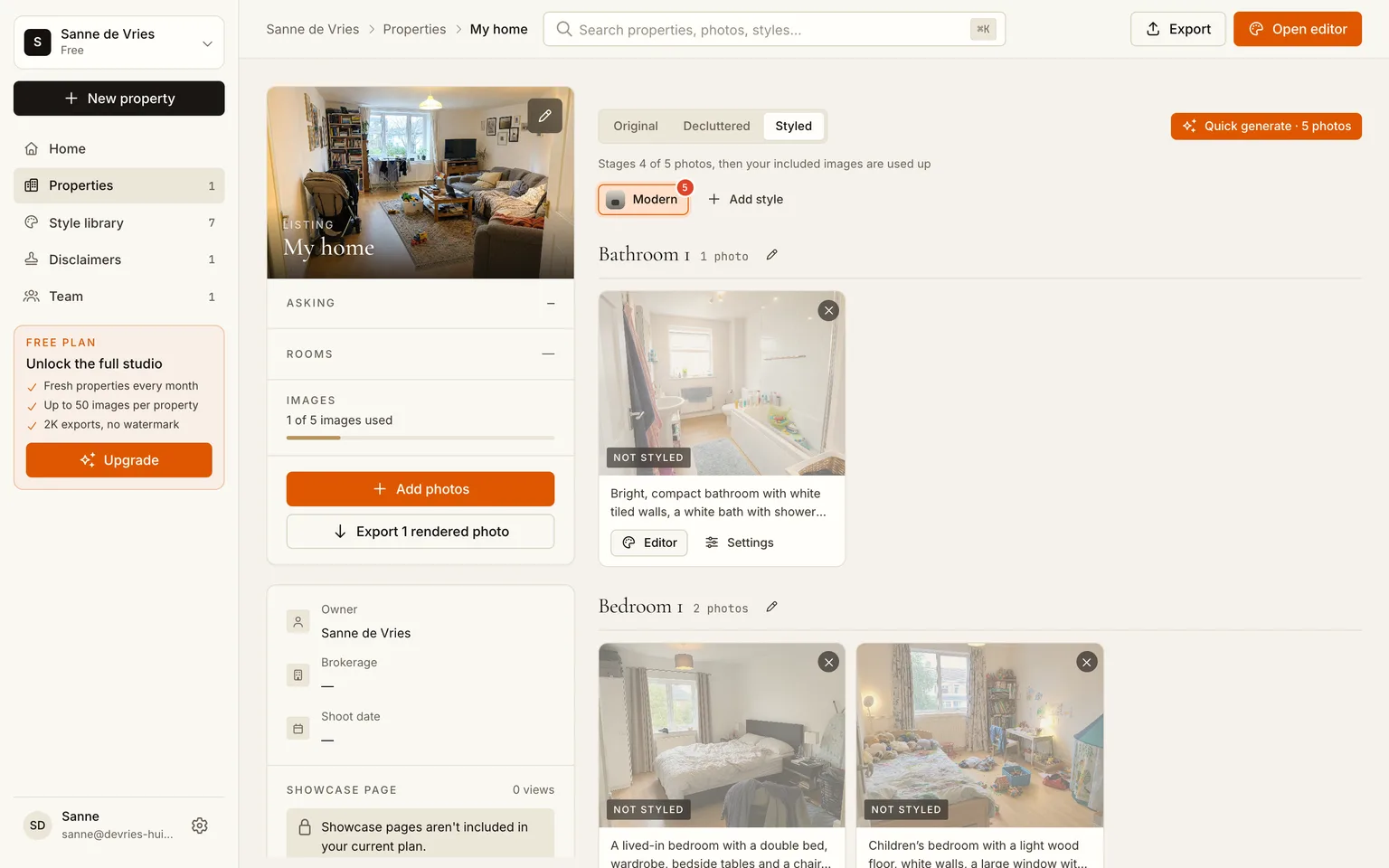
Step 3: Declutter first
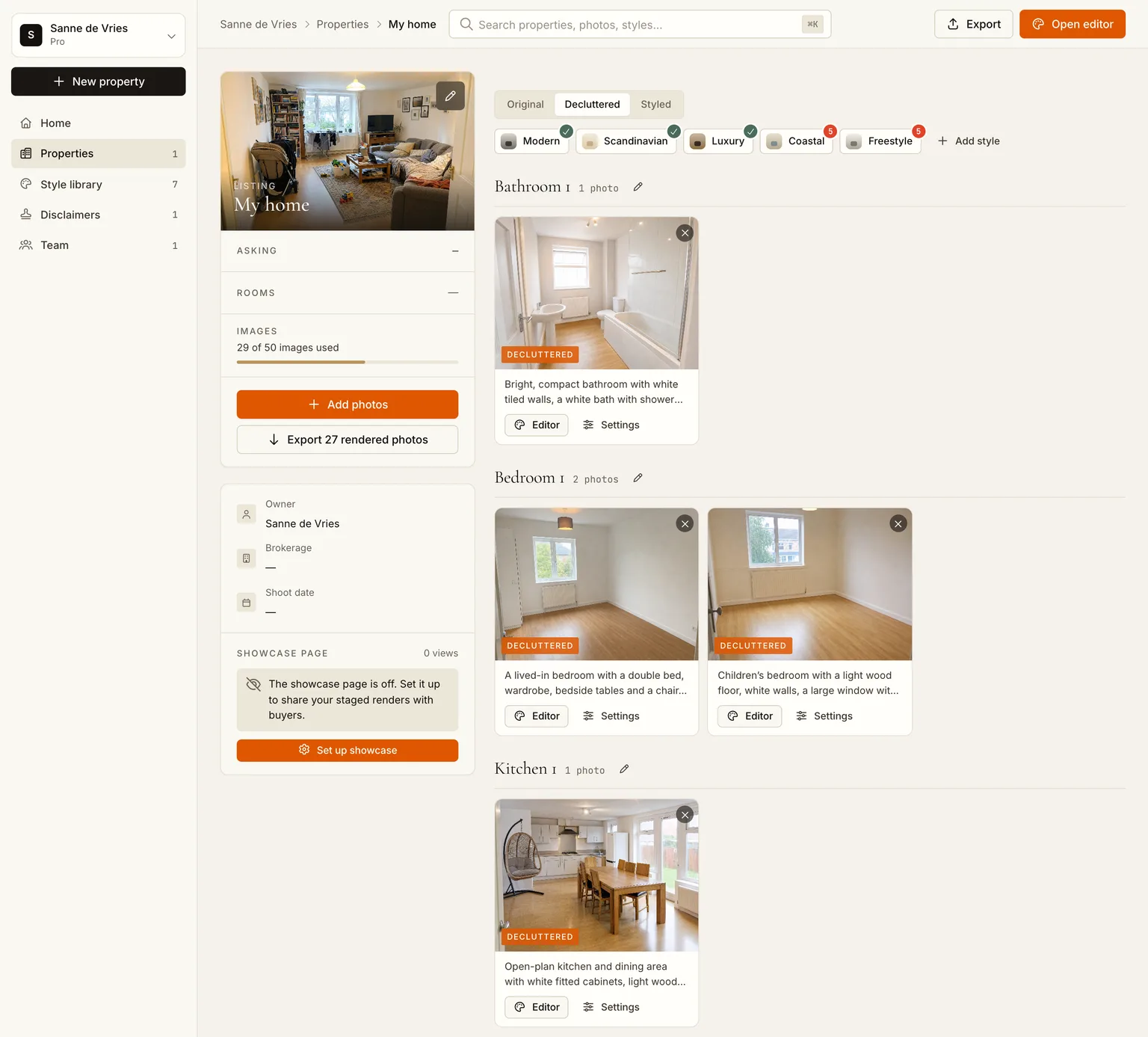
Open the Decluttered tab and click Quick generate. The AI takes the owner's furniture, counter clutter and personal items out of every photo at once and leaves a clean, empty version of the same room: same floor, same walls, same windows, same light.
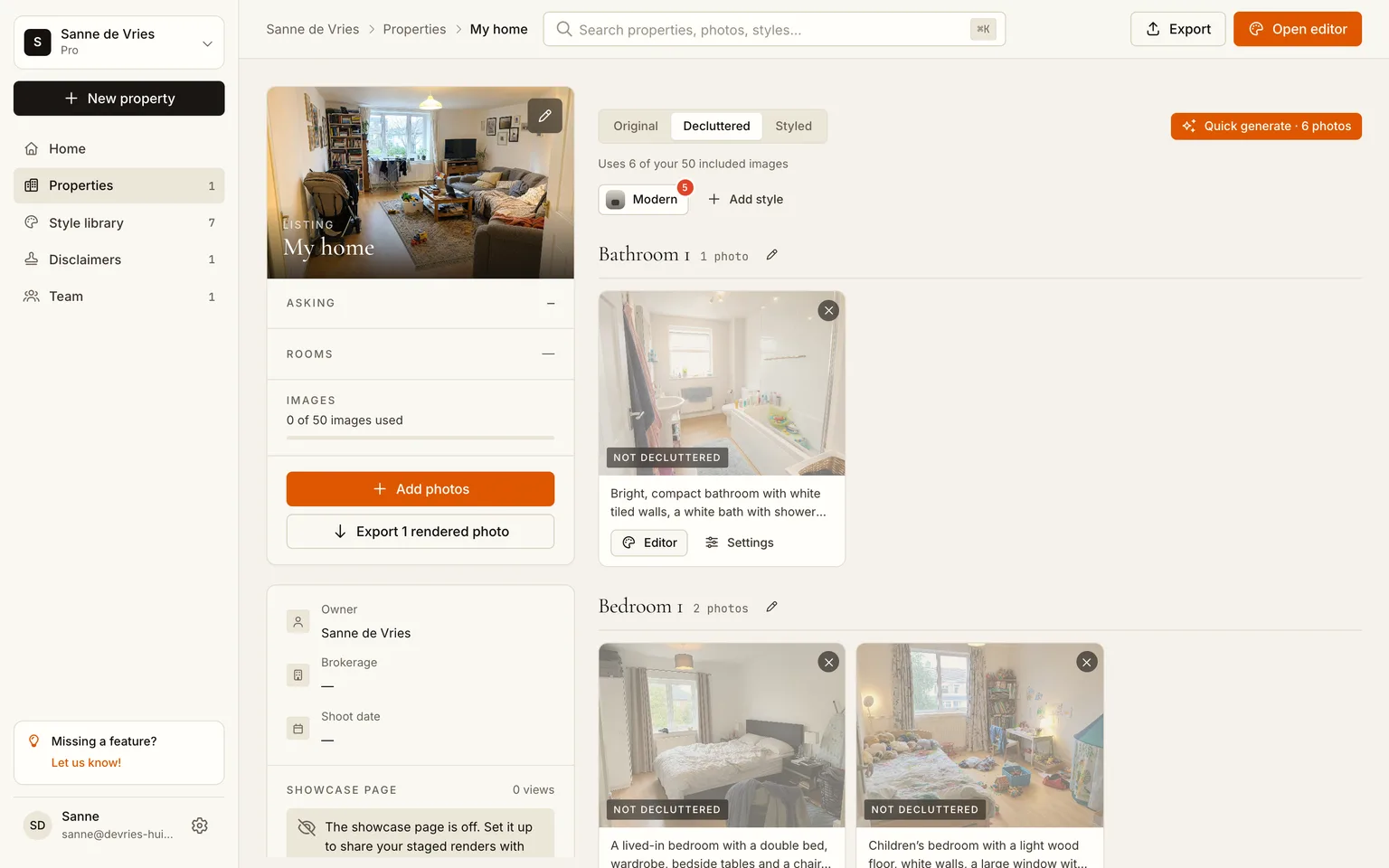
Why bother with this step if you are going to add new furniture anyway? Two reasons. The staged results are better when the model starts from an empty room instead of fighting with an existing sofa. And the empty version is a result in itself: it is the first time most people see their room as a space rather than as their stuff, and that alone changes what you think it needs.
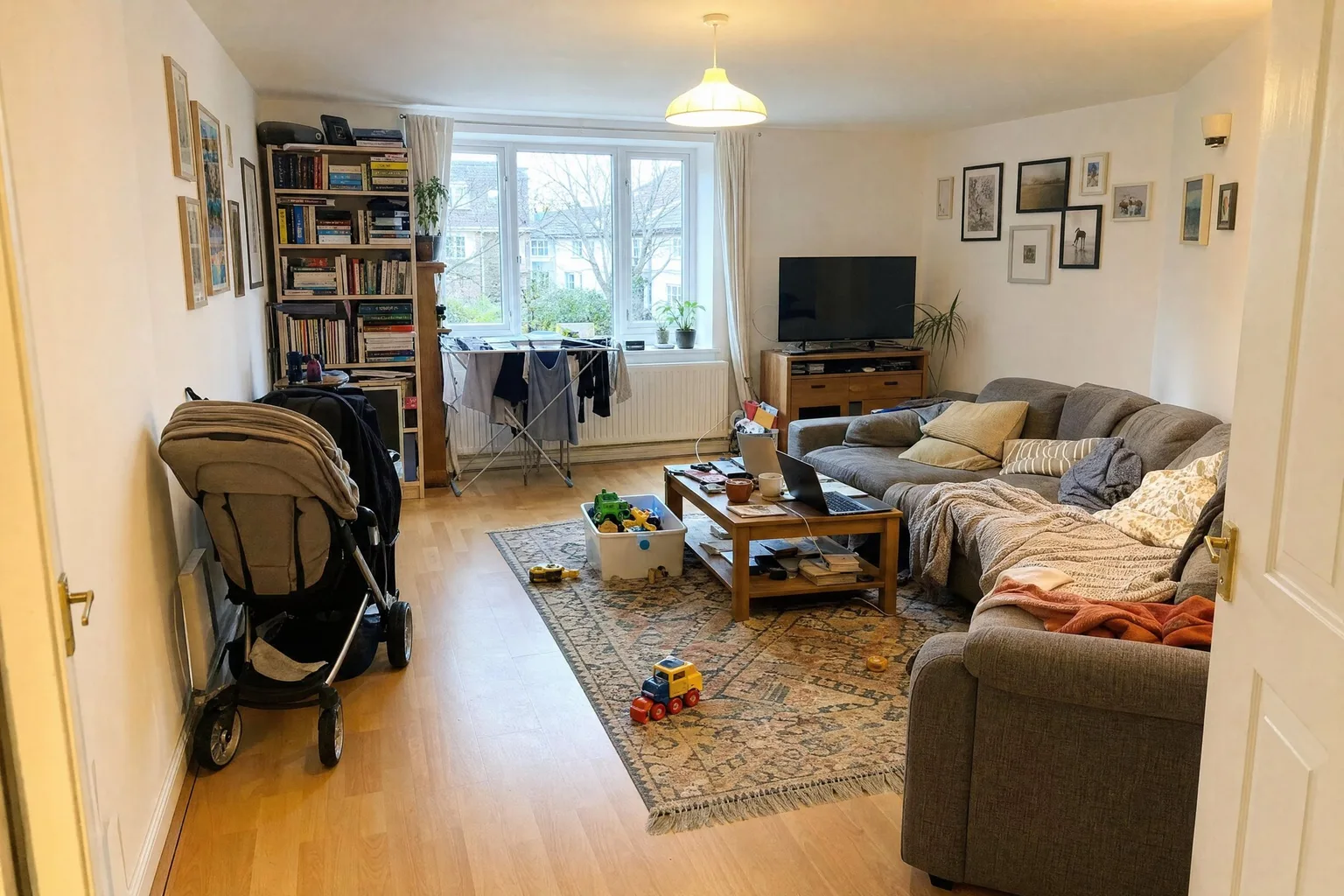
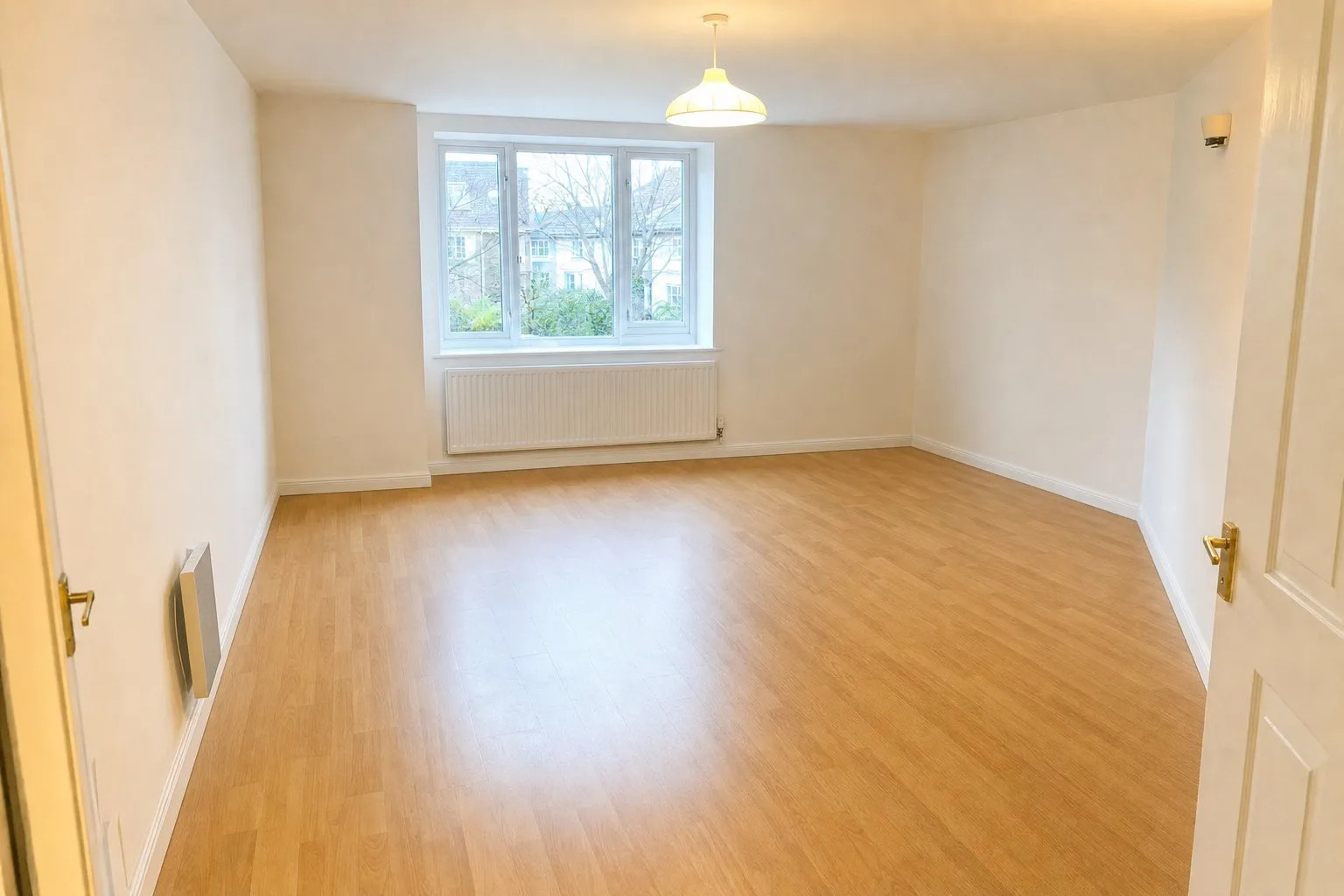 BeforeAfter
Step 4: Try a style, then try another one
Open the Styled tab. The Modern render from the first upload is already there; click Quick generate and every other room gets the same treatment, in parallel. A render typically takes one to two minutes, so a whole home is done while you make coffee.
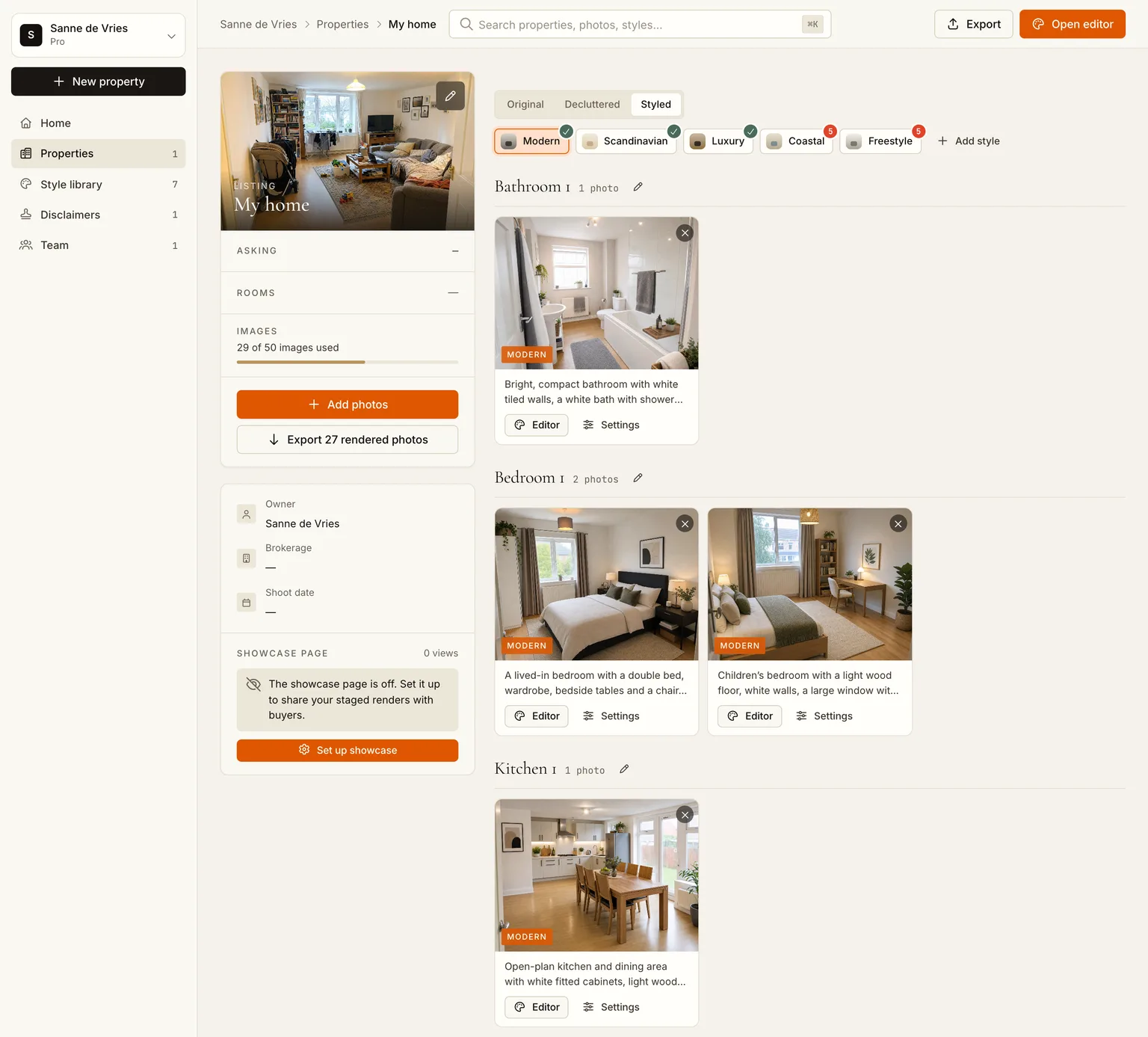
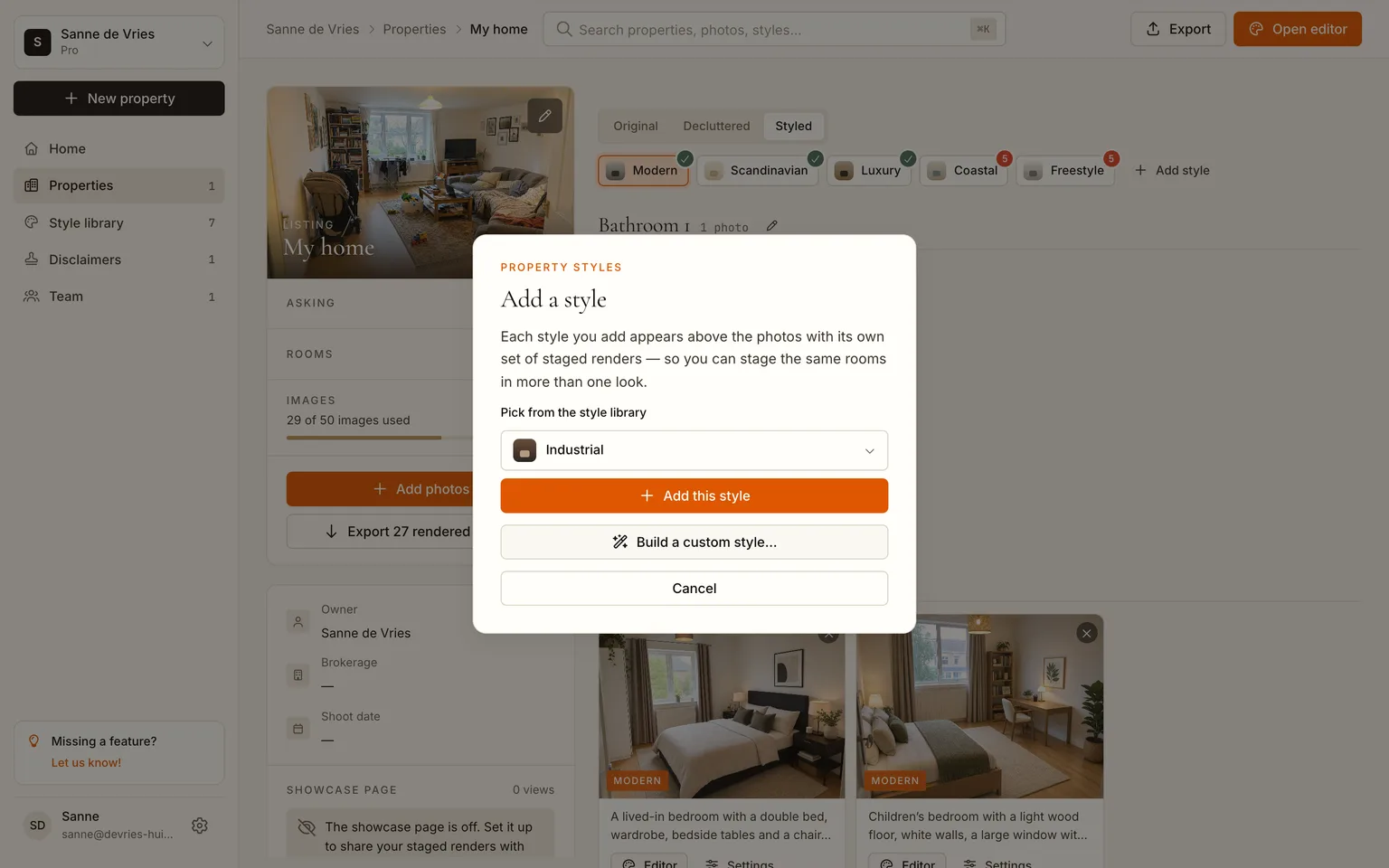
Now the useful part. Click Add style above the room grid and pick a second look from the library: Scandinavian, Luxury, Mid-century, Coastal, Industrial, or a style of your own. The new style appears as a chip next to Modern, with a counter for the rooms still to be rendered in it. Quick generate again, and a few minutes later you can flip the whole house between two styles by clicking the chips.
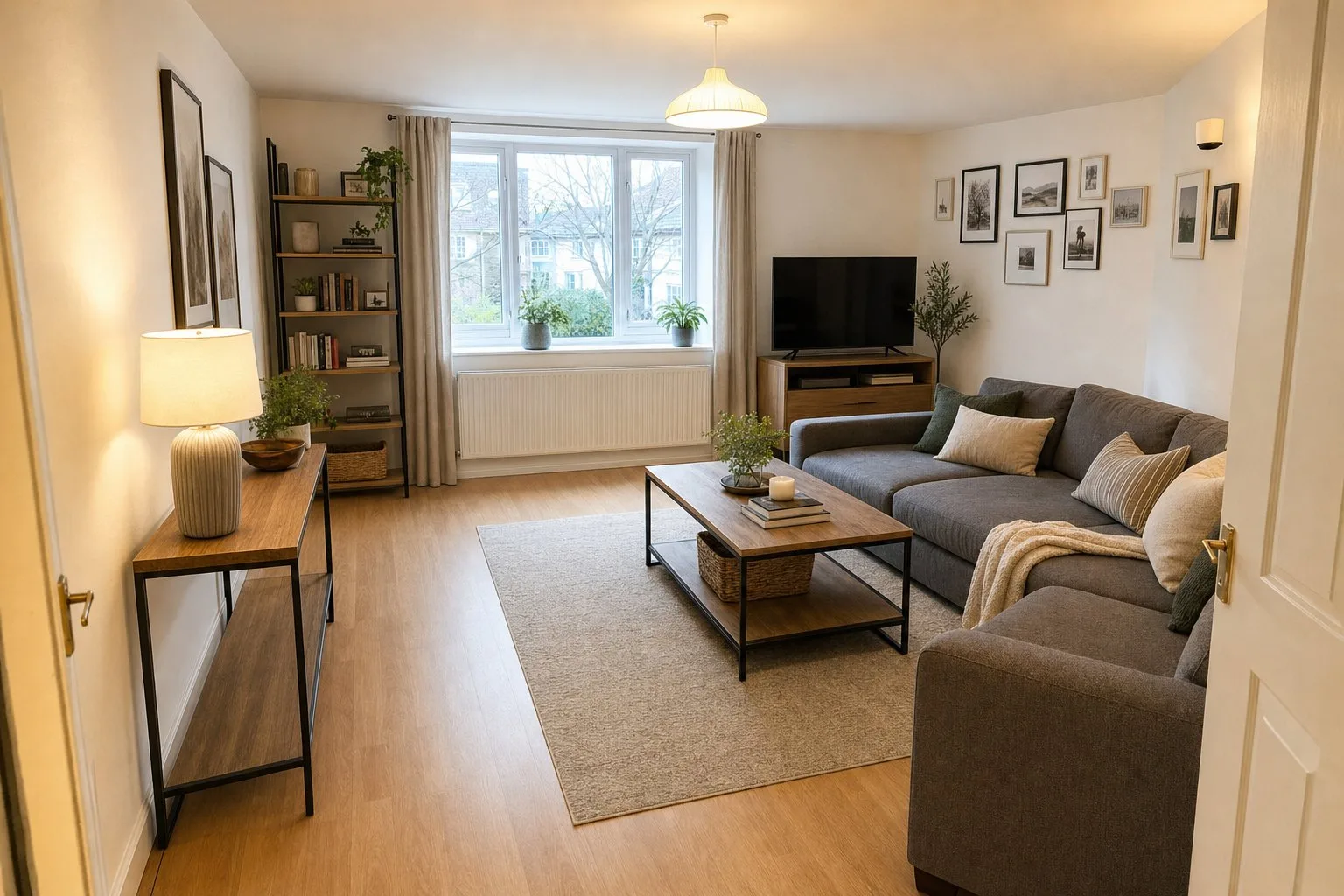
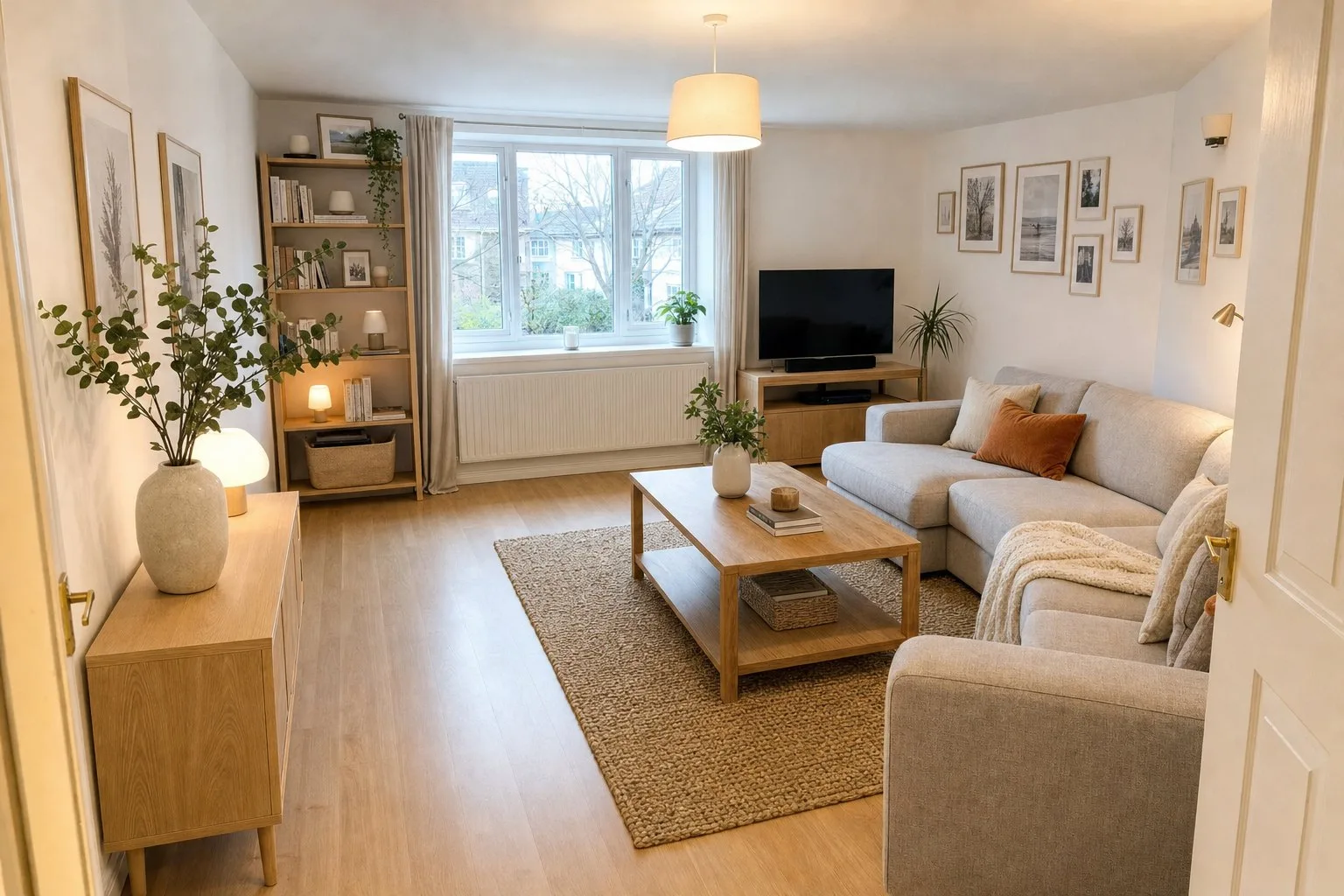 ModernScandinavian
Compare and re-render in the editor
Click any card to open the editor. The strip at the bottom holds every version of that photo: original, decluttered, each style, each retry. Don't like the sofa? Render again; the new result lands next to the old one and nothing is overwritten. The dropdown at the top switches styles for just this room, which is how you try Coastal in the living room without rendering the whole house again.
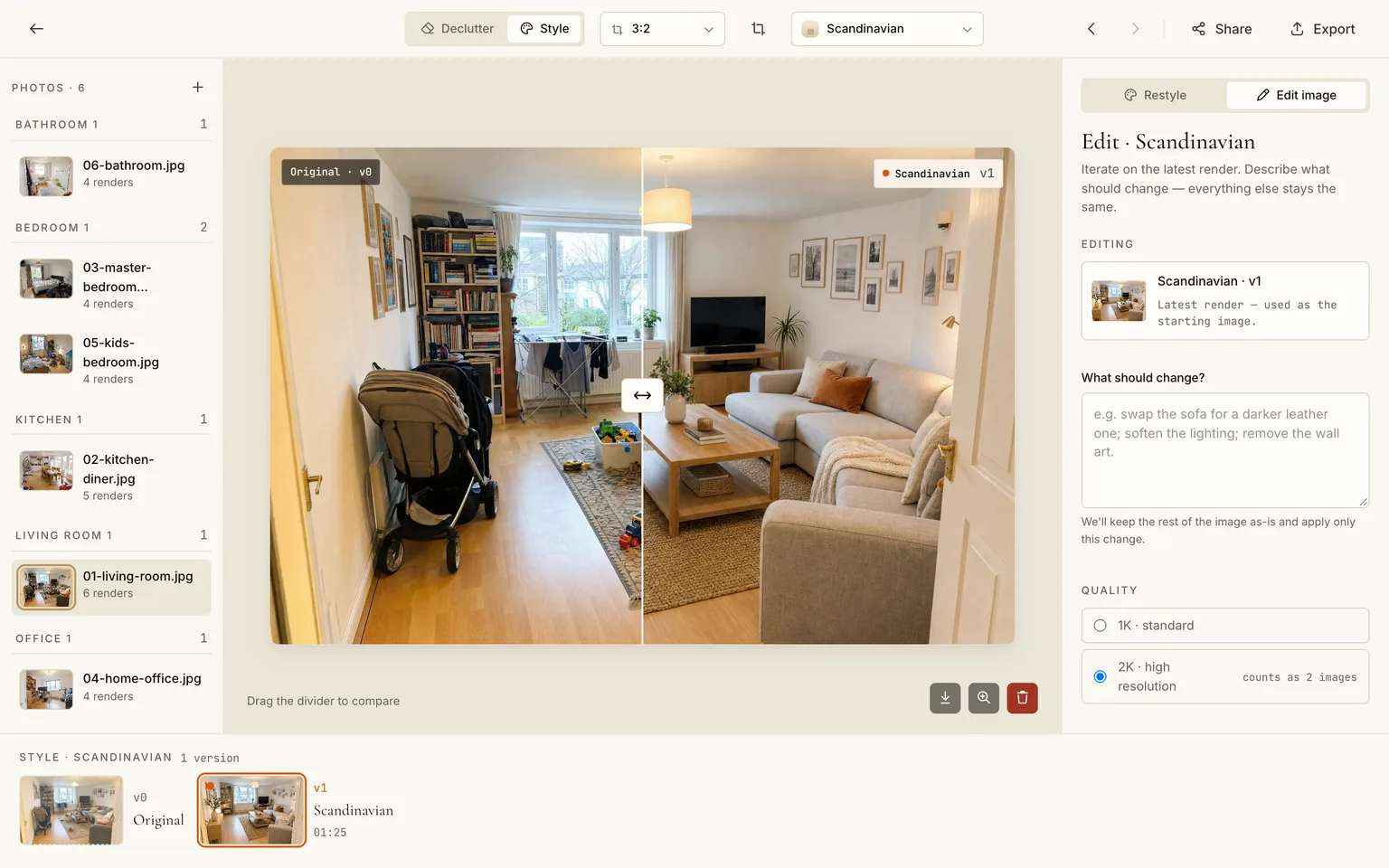
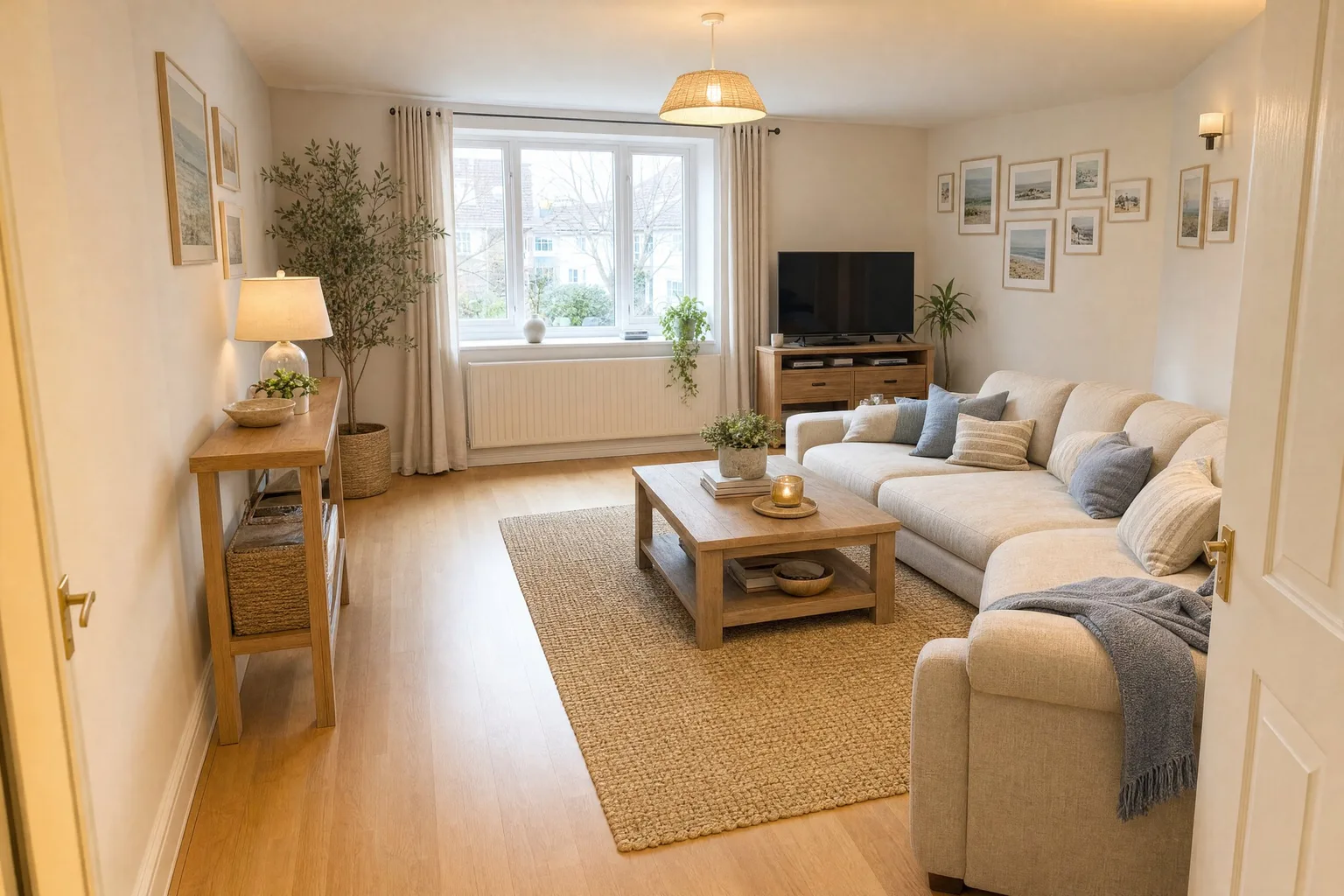 ScandinavianCoastal
Describe your own look
The presets are a starting point. If you know what you want, choose Freestyle in the style dropdown and type it: colours, materials, the one piece you already own and want to keep. We asked for a warm minimalist living room with a pale oak floor, an off-white linen sofa, a round walnut coffee table and one large artwork. The panel also lets you pick the starting image: the original, or the decluttered version, which gives the model a clean room to work from.
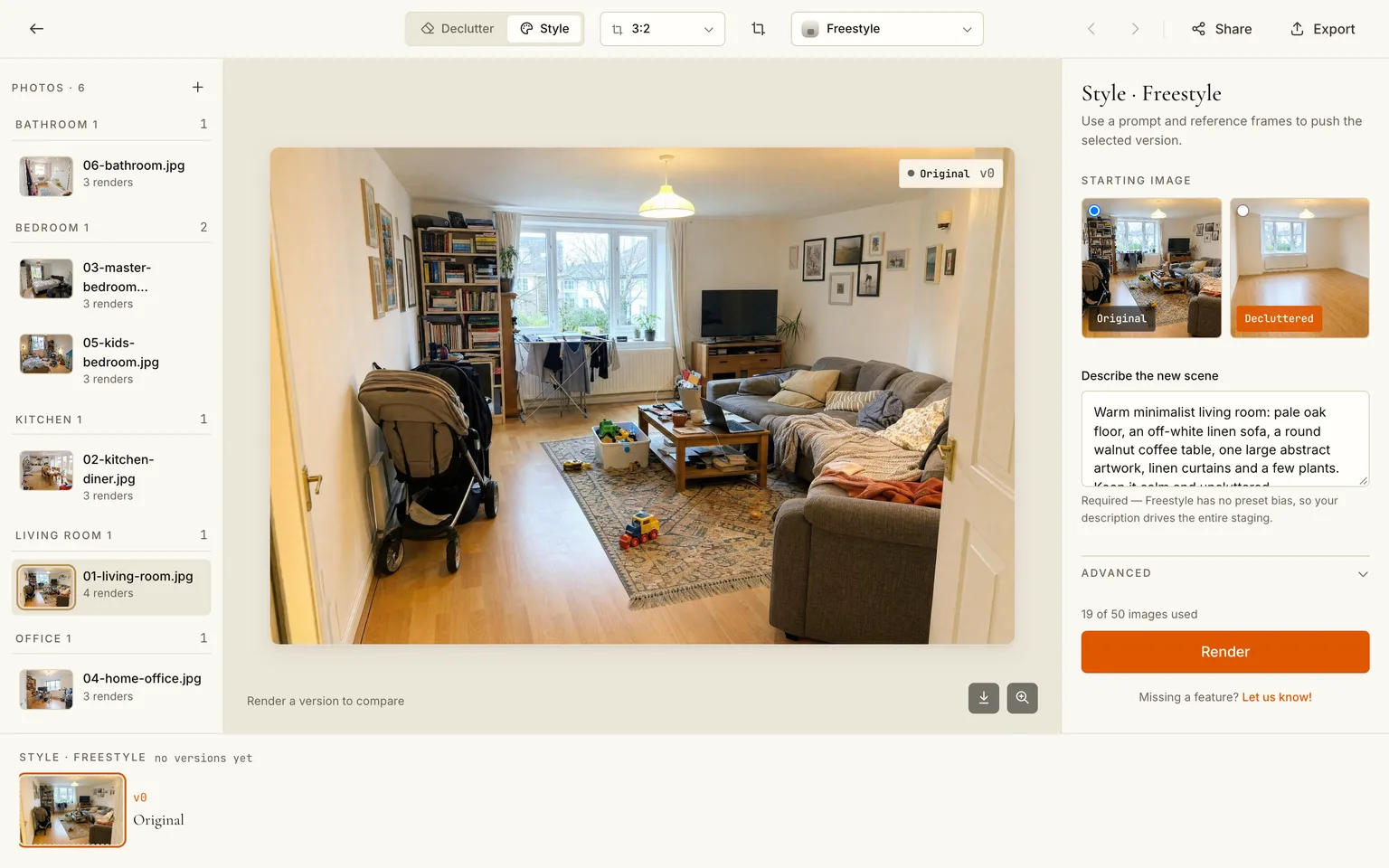
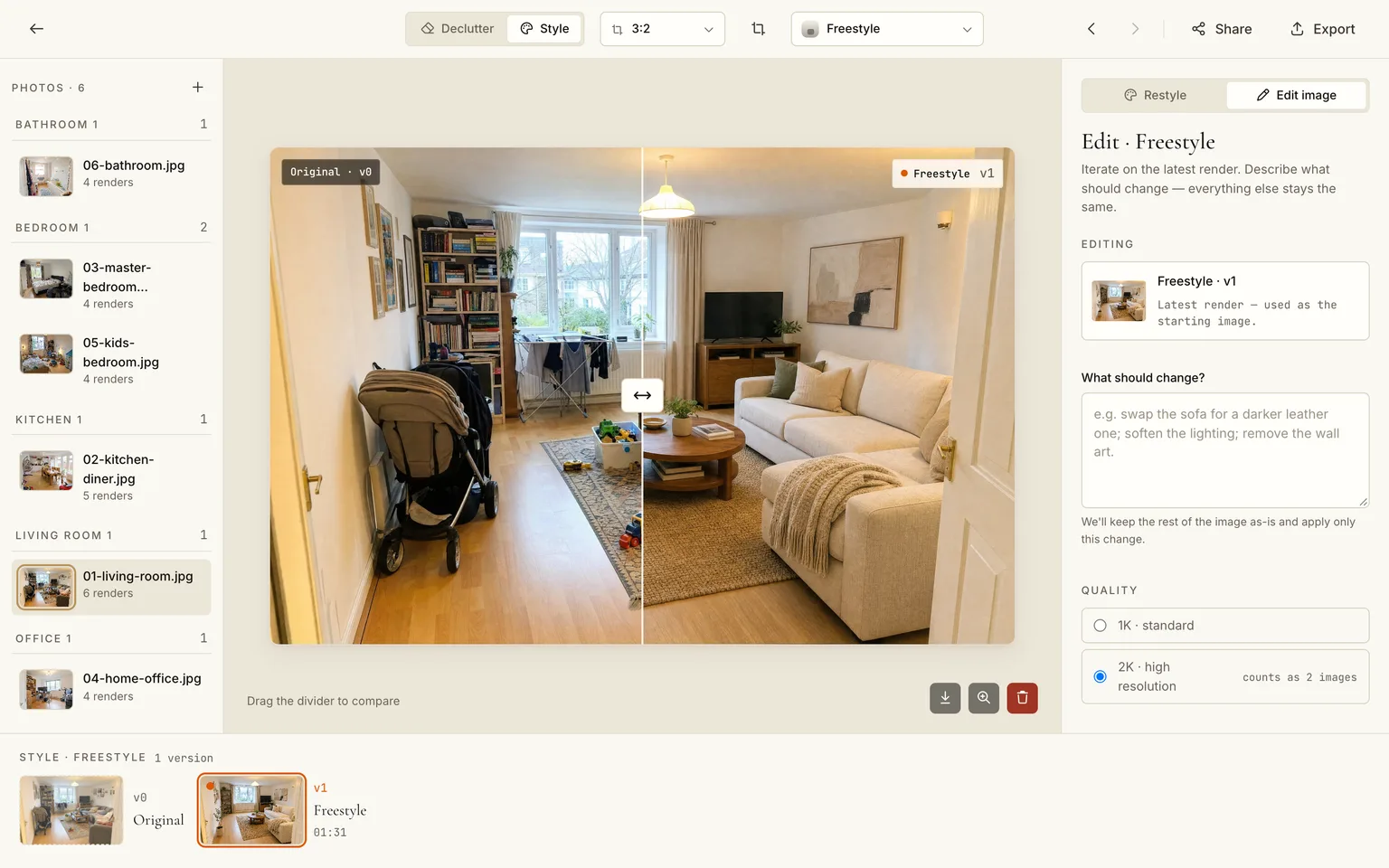
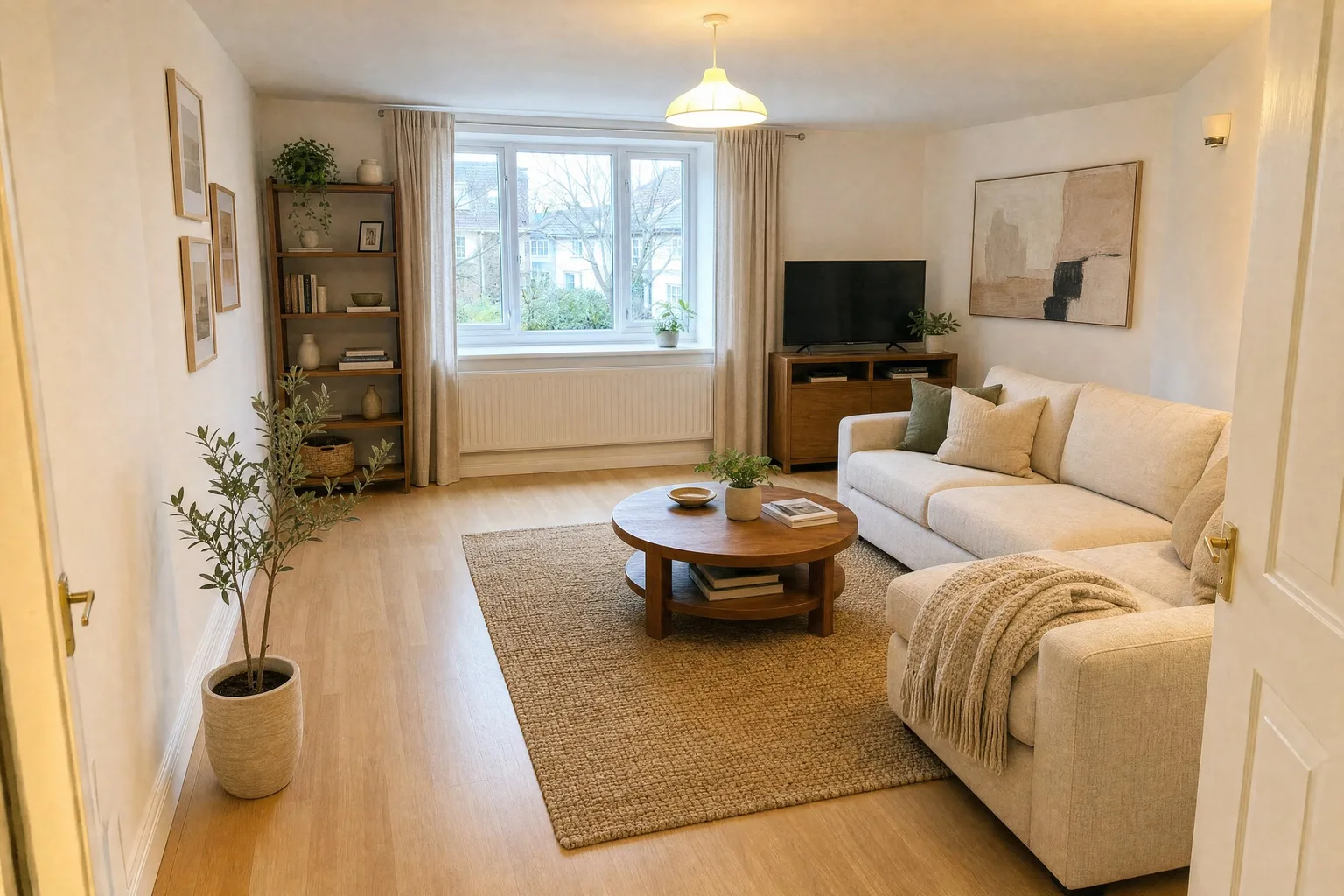 BeforeAfter
Step 5: Export and use the images
Click Export in the top bar. Tick what you want (originals, decluttered, staged, per style), choose JPG or PNG, and download a ZIP with everything in it. On the free plan the images carry a small disclosure bar saying they are digitally styled; paid plans can switch it off or write their own text.
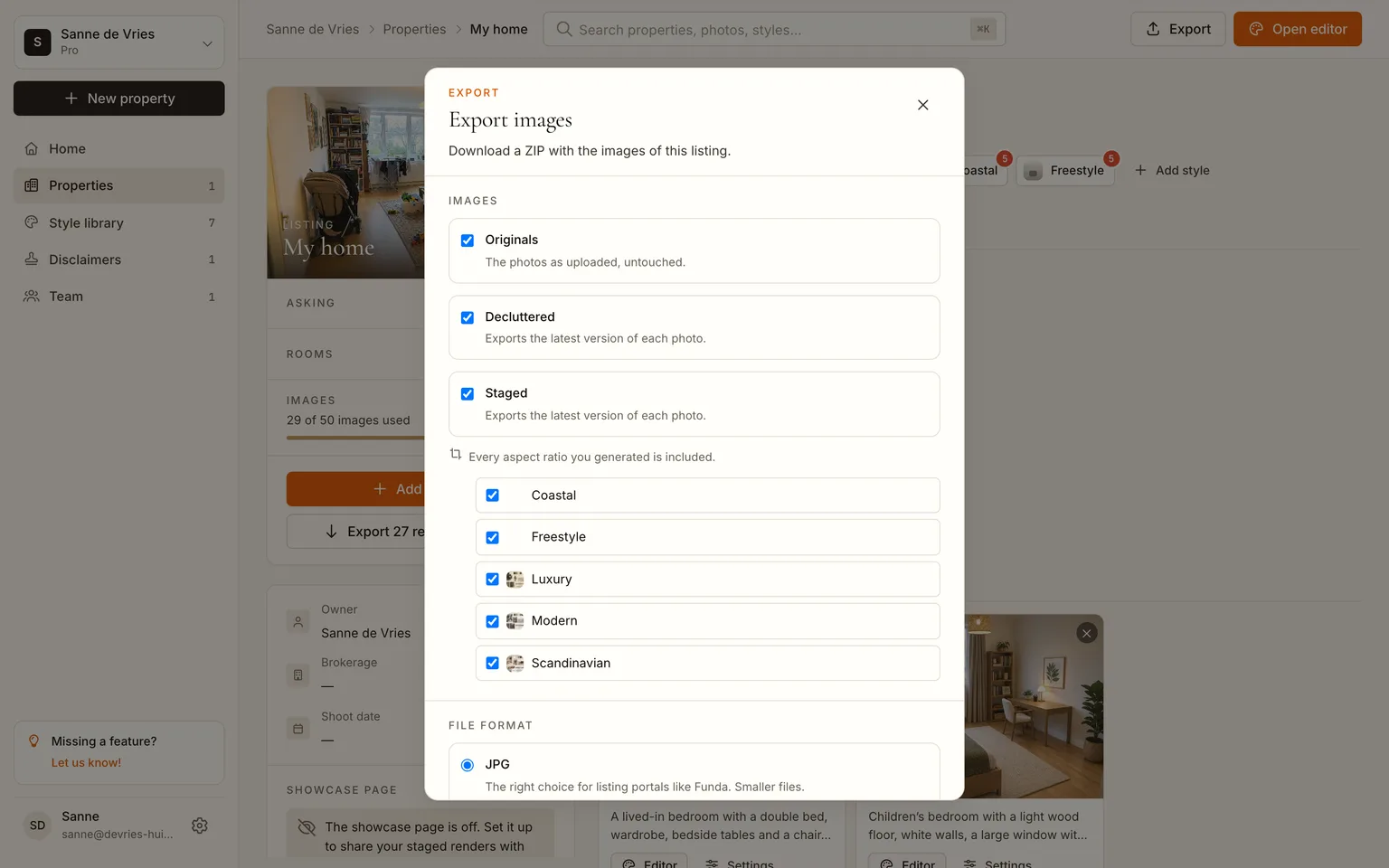
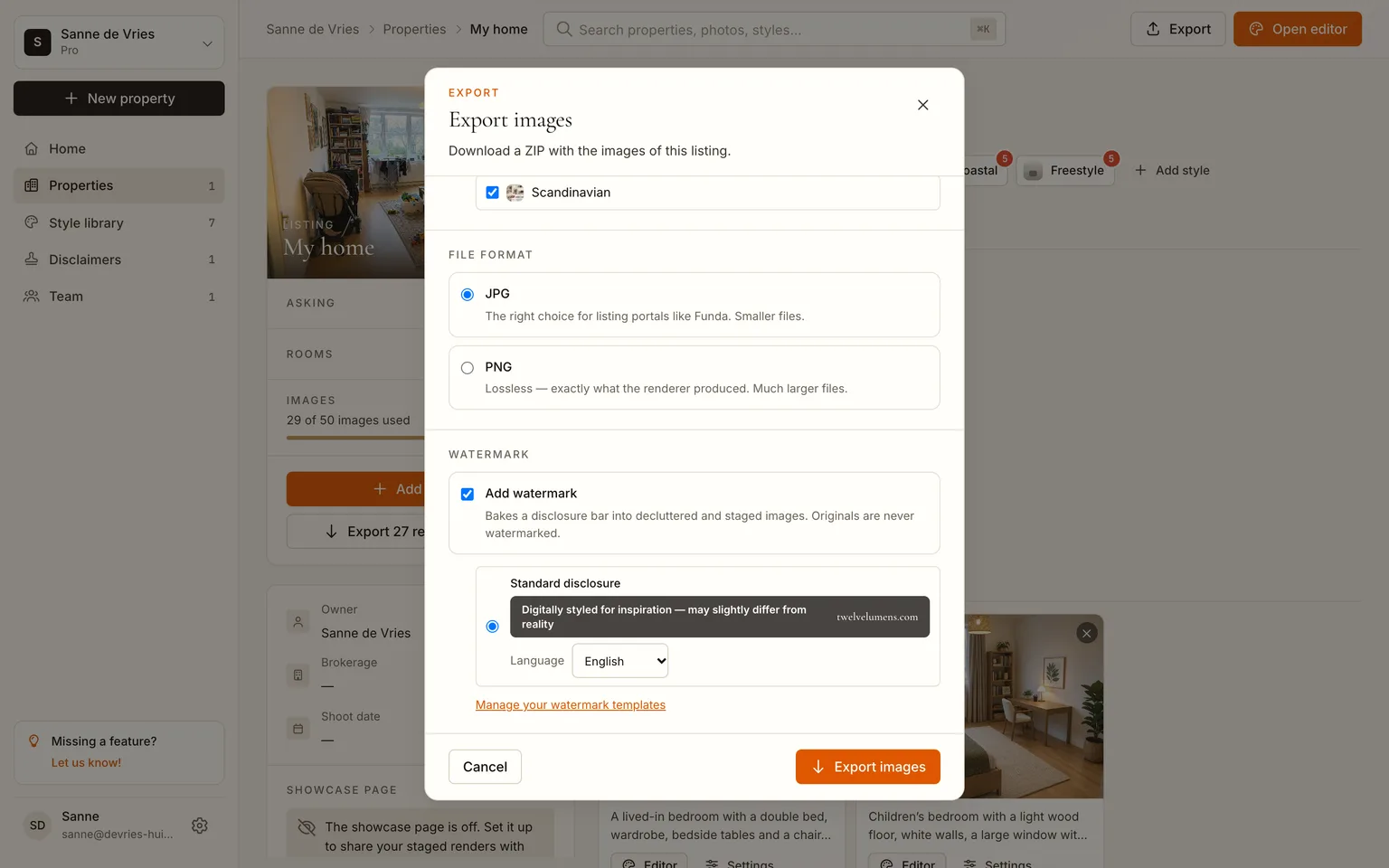
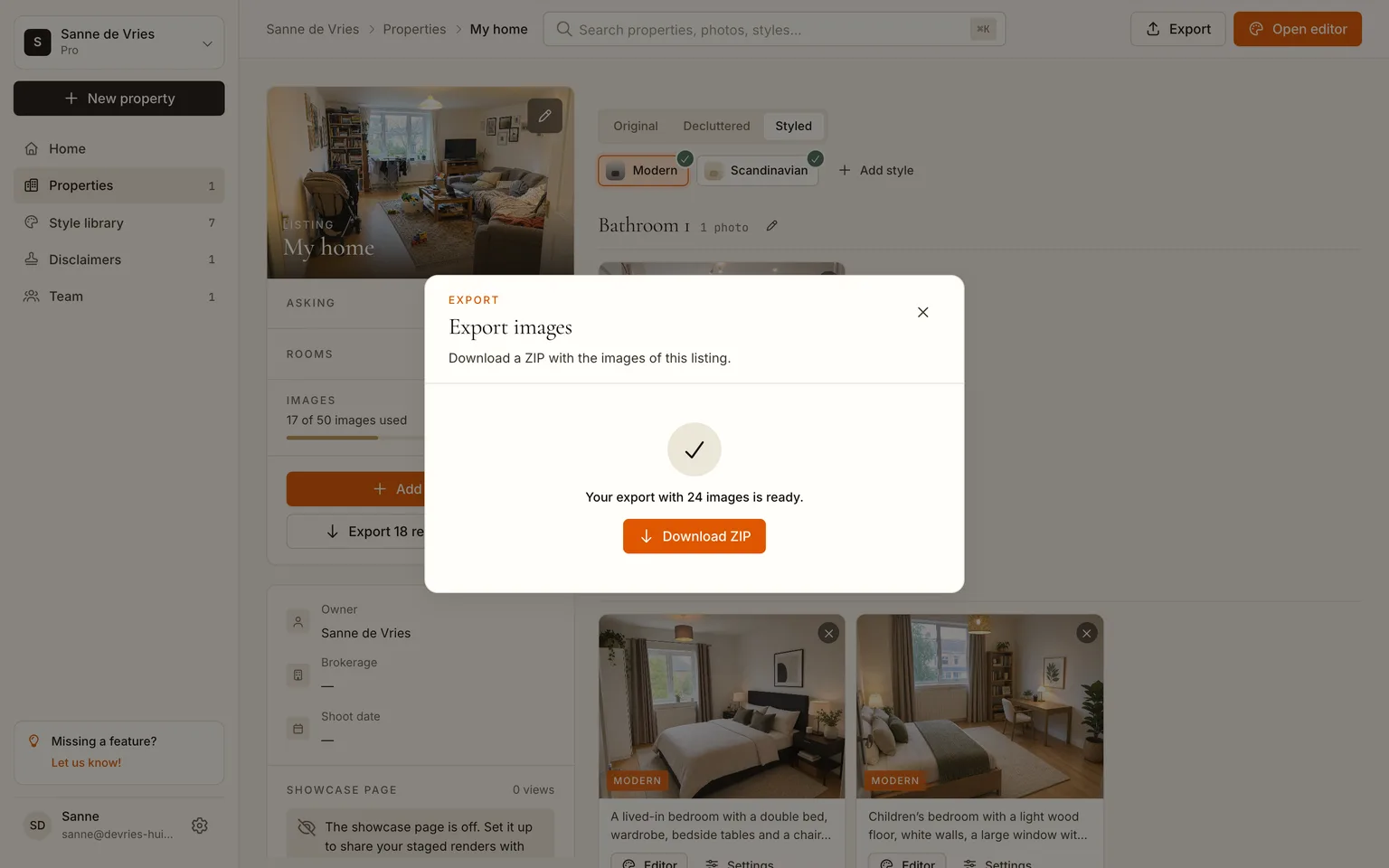
What people do with the files afterwards is the point of the exercise:
- Decide between two directions with your partner or housemates by looking at the same room in both, instead of arguing over mood boards.
- Take the image to the shop. "Something like this sofa, this colour" works better than a verbal description.
- Brief a painter or carpenter with a picture of the finished wall or built-in instead of a sketch.
- Keep the decluttered versions. If you ever sell, those are the listing photos of a tidy home you never had to tidy, and the styled ones are ready-made virtual staging for the listing.
The results
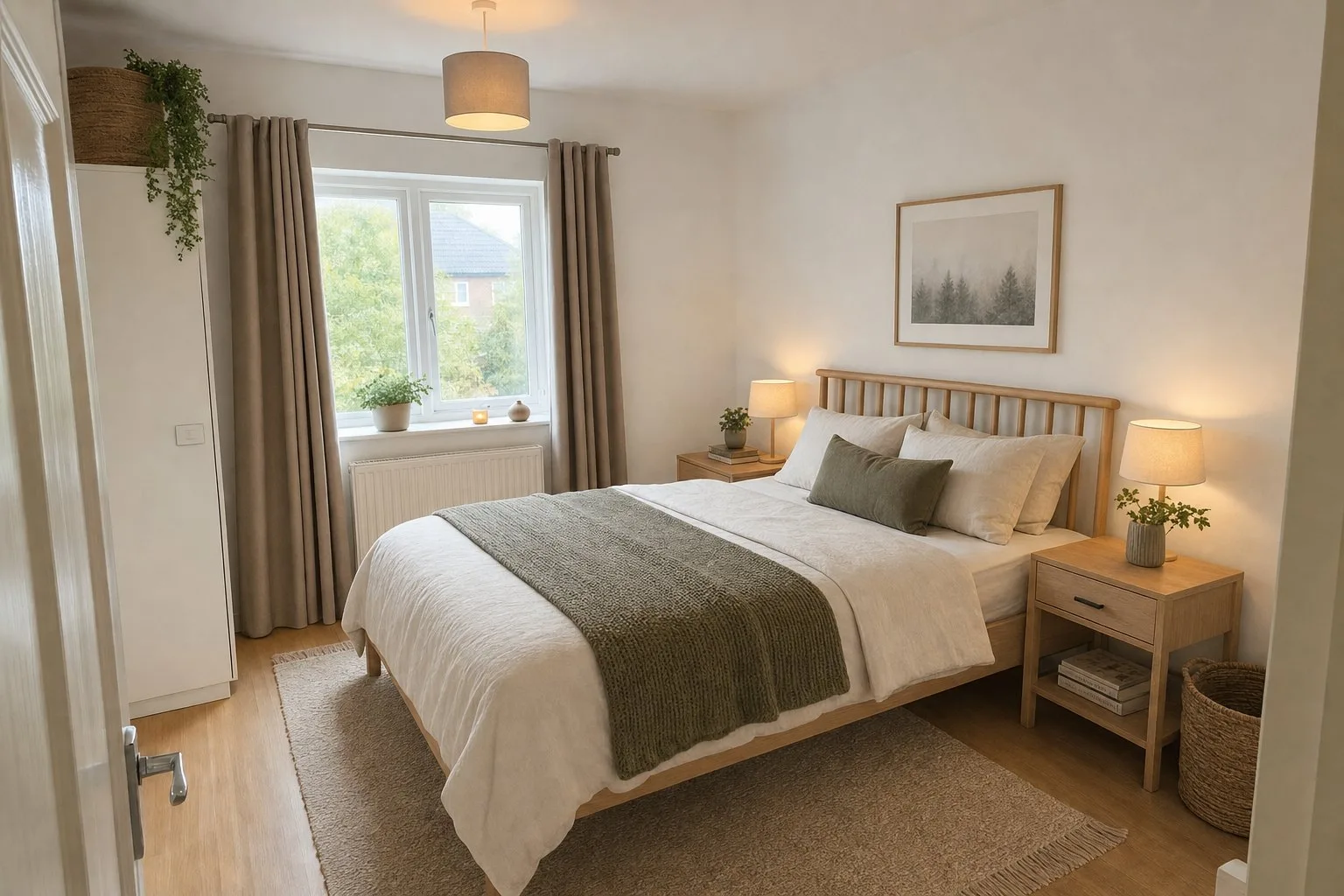
The rest of the house, original on the left and styled on the right.
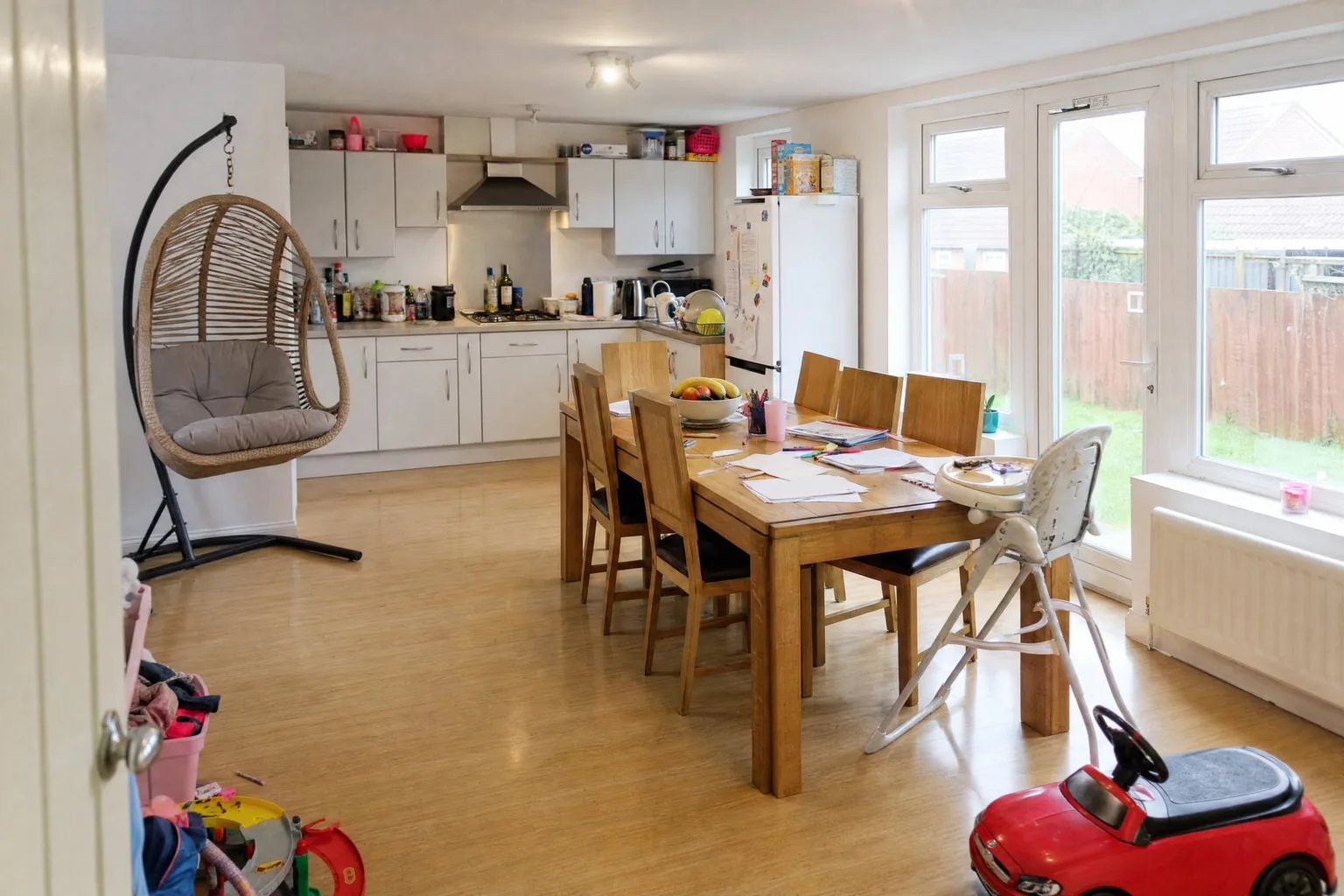
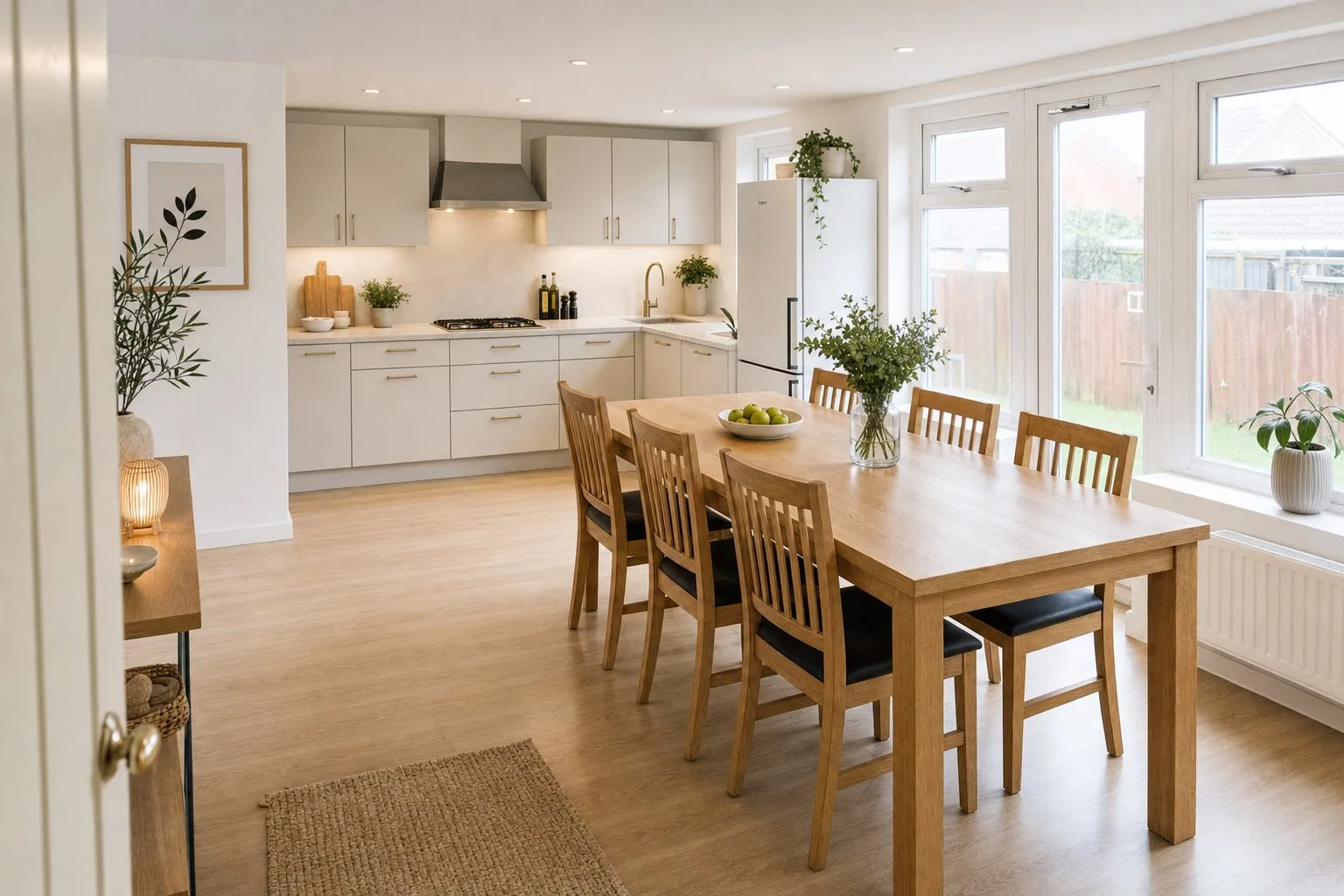 BeforeAfter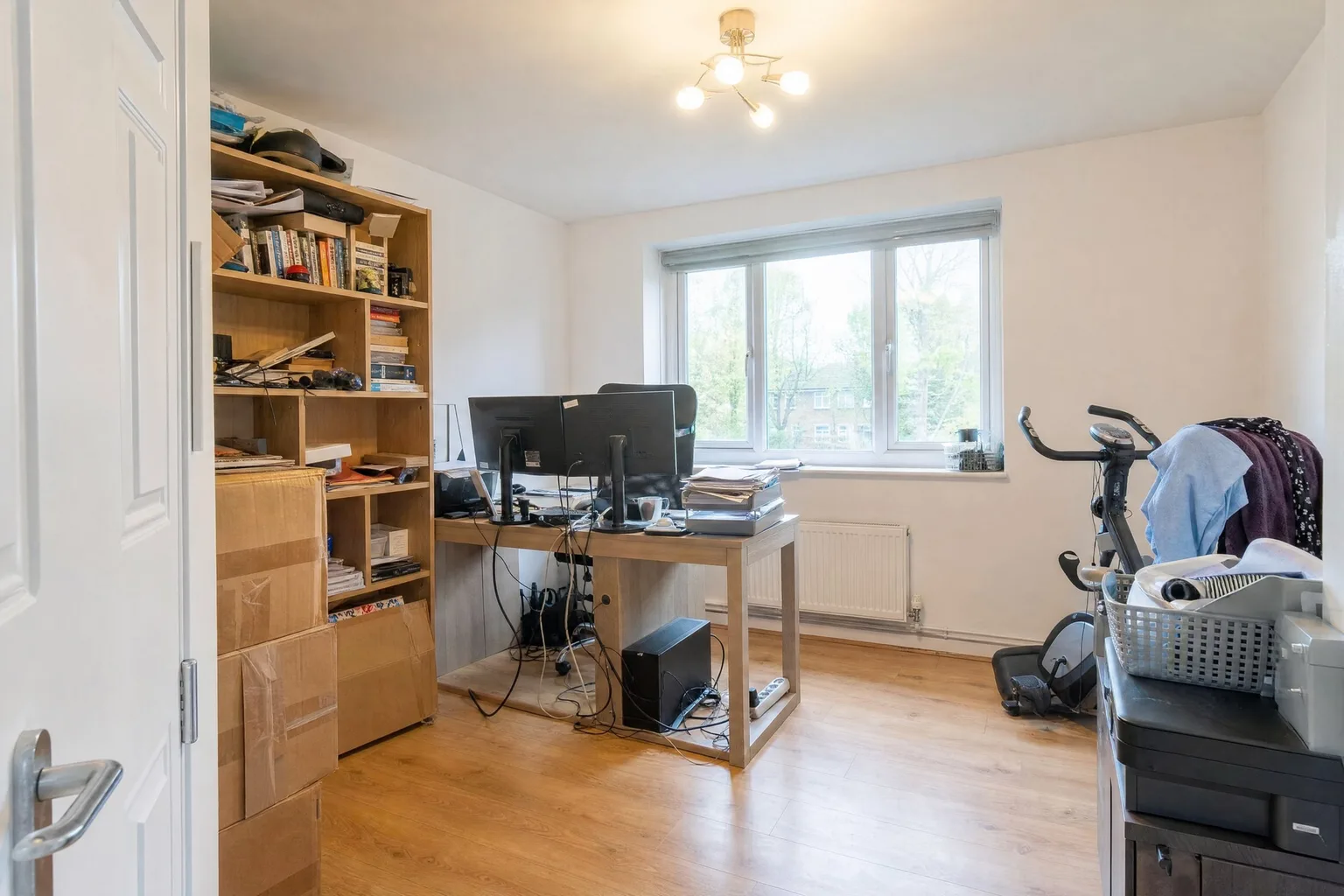
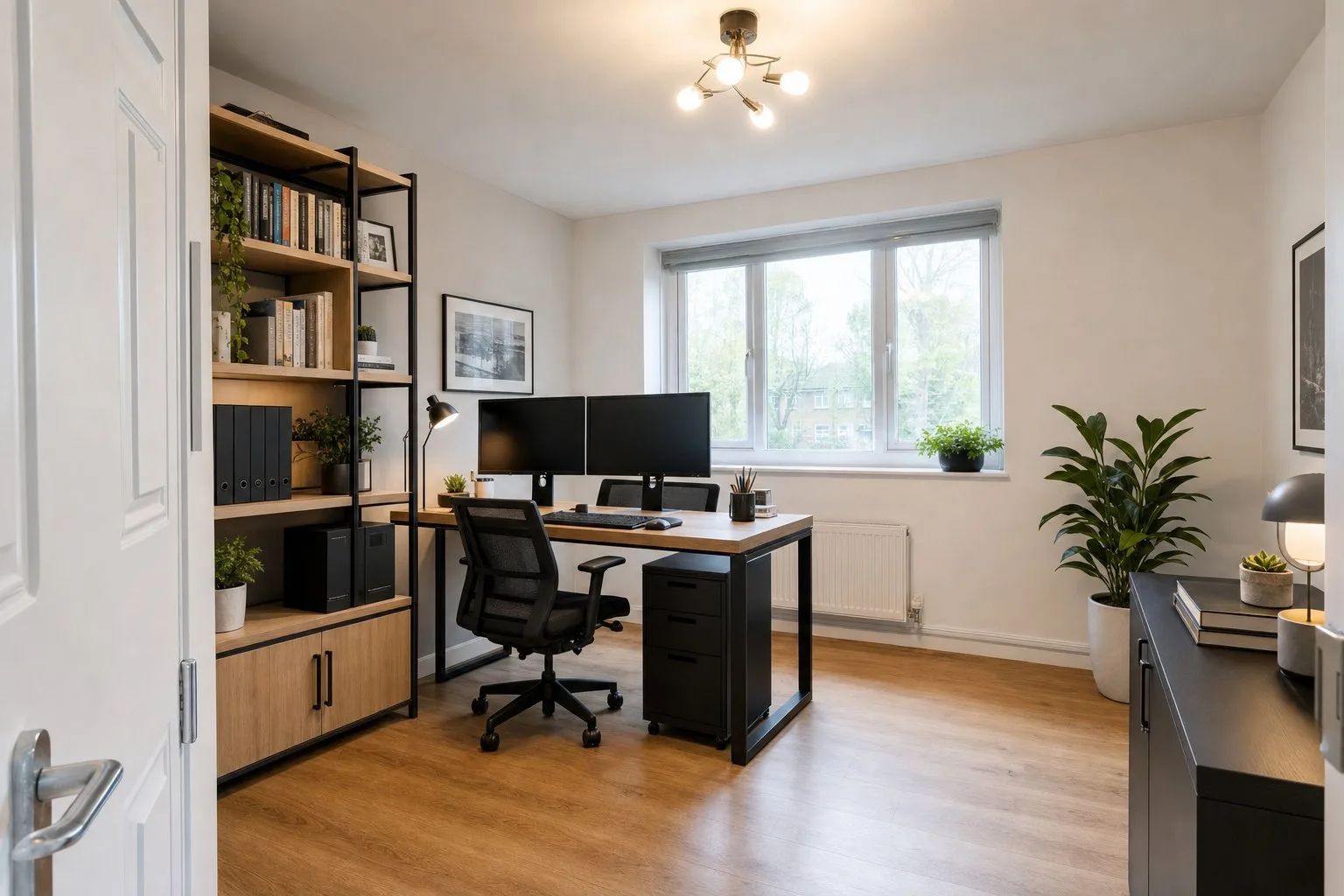 BeforeAfter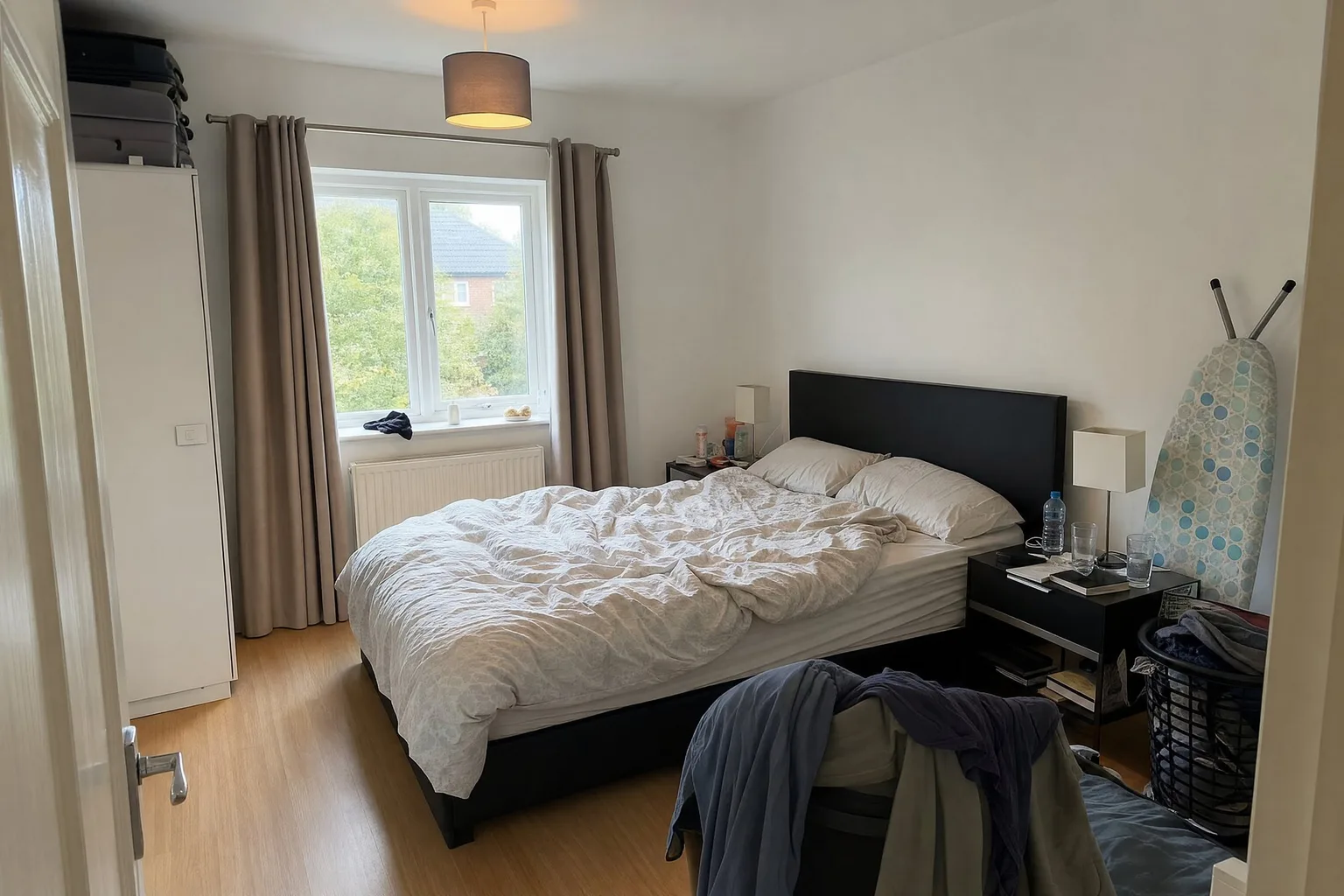
 BeforeAfter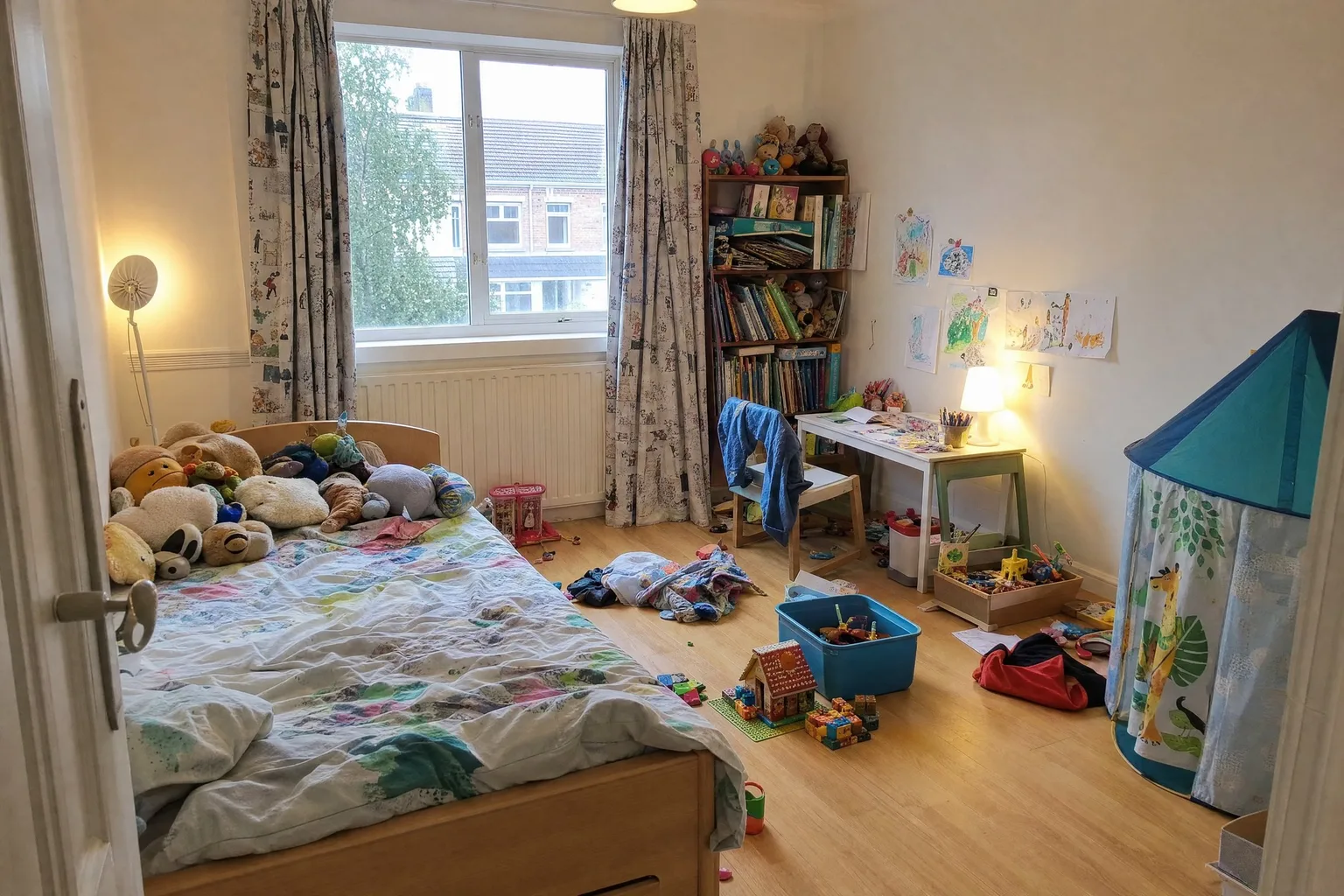
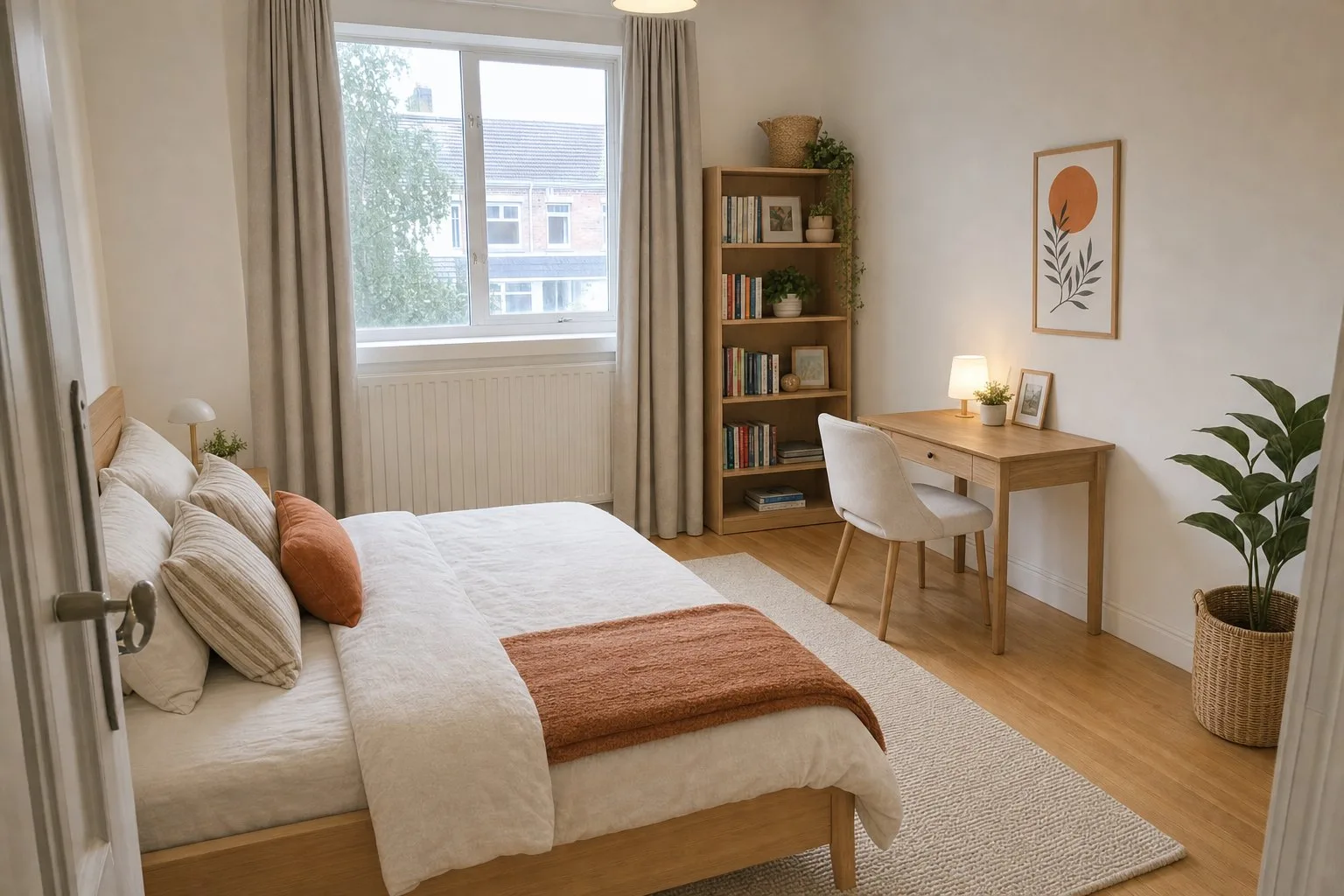 BeforeAfter
Try it on your own photos, 5 images free
What AI styling can and cannot do
Being clear about the limits saves disappointment:
- The furniture is not for sale. Renders show a direction, a palette and proportions, not a specific product you can order. Use them to shop, not as a shopping cart.
- The room stays the room. Walls, windows, ceiling height and the view stay as photographed. If you want to knock through a wall, that is a different tool (and a structural engineer).
- Scale is realistic, not exact. A render tells you a three-seater fits; it does not replace a tape measure before you buy one.
- Floors and wall colours can change when the style calls for it, which is useful for paint decisions and misleading if you forget it happened. Compare with the original before you act on it.
- Re-render freely. Every result is a new version next to the previous ones, and your original photo is never touched.
What it costs
The first five images are free, with no card. After that the plans are per home, not per photo: Personal is €19 a month for one home and 25 images, which covers a full house in two styles with room to retry. The pricing page has the rest, including the Pro plan agents use for several homes a month. For comparison, a human virtual stager charges €15 to €40 per image, which we break down in what virtual staging costs.
Frequently asked questions
Can I use photos from my phone?
Yes. JPEG, HEIC, PNG and WebP up to 20 MB each all upload directly. Shoot landscape, in daylight, from a doorway or corner so the whole room is in frame.
Does the AI change my walls or windows?
No. The room's structure, windows and perspective stay as photographed. Furniture, decor, textiles and sometimes floor and wall finishes change according to the style. Compare with the original before you act on a wall colour.
Can I try a style on just one room?
Yes. Open the room in the editor and pick a style from the dropdown; it renders only that photo. The Quick generate button on the Styled tab is the whole-home version of the same action.
How long does it take?
Analysis takes ten to thirty seconds per photo, a render one to two minutes, and renders run in parallel. Six rooms in two styles plus decluttering took us about fifteen minutes including the coffee.
Do I own the images?
Yes. Download them in JPG or PNG and use them however you like. On the free plan they carry a small disclosure bar; on paid plans that is optional.
What if I want to describe a style the presets don't have?
Pick Freestyle and write it in plain words, or build a custom style once from a description and a few reference photos and reuse it on every room. Specific materials and colours give the most predictable results.
By Martin Balk, founder of Twelve Lumens · Updated October 23, 2026
See your own listing staged
Upload a few photos and get decluttered, staged versions back in minutes. The first five images are free, no credit card, and your originals are always kept.
Stage 5 images freeMore from the blog
Virtual Staging as a Photographer's Add-On: Workflow and Pricing
How real estate photographers add virtual staging to a shoot: same-day workflow, what to charge per photo, how to hand the set to the agent, the rules.
Remove Furniture from Listing Photos with AI (Virtual Decluttering)
Empty a lived-in room on the photo in one click: upload, declutter every photo at once, keep what should stay, then stage or publish the clean version.
How to Turn a 3D Render into a Photorealistic Image with AI (3 Steps)
Make a clay render, a SketchUp viewport or an old CGI photorealistic in minutes: upload it like a photo, pick a style, render. Same camera, same geometry.
How to Virtually Stage a Whole Listing in One Go (Screenshots)
A real 13-photo listing staged in one sitting: one upload, one house style, one click for every room, a portal-ready export with the disclosure built in.
How Does AI Virtual Staging Work? From Upload to Listing-Ready Photo
How AI virtual staging works, step by step: upload, declutter, pick a style, render in minutes. What changes, what it costs and where it is allowed.
Virtual Staging Pricing in 2026: What It Costs Per Photo, Per Listing and Per Month
Virtual staging costs roughly €0.40 to €40 per image in 2026. What the three pricing models add up to per listing and per month, plus the hidden fees.
Home Staging Photographer: What They Do and How to Shoot a Home So It Stages Well
What a home staging photographer actually does, how to shoot every room so it stages well, physically or virtually, and when a phone is enough.
Virtual Staging Terms, Explained: A Plain-Language Glossary
Plain-language definitions of 13 virtual staging terms: renders, 2K, house styles, decluttering, disclosure and more, each one quotable on its own.
Virtual Staging Disclosure Rules in 2026: MLS, Zillow, Funda, Rightmove and More
Where virtually staged photos are allowed, what each market expects you to disclose, and a checklist that keeps your listing within every rule.
How Much Does Home Staging Cost in 2026? Physical vs. Virtual, With Real Numbers
What physical, outsourced virtual and AI home staging cost per listing in 2026, when each one is worth it, and the math for a typical 20-photo listing.