Remove Furniture from Listing Photos with AI (Virtual Decluttering)
Empty a lived-in room on the photo in one click: upload, declutter every photo at once, keep what should stay, then stage or publish the clean version.
Most homes are photographed while someone still lives in them, and every listing photo carries the proof: the sofa that has seen better days, the drying rack, the bottles on the counter, the toys. Buyers scroll past them in a second. Virtual decluttering removes all of it from the photo, keeps the room exactly as built, and gives you a clean, empty version you can publish on its own or stage on top of. This tutorial shows the whole thing on a lived-in family home: six photos, all of them emptied in one click, one of them with precise instructions about what to keep. Fifteen minutes, screenshots of every step. The home is a generated example, so nobody's real living room is on show; every decluttered image is an unedited render from the app.
It is written for agents with occupied listings and for sellers who would rather not move their furniture out for the photos. If you are new to the technology, how AI virtual staging works explains it in five minutes; the decluttering feature page has the short version.
What "removing furniture" means here, and what it does not
Decluttering removes movable things: furniture, clutter, textiles, personal items, the occupant's traces. It keeps everything that is part of the building: walls, windows, doors, radiators, built-in cupboards, the kitchen, the floor. The result is the room as a buyer would see it on moving day, which is also the only version of a lived-in room that is honest to publish: nothing was added, and nothing structural changed.
Two things it will not do, by design. It will not remove a wall, a window or a built-in to make the room look bigger, because that would misrepresent the home and every portal forbids it. And it will not guess what is behind a sofa in the dark: a well-lit photo gives a clean floor and wall behind the removed furniture, a dim one gives a plausible one.
Step 1: Upload the photos as they are
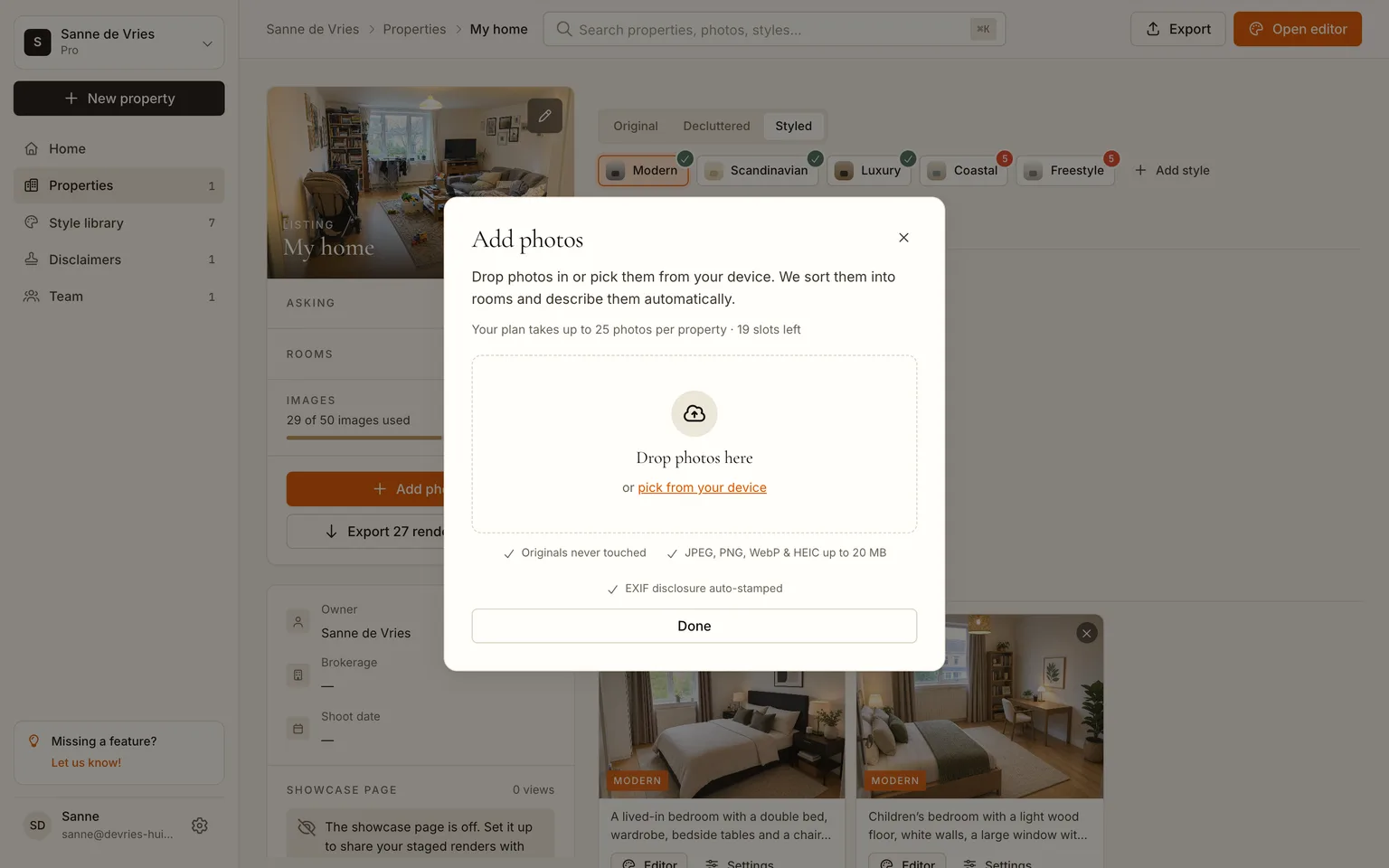
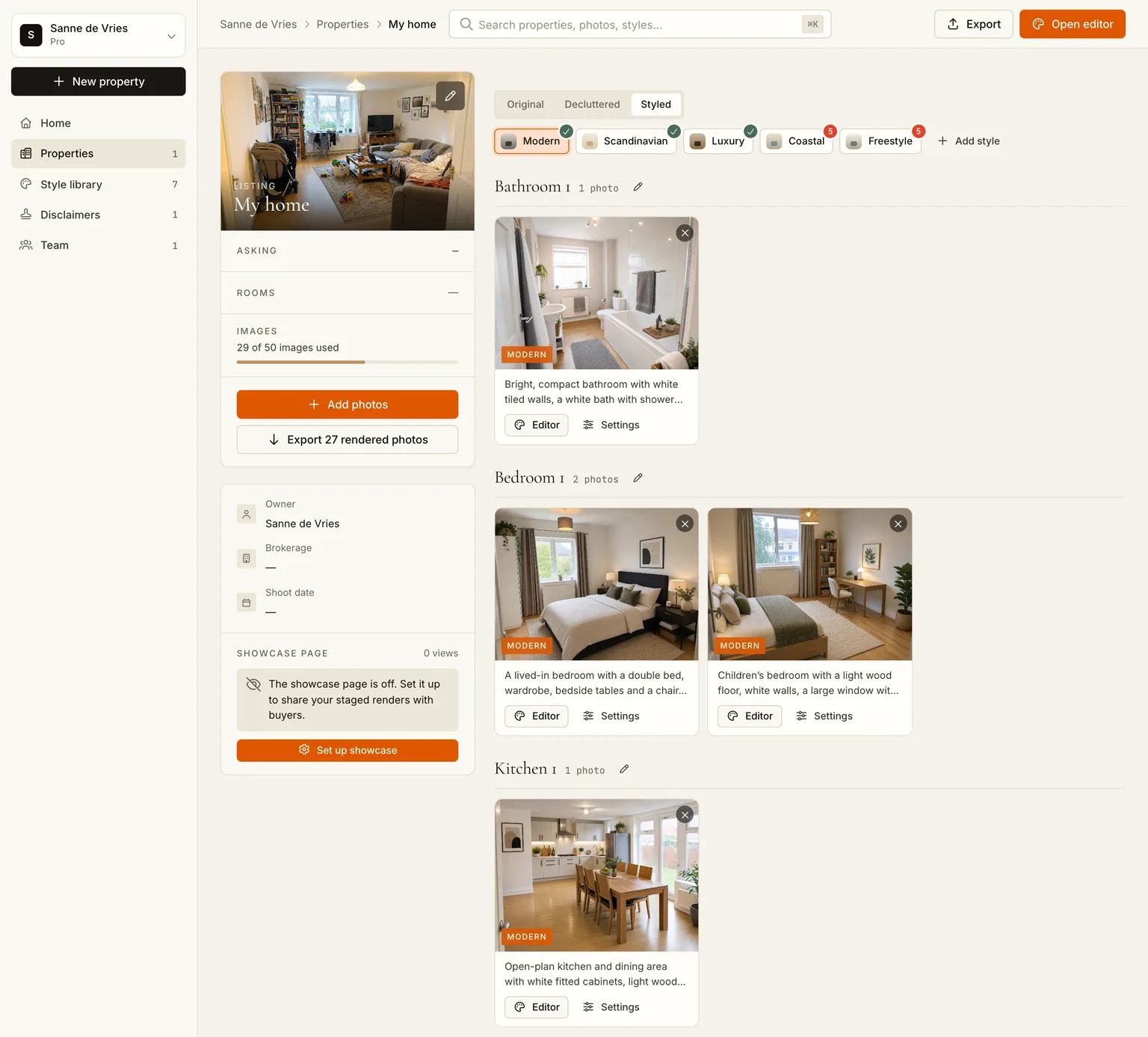
Do not tidy first. Shoot the rooms in daylight, landscape, from a doorway or corner, and upload them all at once. The app sorts them by room and writes a short description of each, which takes ten to thirty seconds per photo.
Step 2: Empty every room with one click
Open the Decluttered tab and click Quick generate. The app renders a decluttered version of every photo at the same time, so the number of rooms does not matter. The line under the tabs shows what the batch costs from your image budget before you click; a render takes one to two minutes.
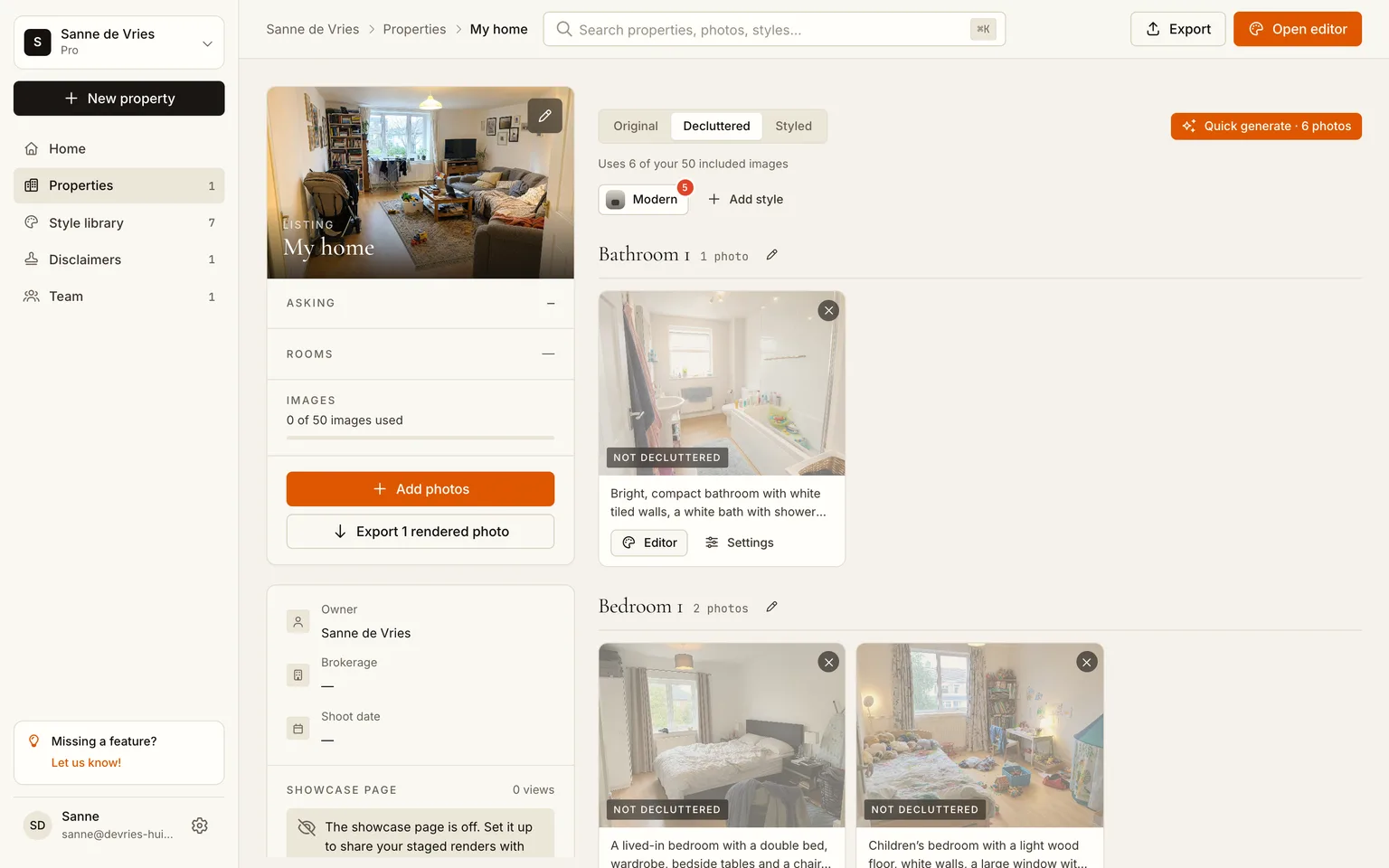
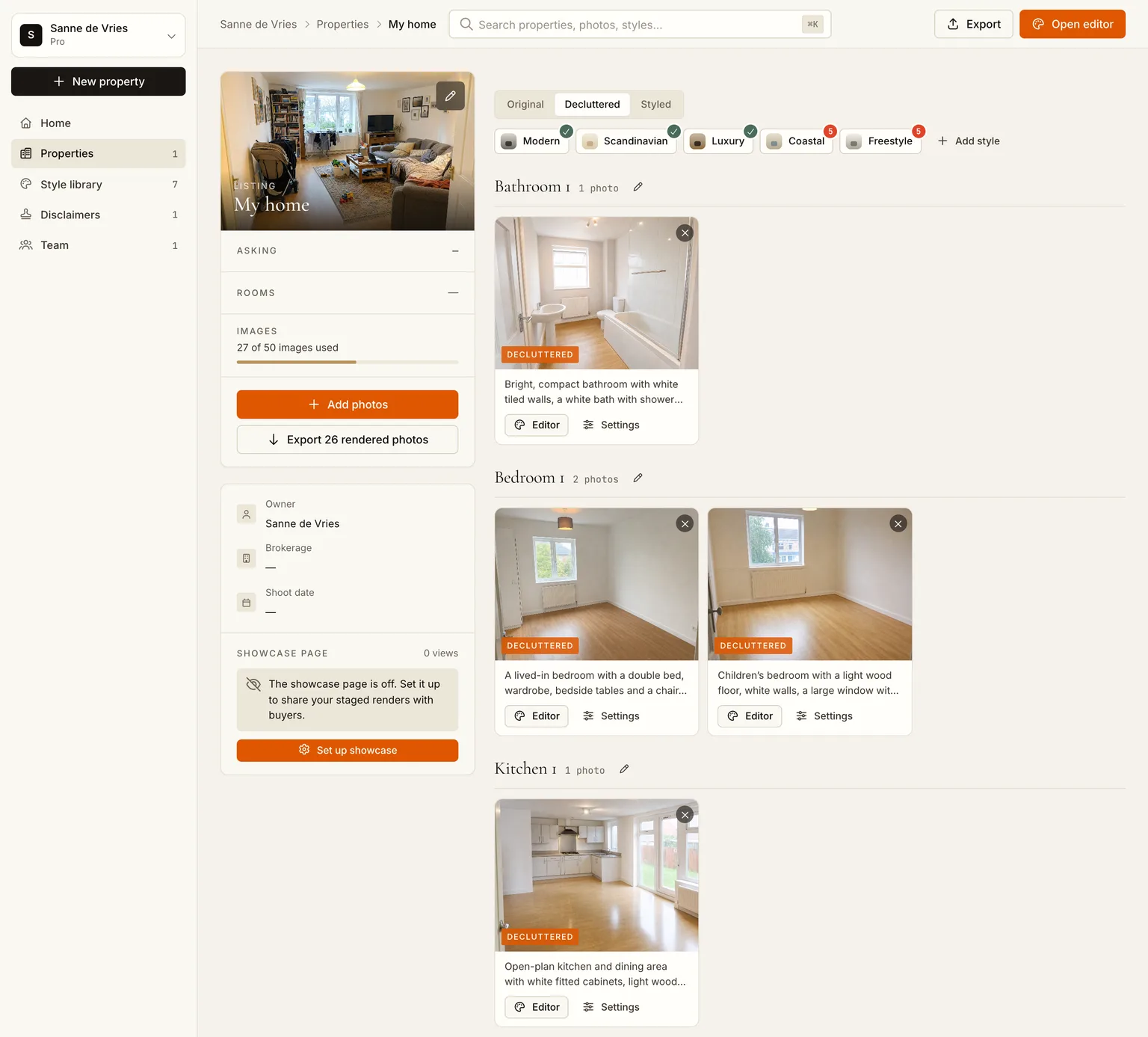
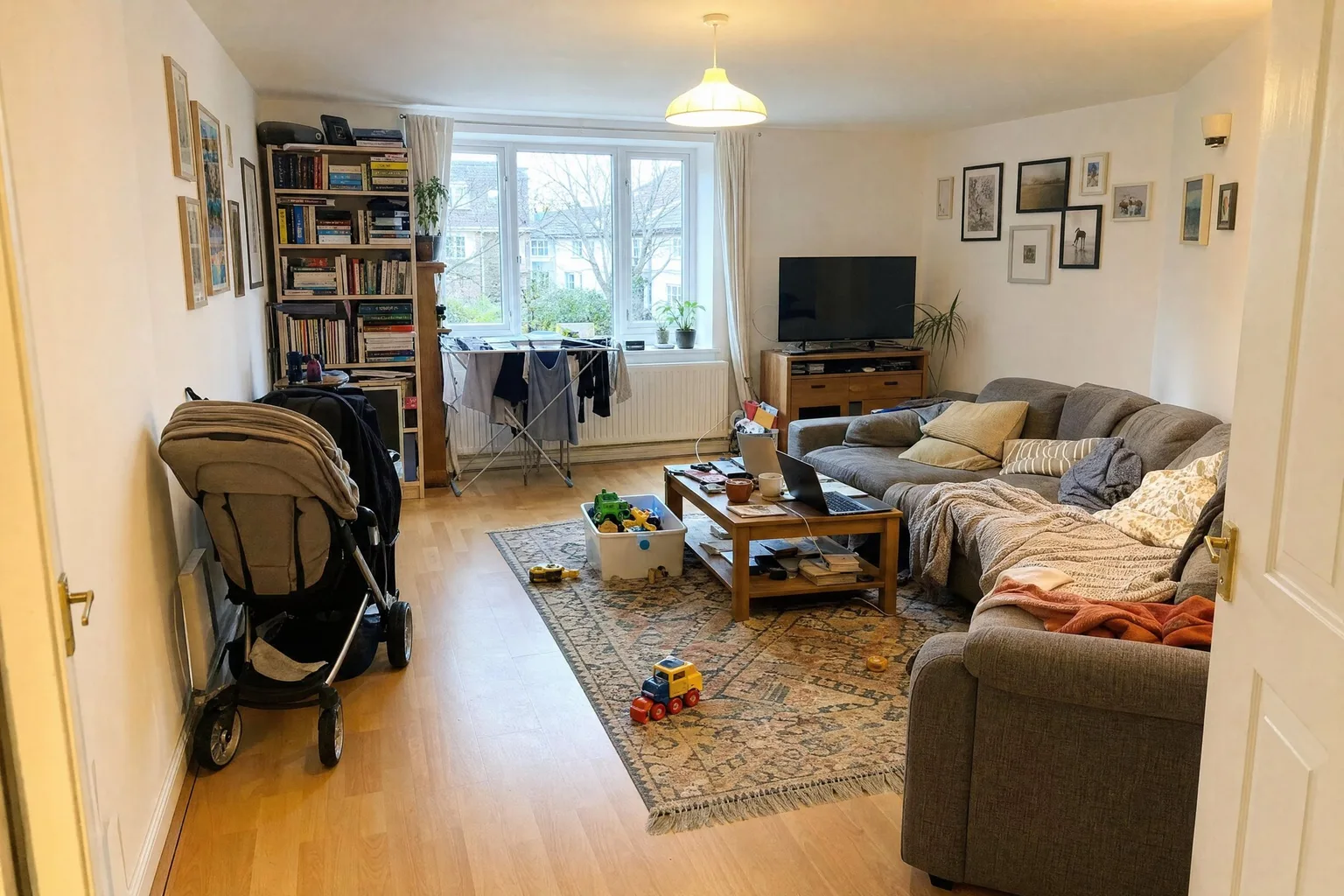
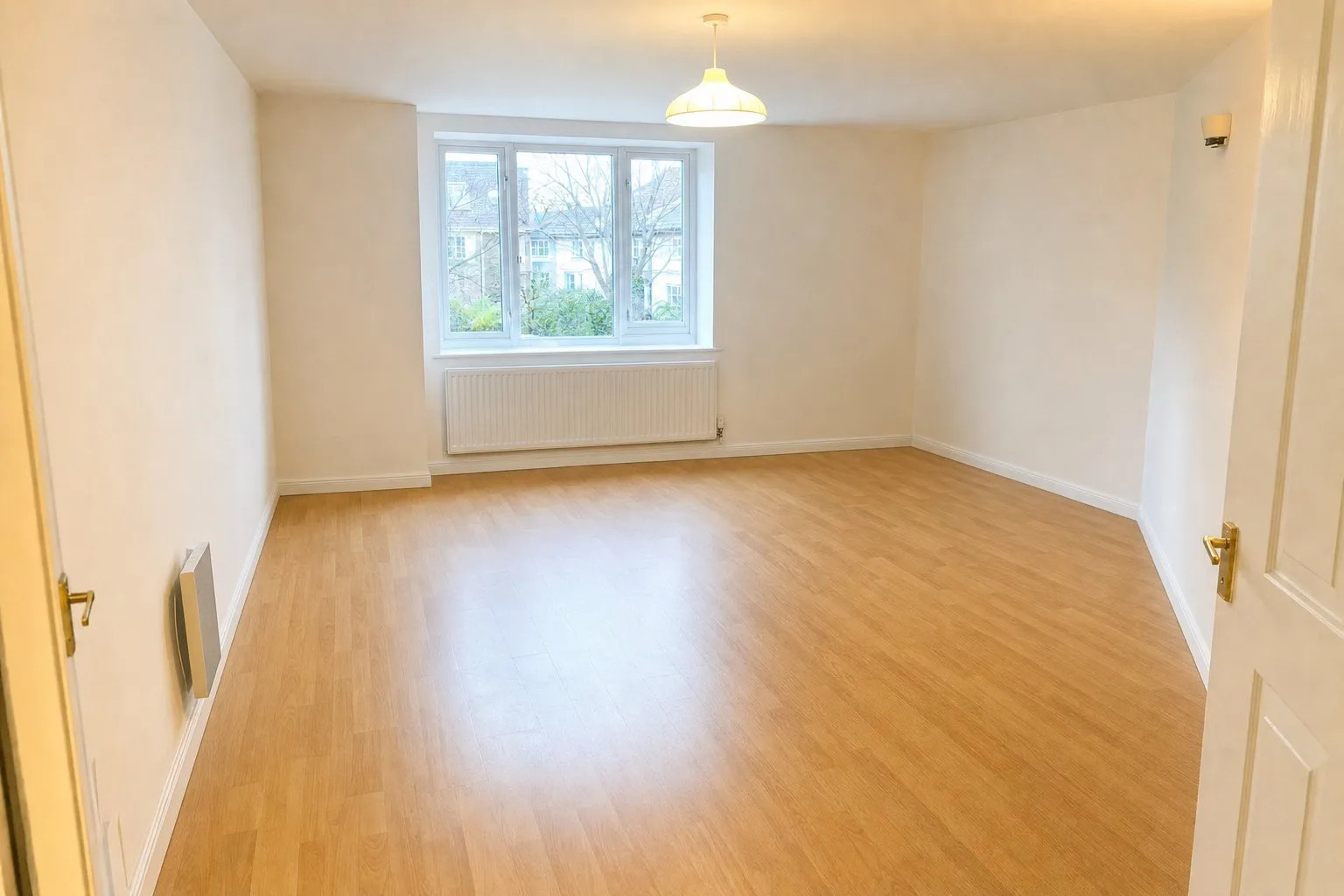 BeforeAfter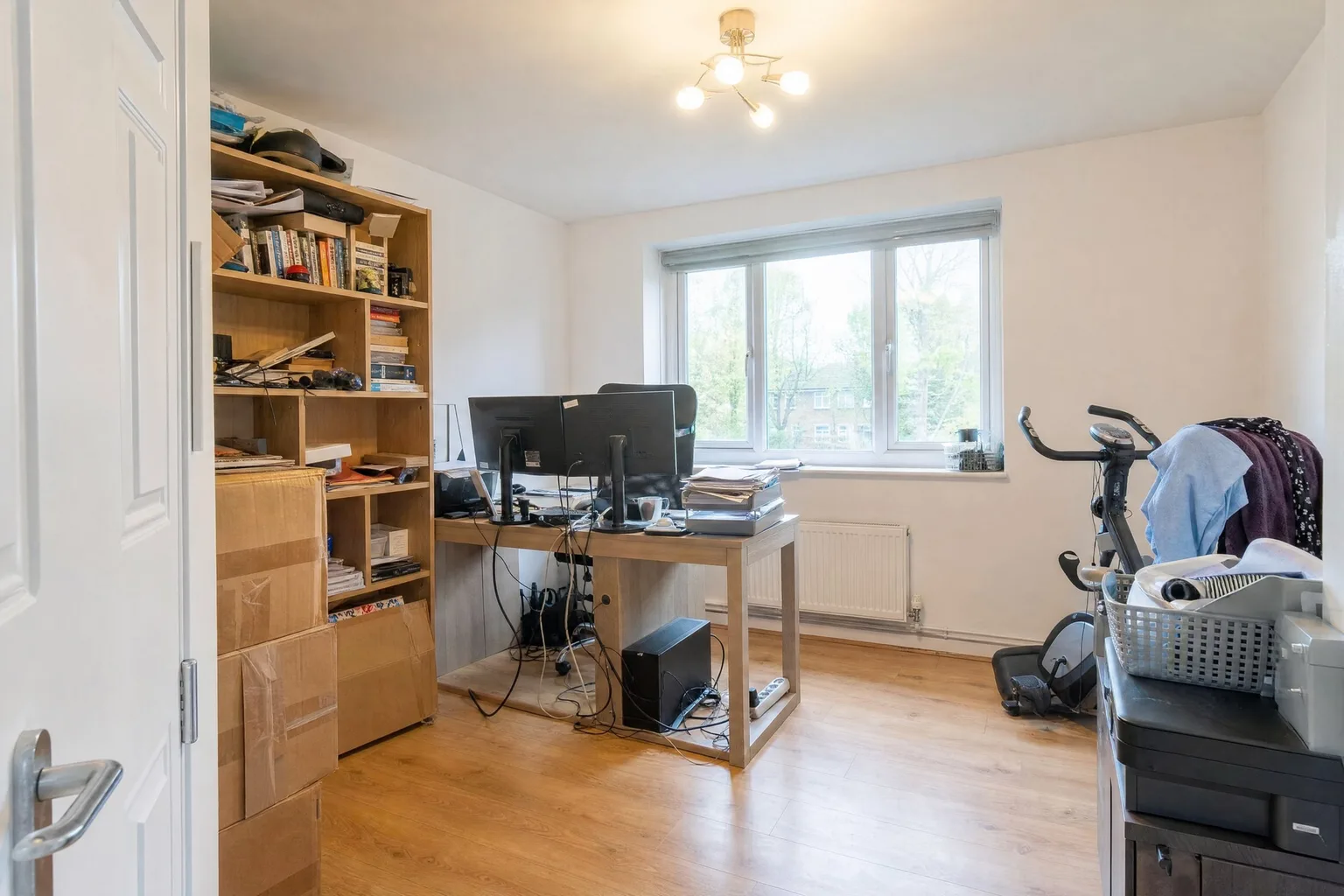
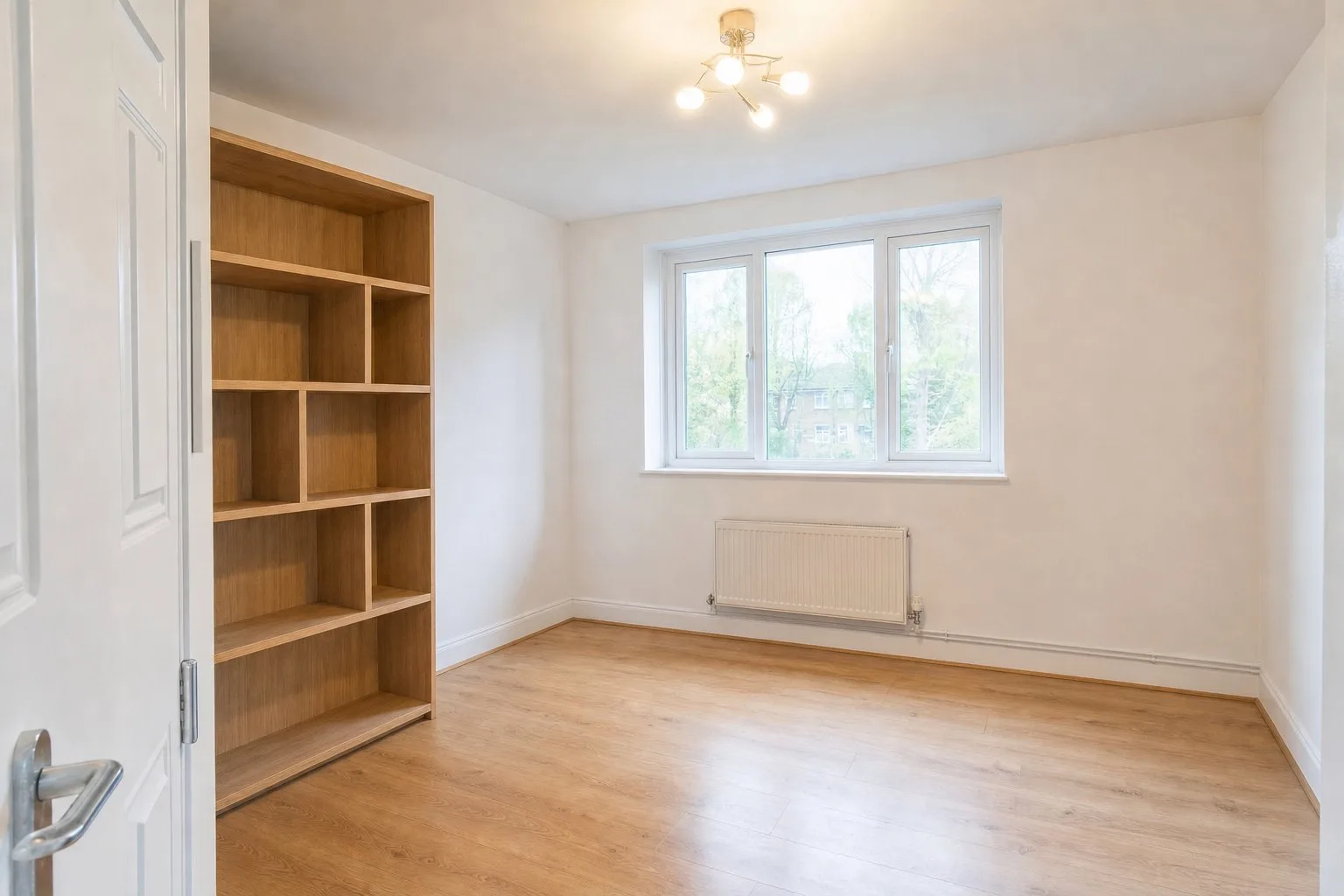 BeforeAfter
Step 3: Say what should stay
Automatic decluttering removes everything movable, which is usually right for an empty-home listing and sometimes too much: a seller wants the dining set to stay, an agent wants the hanging chair that makes the room. Open the photo in the editor, switch to Declutter and write the exception in the box: what to keep, what to remove explicitly. Then render again. The new version lands next to the previous one; nothing is overwritten.
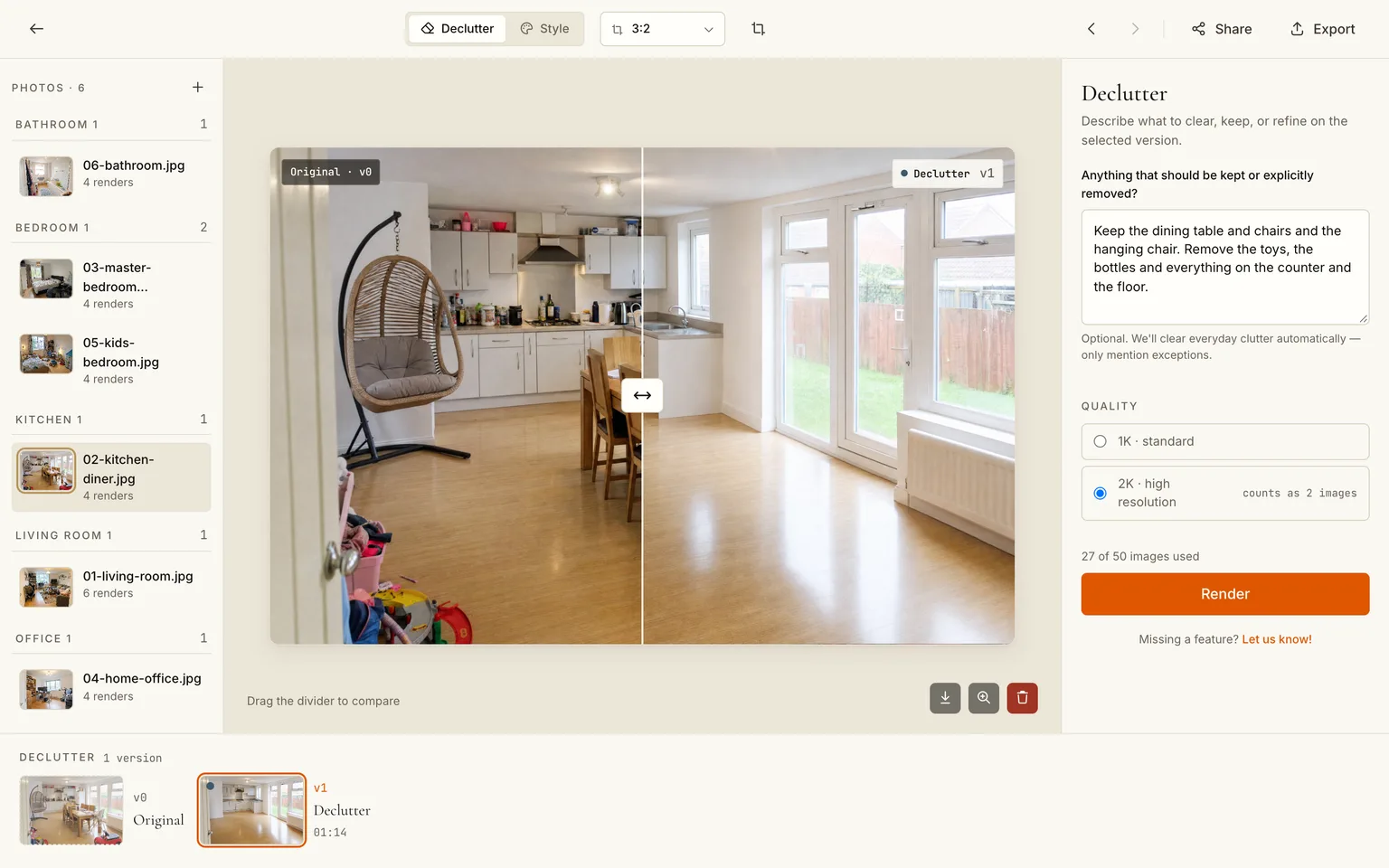
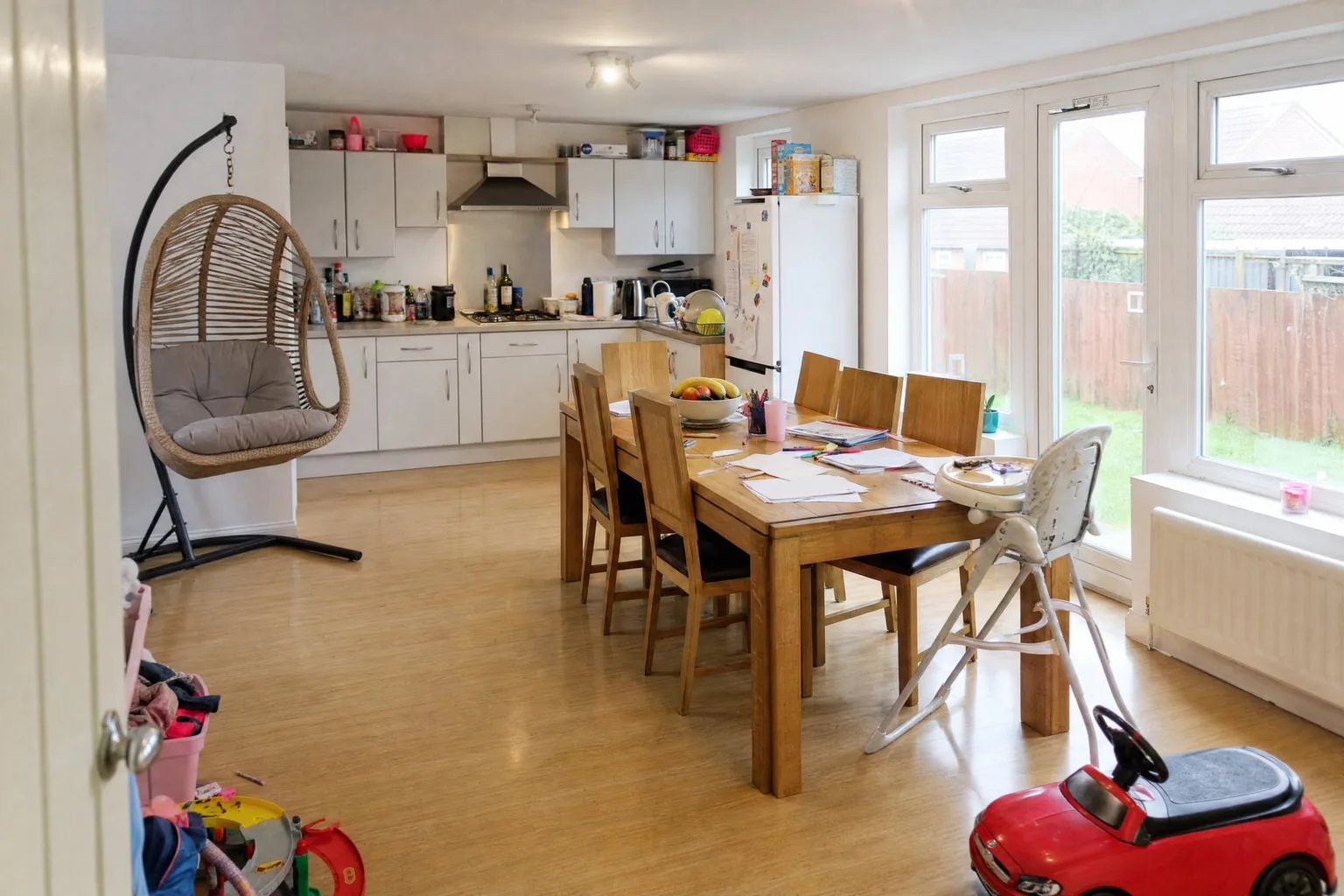
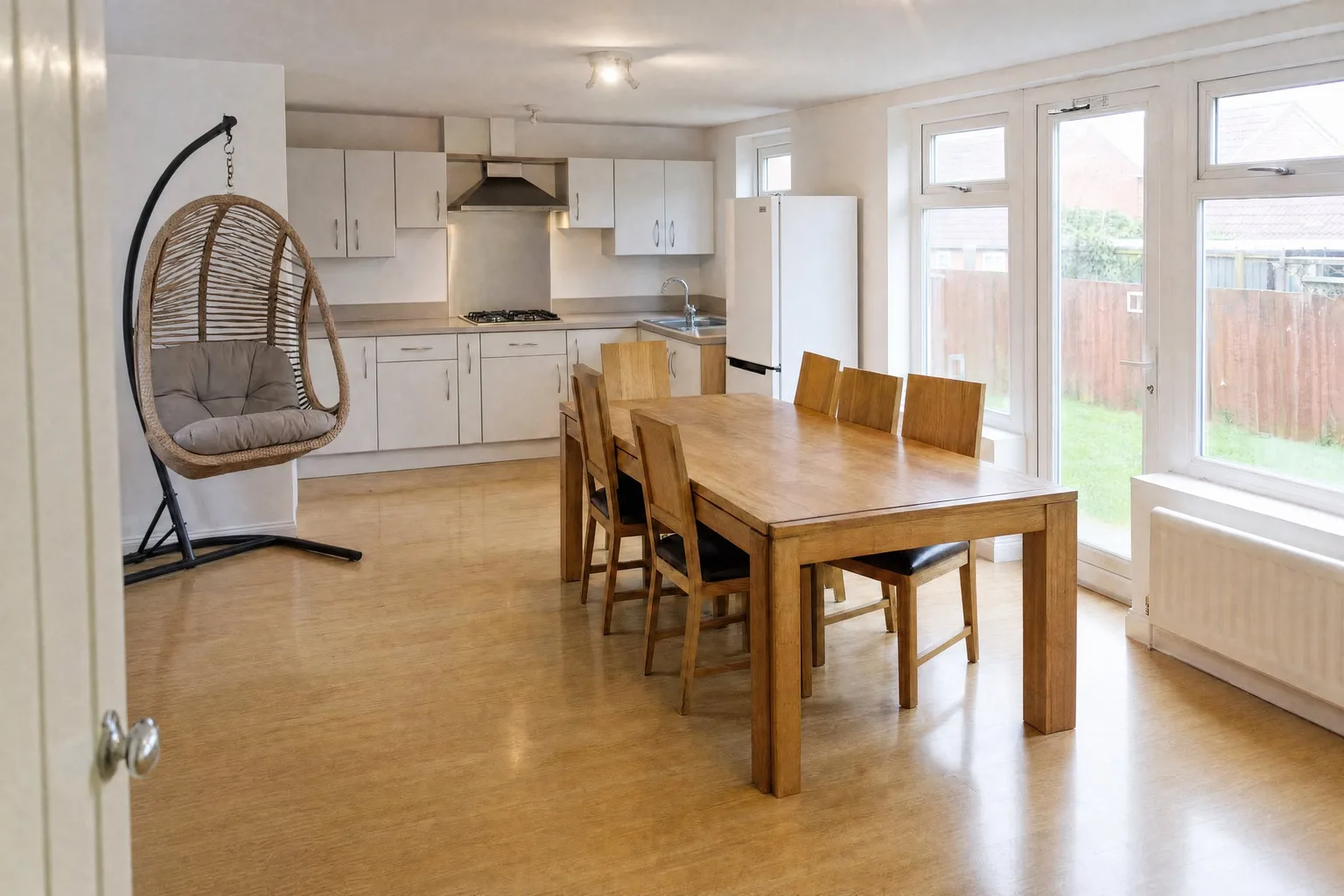 BeforeAfter
Writing the instruction well is the whole skill. Name things by what they are ("the grey corner sofa", "the drying rack by the window") and say keep or remove; vague wishes ("make it tidier") give vague results.
Step 4: Publish the clean room, or stage on top of it
The decluttered photo is a result in itself. For an occupied listing it is often the honest hero image: the real room, empty, with nothing invented. If you want buyers to see how the room can be furnished, open the Styled tab and add a style; the staged render builds on the decluttered room, so the model furnishes an empty space instead of fighting with the old sofa.
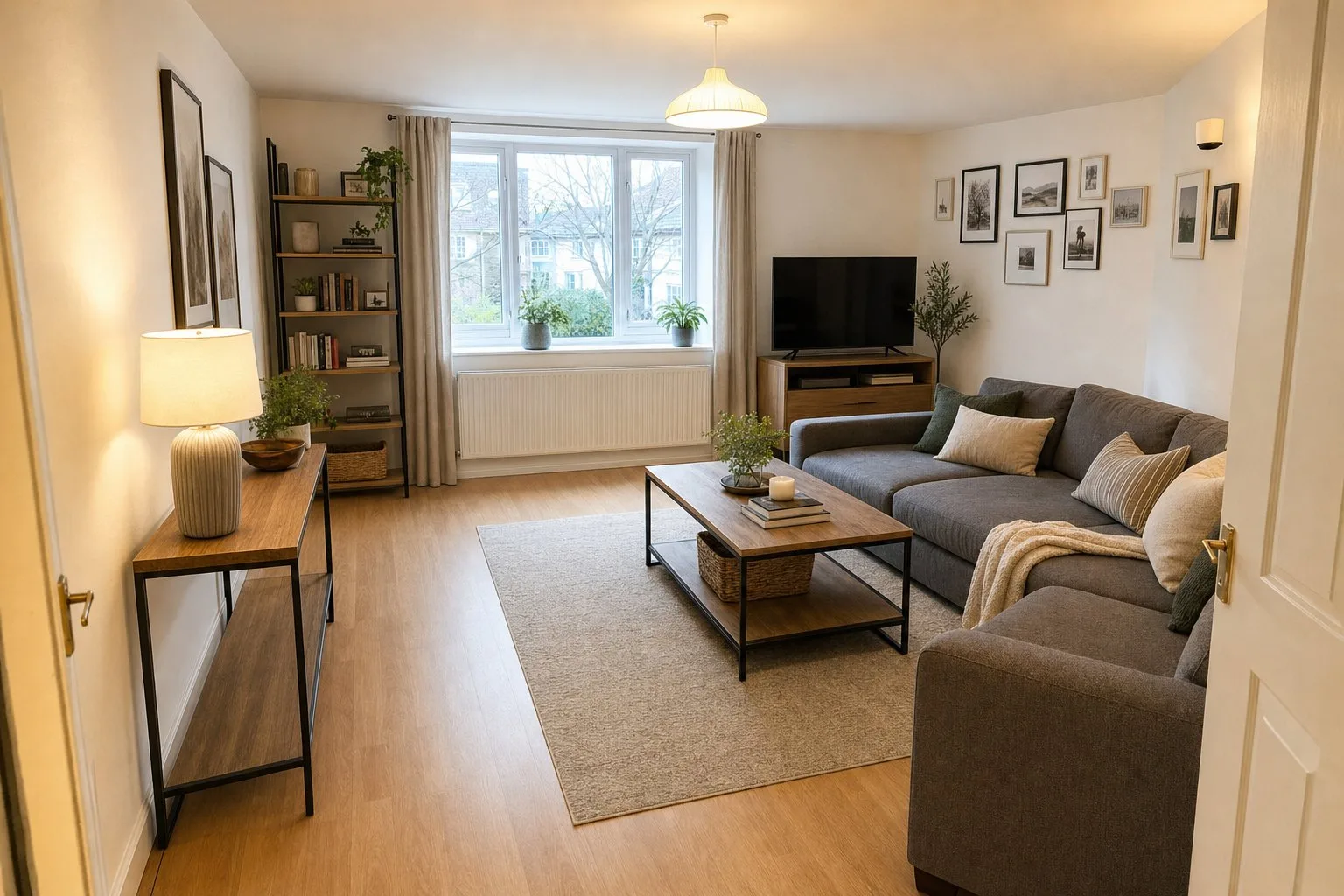 DeclutteredStaged
For the full staging workflow see how to virtually stage a whole listing in one go; for your own home, how to style your home with AI.
Step 5: Export with the disclosure built in
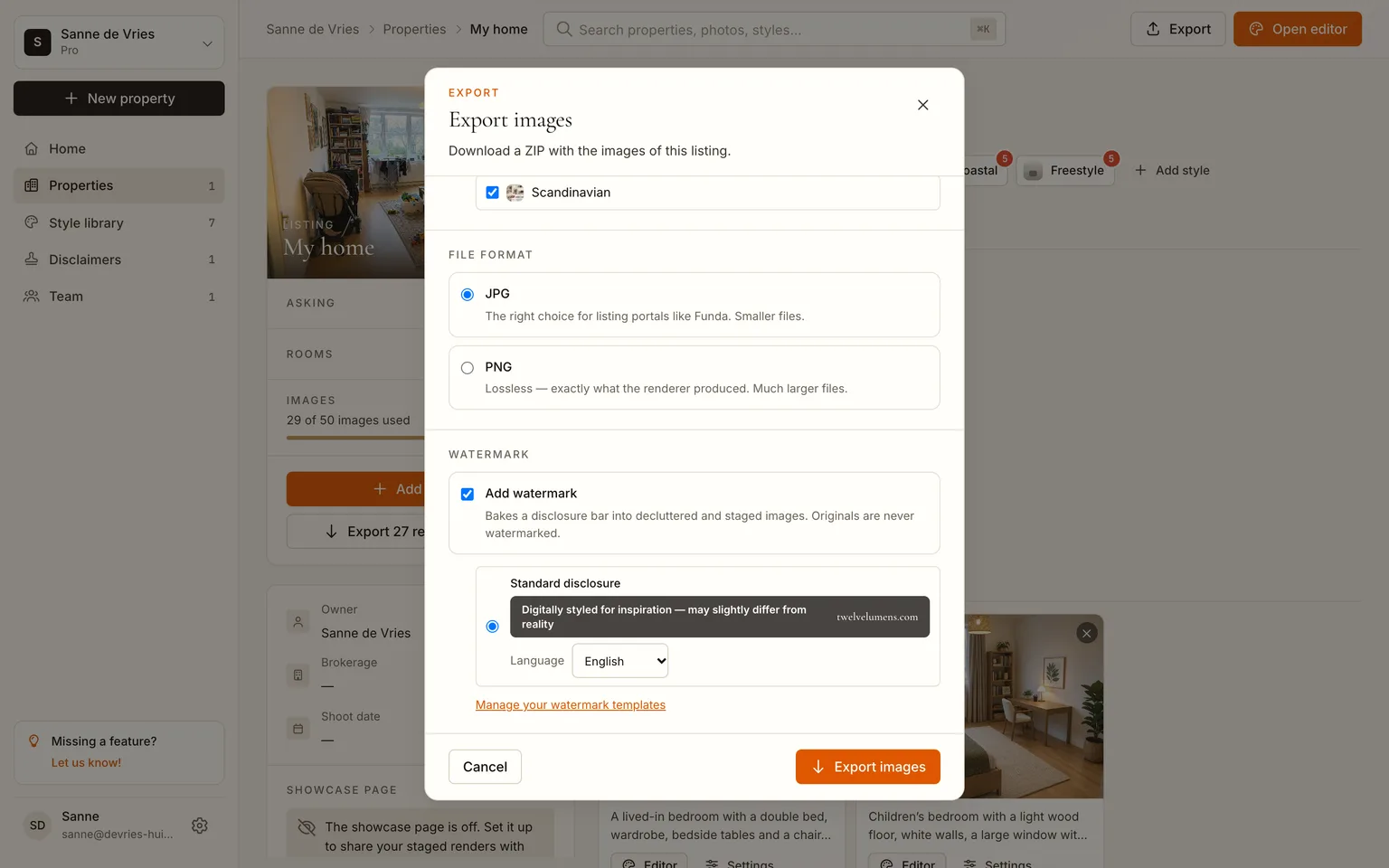
Click Export, tick Originals and Decluttered (and Staged if you rendered any), keep JPG and leave the disclosure bar on. The bar is rendered into every decluttered and staged image, with AI-disclosure metadata in the file; originals are never watermarked. That is what Funda, Rightmove and most MLSs require for edited photos, and it protects you against the one complaint decluttering can attract: a buyer who thought the empty room was real and finds a sofa in it.
Declutter your first photos, 5 images free
Where it pays off most
- Occupied listings. The seller keeps living there; the photos show the home, not the household.
- Rentals between tenants. Photograph the last tenant's furnished flat, publish it empty, and the next listing goes live the day the old one ends.
- Selling your own home. Declutter the photos tonight instead of moving furniture to the garage for a week, and give the set to your agent. The seller tutorial walks through it in Dutch.
- Before a renovation quote. An empty version of your own room is the drawing a painter or floor fitter wants.
What it costs
The first five images are free, with no card. Decluttering a room counts as one image at 1K, two at 2K. After that, plans are per home: Personal is €19 a month for one home and 25 images, Pro €129 for ten homes and 50 images each. A human retoucher charges €10 to €30 per photo for furniture removal and returns it in a day or two; the pricing breakdown has the comparison.
Frequently asked questions
Can AI remove furniture from a photo without changing the room?
Yes. Decluttering removes movable objects and reconstructs the floor and wall behind them; walls, windows, doors, built-ins and the camera position stay as photographed. Compare the result with the original in the editor before you publish, as you would with any edit.
Can I keep some furniture and remove the rest?
Yes. In the editor's Declutter panel, write what to keep and what to remove in plain words and render again. Name the pieces specifically for the best result.
Is a decluttered photo allowed on property portals?
Yes, as an edited photo with a visible disclosure, which the export adds automatically. Keep an unedited photo of each room in the set, and never use decluttering to hide a defect or remove something fixed to the building.
Does it work on dark or cluttered photos?
It works, but the reconstruction behind removed objects is only as good as what the photo shows. Shoot in daylight with the lights on, and shoot the whole room; a half-visible floor gives a plausible floor, a well-lit one gives the real floor.
How many photos can I declutter at once?
All the photos in a property, with one click on the Decluttered tab. Plans cap photos per property (10 on Free, 25 on Pro, 40 on Business), not clicks.
By Martin Balk, founder of Twelve Lumens · Updated October 23, 2026
See your own listing staged
Upload a few photos and get decluttered, staged versions back in minutes. The first five images are free, no credit card, and your originals are always kept.
Stage 5 images freeMore from the blog
Virtual Staging as a Photographer's Add-On: Workflow and Pricing
How real estate photographers add virtual staging to a shoot: same-day workflow, what to charge per photo, how to hand the set to the agent, the rules.
How to Turn a 3D Render into a Photorealistic Image with AI (3 Steps)
Make a clay render, a SketchUp viewport or an old CGI photorealistic in minutes: upload it like a photo, pick a style, render. Same camera, same geometry.
How to Style Your Home with AI in 5 Steps (With Screenshots)
Step by step, with screenshots: photograph your rooms, upload, declutter, try two or three styles and export. About 15 minutes, first 5 images free.
How to Virtually Stage a Whole Listing in One Go (Screenshots)
A real 13-photo listing staged in one sitting: one upload, one house style, one click for every room, a portal-ready export with the disclosure built in.
How Does AI Virtual Staging Work? From Upload to Listing-Ready Photo
How AI virtual staging works, step by step: upload, declutter, pick a style, render in minutes. What changes, what it costs and where it is allowed.
Virtual Staging Pricing in 2026: What It Costs Per Photo, Per Listing and Per Month
Virtual staging costs roughly €0.40 to €40 per image in 2026. What the three pricing models add up to per listing and per month, plus the hidden fees.
Home Staging Photographer: What They Do and How to Shoot a Home So It Stages Well
What a home staging photographer actually does, how to shoot every room so it stages well, physically or virtually, and when a phone is enough.
Virtual Staging Terms, Explained: A Plain-Language Glossary
Plain-language definitions of 13 virtual staging terms: renders, 2K, house styles, decluttering, disclosure and more, each one quotable on its own.
Virtual Staging Disclosure Rules in 2026: MLS, Zillow, Funda, Rightmove and More
Where virtually staged photos are allowed, what each market expects you to disclose, and a checklist that keeps your listing within every rule.
How Much Does Home Staging Cost in 2026? Physical vs. Virtual, With Real Numbers
What physical, outsourced virtual and AI home staging cost per listing in 2026, when each one is worth it, and the math for a typical 20-photo listing.